
 Book Free Consultation

How to Integrate Salesforce Data 360 with Postman
This blog helps you to understand, how one can easily integrate the Salesforce Data 360 with Postman for validations and to visualize specific changes.
By Sharan Kumar Mariappan
Assistant Software Developer
How to Integrate Salesforce Data Cloud 360 with Postman
Dear reader, you came here out of curious to understand how we can integrate Salesforce Data 360 with Postman external software to do external operation like visualizing and understanding the structure that available in the data cloud. I hope you are reader of this blog and you must already familiar with the data ingestion. If you not aware of the data streams, data lake objects and data model objects no worries, we will see this in detail in future.
Now come to the point, It will create a centralized environment for the developers, helps to streamline the process, test and automate API interactions. You know one thing it will helps to instantly test the outcomes and you will completely understand at the end of this blog. Further, It allow us to collaborate as a team. We can run the SQL query and write Java Script code to do some changes or to extract the data from the system in different formats.
Let's see how to integrate the Salesforce Data Cloud 360 with Postman in the series of steps.
First thing you go to postman official website and create an account if you not have an account.
If you wish to download the desktop application that also available and you can install for your computers. Usually, web versions are available and you can use that. It is sufficient for integration with data cloud 360.
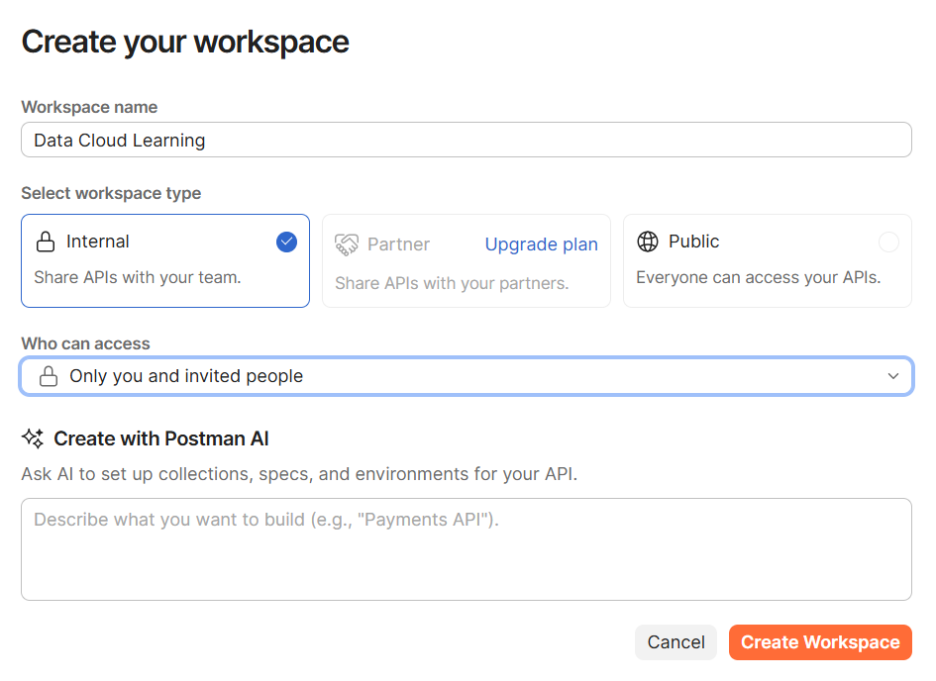
If all set then create a workspace inside the Postman. We need to give a name and here, I have given name for the workspace and saved the changes.
For now I have selected the individual and internal API access. You can also select the same if havn't have any other workspaces to share with.
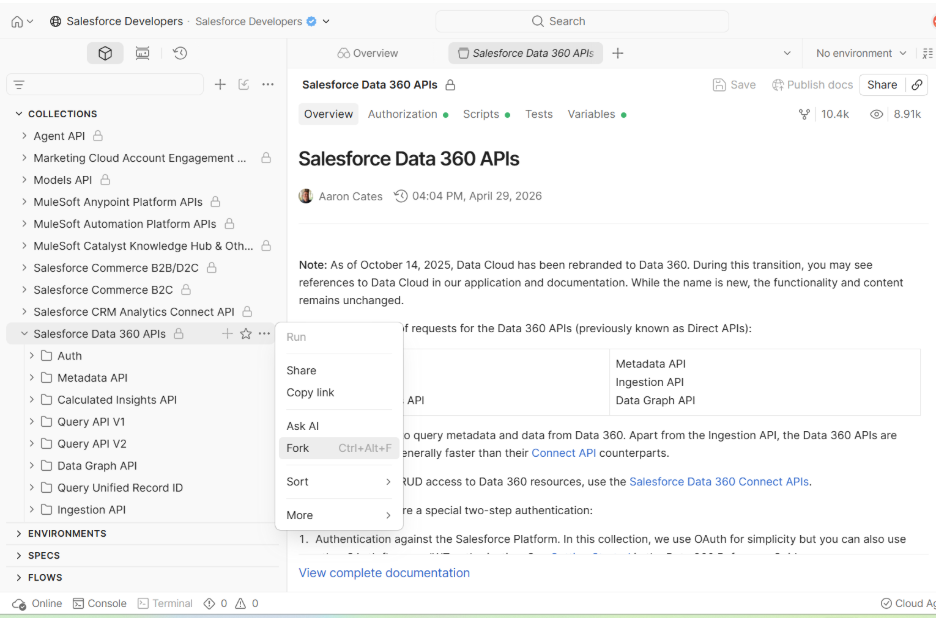
In the Postman web application, at the top most search bar; search for Salesforce API or Salesforce developer. We can see the Salesforce Developer API. From the Salesforce Developer API, I will be selecting Salesforce Data Cloud 360 APIs and created a Fork (Simply a Clone / Copy) out of it.
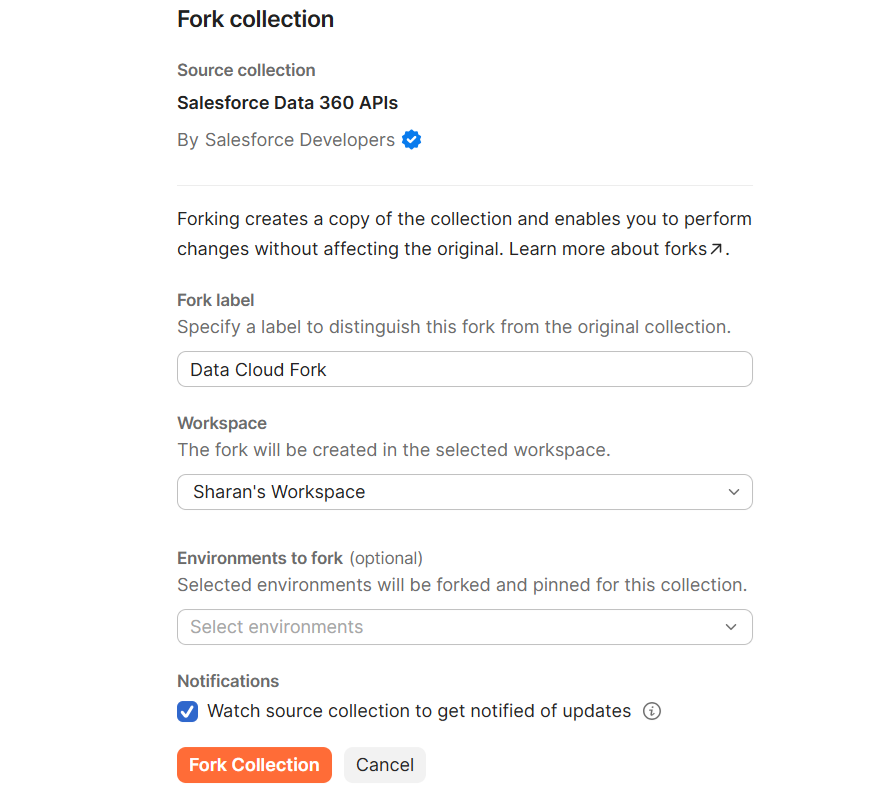
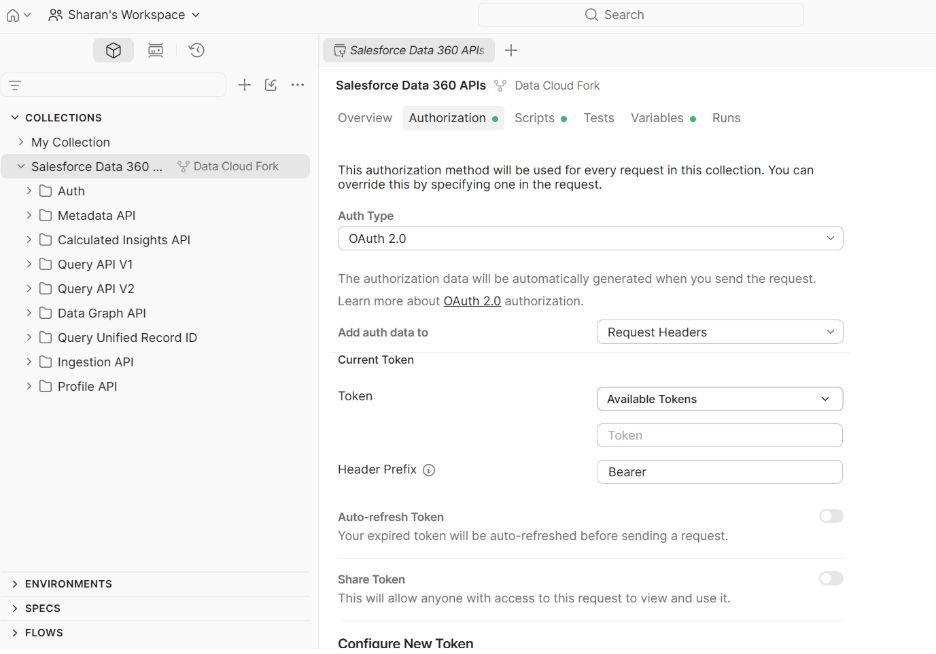
Create a fork collection and click on save. Make sure you have selected the created workspace. In this way, we have created a fork, and we are going to use this fork. Now we can modify the fork and modify the APIs in the fork.
We have not done any authentication from the postman to our data cloud org. This is a two-step authentication process.
First, click on the top salesforce folder and click on authentication.
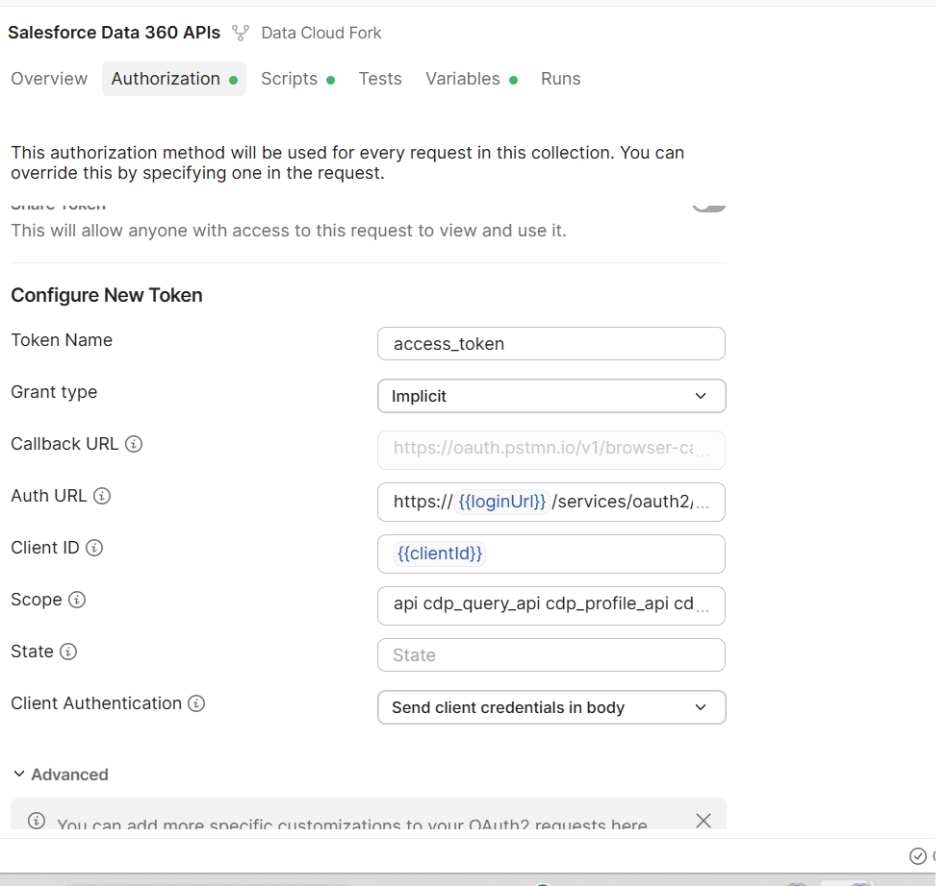
Scroll down and click on get new access token.
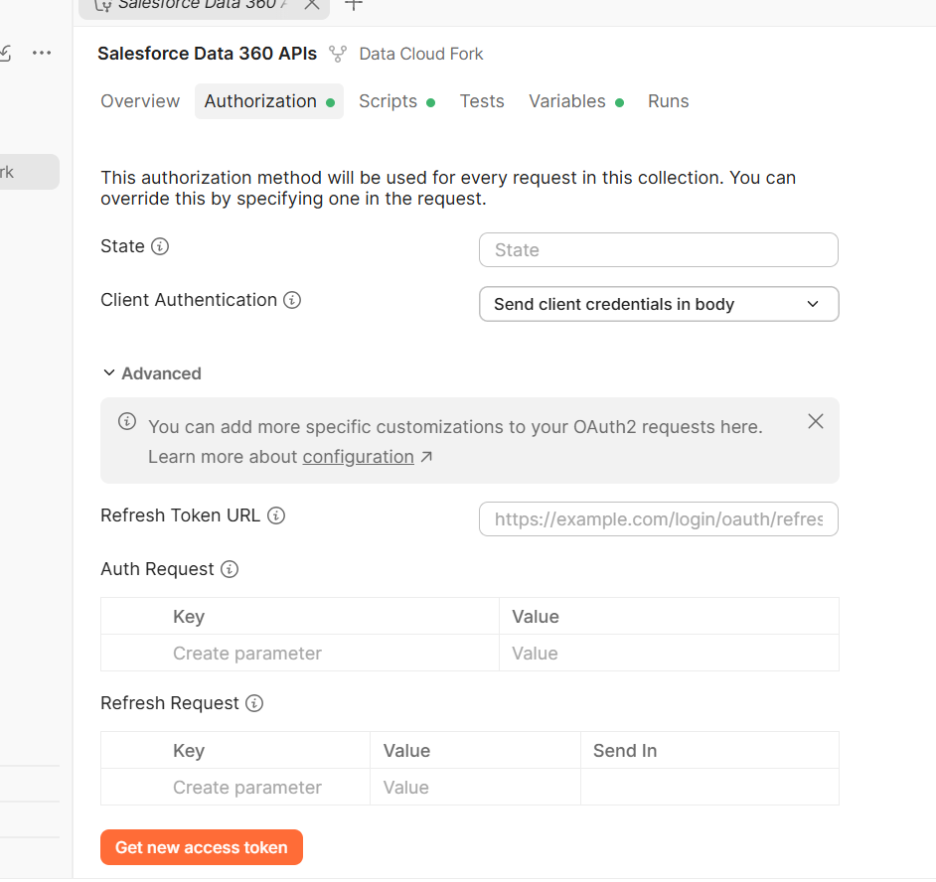
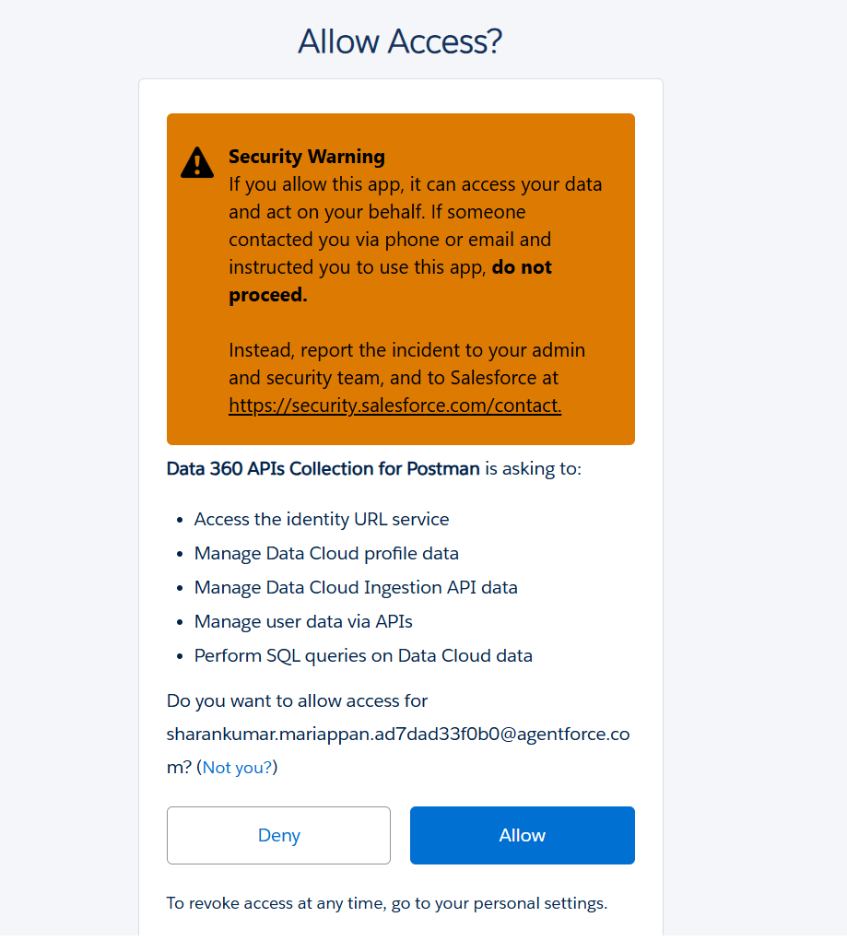
Once you provide an access, you will get an access token. If you get that you can use that token.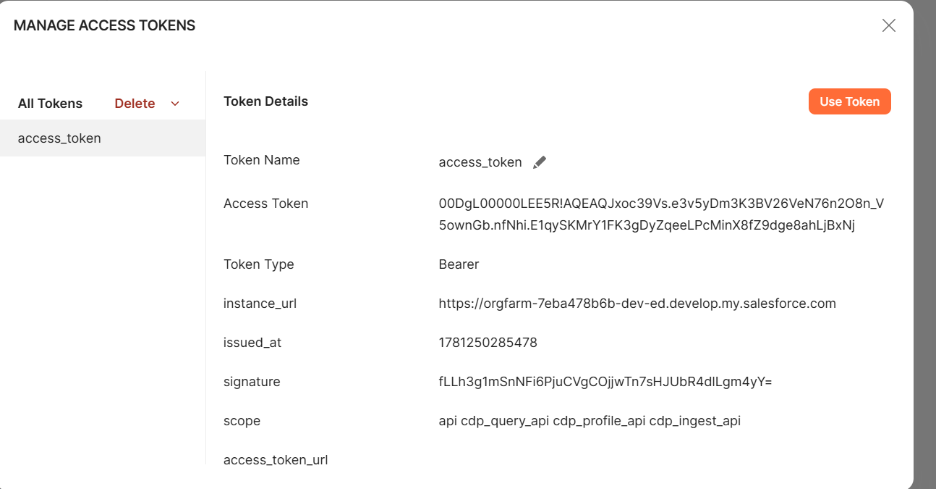
I have clicked to use the use access token and the system is now authenticated.
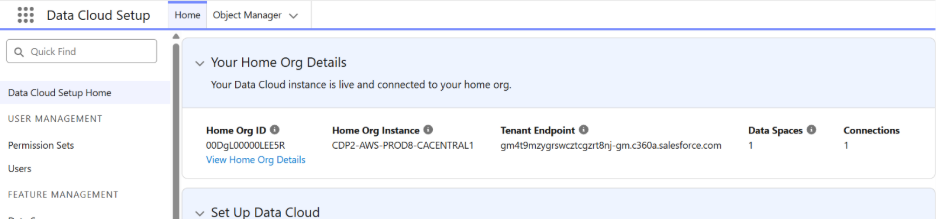
How to check the tenant in the data cloud. Go to the data cloud setup and go to data cloud home page. Now you will see the data cloud tenant endpoint and with that we are going to integrate with the post man. (Note: We are integrating with the tenant)
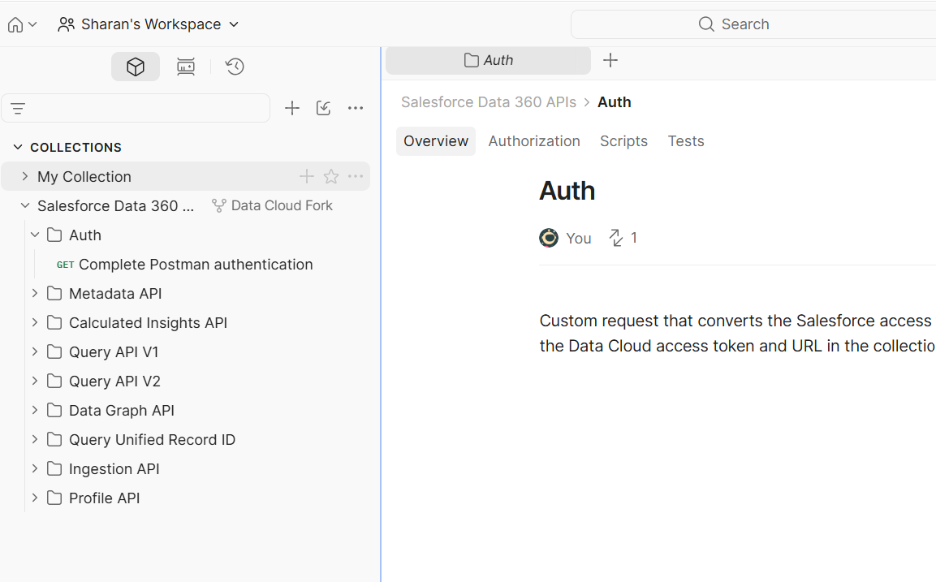
To do integration with the tenant, we need to go to Auth folder.
To complete the authentication, from the auth we need to select complete postman authentication.
From the auth folder select complete postman authentication. Go to script in the auth complete post man authentication part. Click on send.
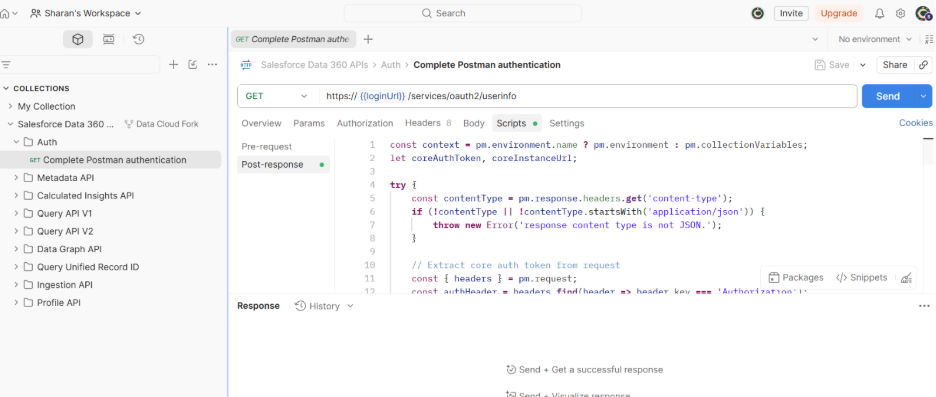
You don’t have to do much thing here, just come to the Complete postman auth section and click on script. Then send the authentication.
If everything is good, then you will be authenticated. Again, If I take you to the parent folder for the validation. You could see the very important thing called the tenant token.
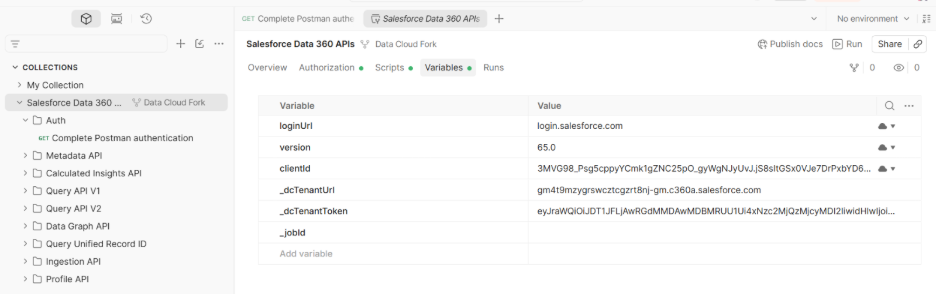
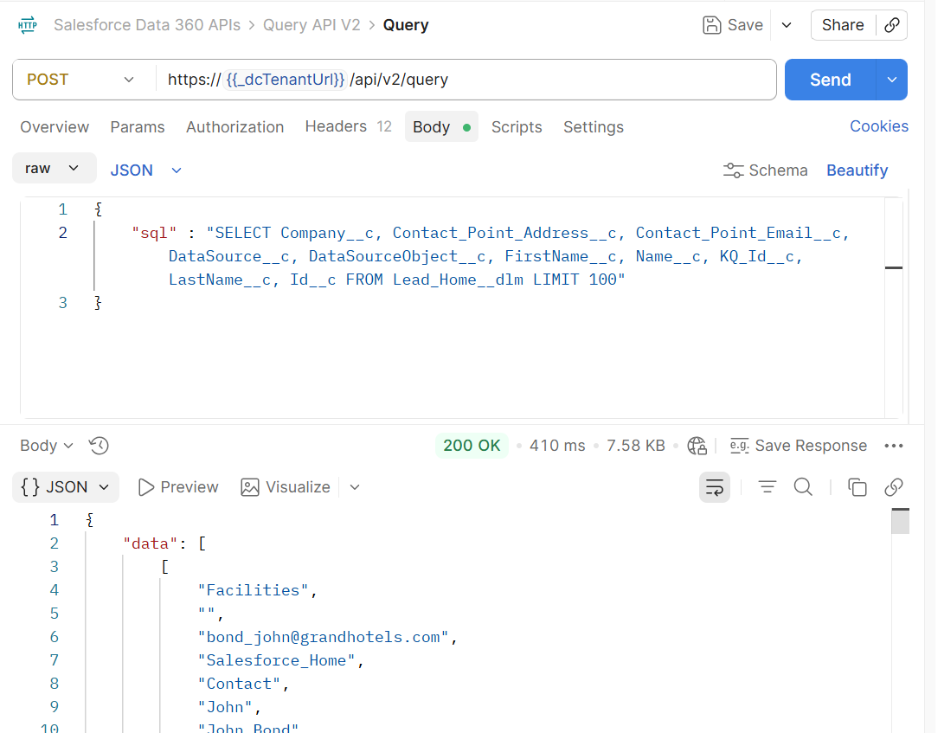
For quick validation, I am navigating to the query API V2 and need to check the query.
Here we are using the post query method, and we can see the tenant URL with which we can see the query.
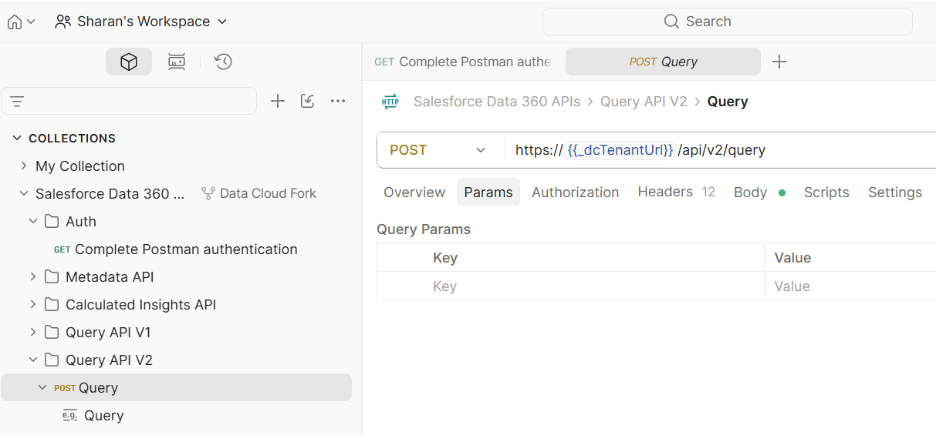
We can see the tenant url with which we can do the integration. The token will be available for a certain time and then the token will expire.
For checking, we can go to data cloud and check for the SQL query and paste the query here and check whether you will be getting the similar response or not?
Here, I have copied the SOQL query from the data explorer and this the screenshot below for your references. 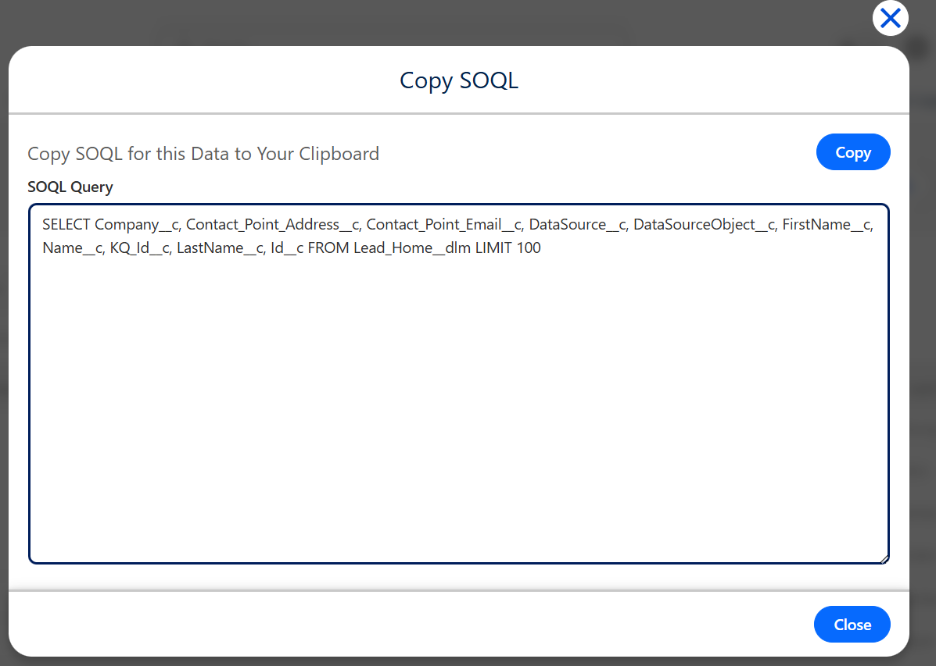
I am replacing the copied code below as shown below.
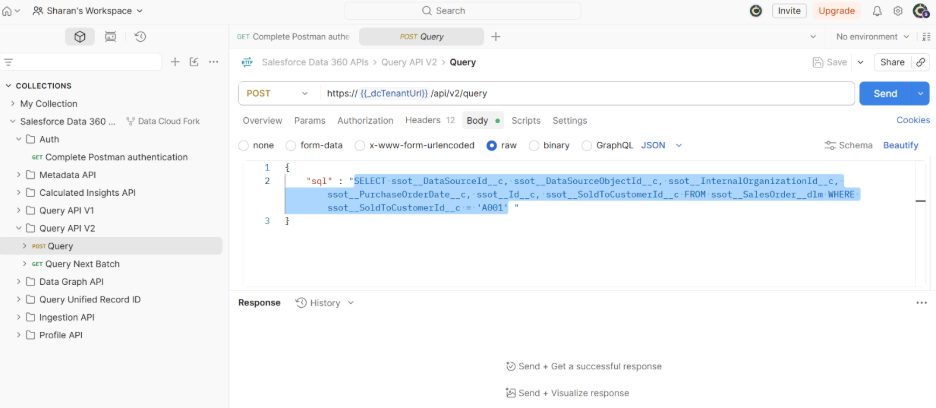
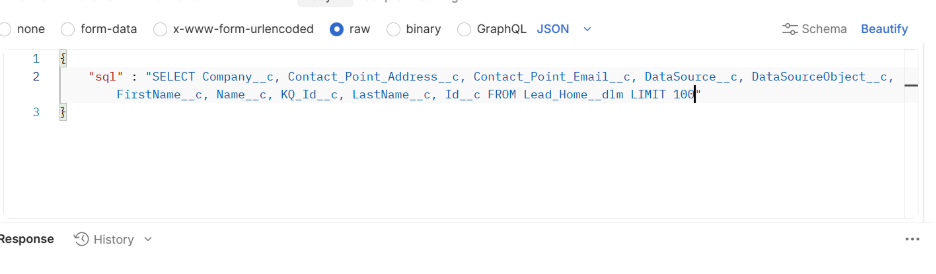
Click on send and now we will see the outputs expected.
Conclusion
I hope this blog helps you to understand, how to integrate salesforce data cloud with postman for testing purpose. Follow us for more updates online.
