
 Book Free Consultation

Create an Email Template in Salesforce Marketing Cloud
This blog describes how to create Email Templates and how it's save time, ensure brand consistency & make it easier to scale campaigns across audiences.
By Surya Vijayakumar
Salesforce Developer
How to Create an Email Template in Salesforce Marketing Cloud
Email templates are one of the most important parts of marketing. What users see in their inbox, and how they feel about it, is all influenced by the template design. It forms the core structure of email marketing. In this blog, we’ll walk through the step-by-step process of creating an email template in Marketing Cloud.
Let’s get started! 🙌
Steps to Create Email Templates
Log in to the Salesforce Marketing Cloud by navigating to the https://mc.s12.exacttarget.com/ link (Salesforce Marketing Cloud URL) in your web browser and follow the steps below.
Step 1: Login Marketing Cloud
- Enter your Marketing Cloud username
- Click Next.
- Enter your Marketing Cloud password.
- Click on the Login button to access the Marketing Cloud dashboard.
- After successful login, you will be directed to the Marketing Cloud dashboard.
Let’s take a Business Scenario,
When a customer purchases Vijayan Polypacks, a thank you confirmation email should be sent. The system must,
- Capture the customer's name.
- Include the product name in the confirmation email.
- Include the purchase date and contact information (e.g., email and/or phone number) in the confirmation email.
Step 2: Create Templates in Content Builder
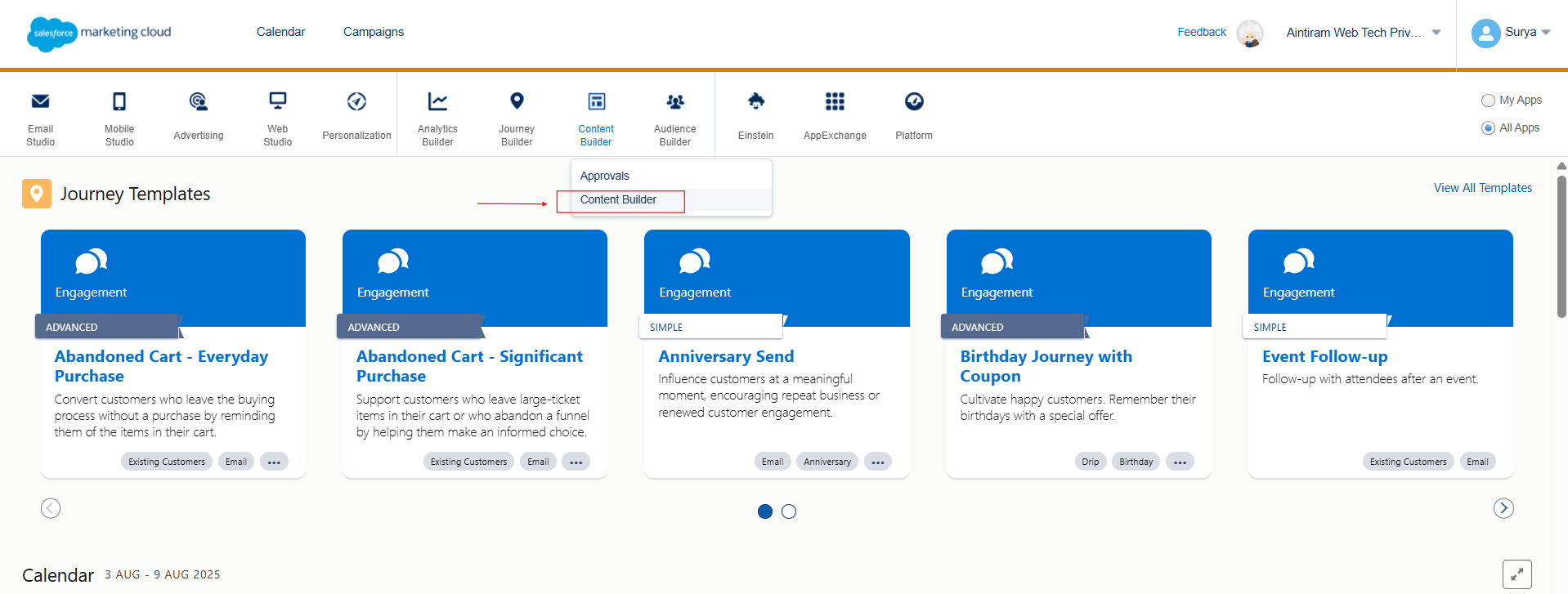
Hover the Content Builder on the dashboard and click the Content Builder
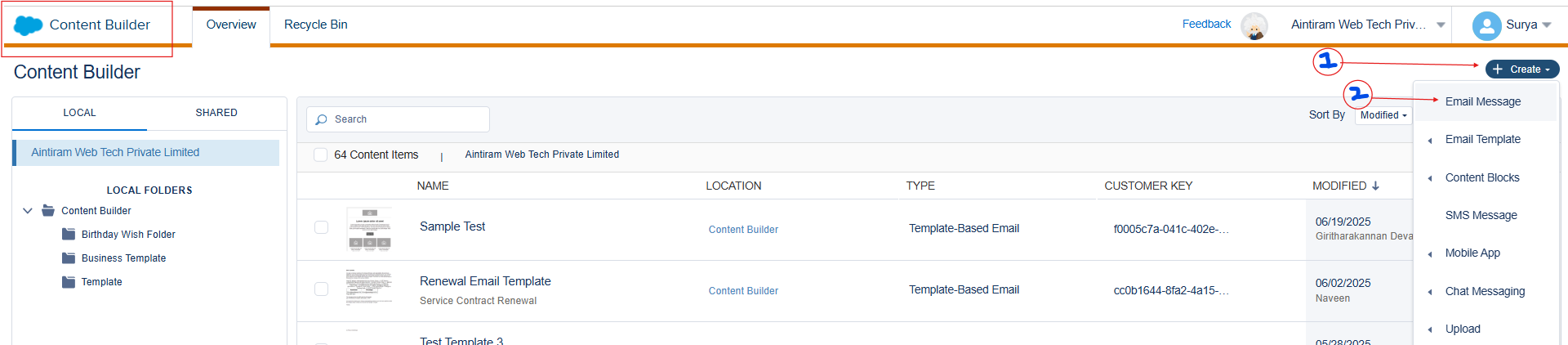
After clicking on Content Builder, click 'Create' to start building a new template
Click the Template once you create an Email
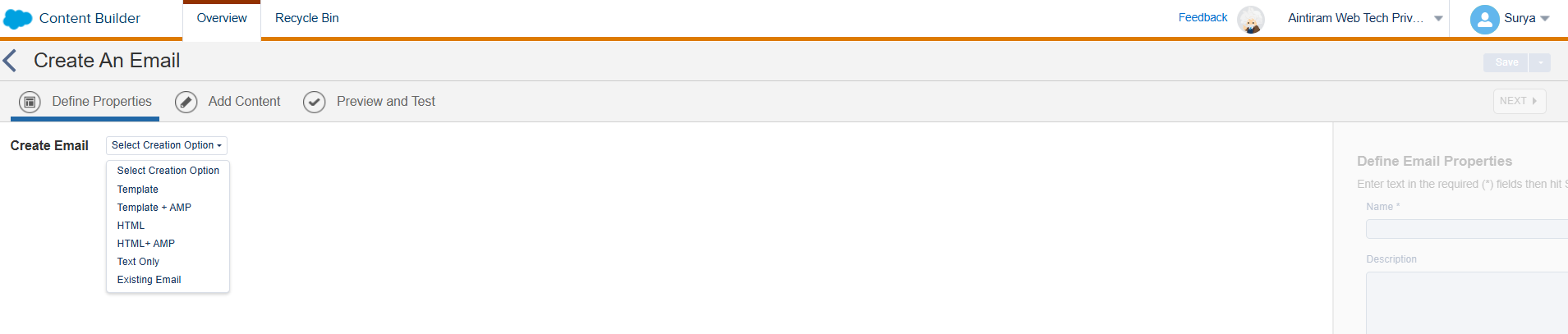
Template: Use a pre-designed template to quickly create an email without starting from scratch.
Template + AMP: creating an email using an AMP (Accelerated Mobile Pages) email template. This allows you to leverage the interactive features of AMP for Email directly within your marketing emails.
HTML: Write or paste your own HTML code to design a fully customized email.
HTML + AMP: Use custom HTML combined with AMP to include interactive elements in your email.
Text Only: Create a plain-text email without any images, design, or formatting. It is the simple communication email or Text version only received.
Existing Email: It is the option of selecting and using a previously created email template or email as the starting point for a new email.
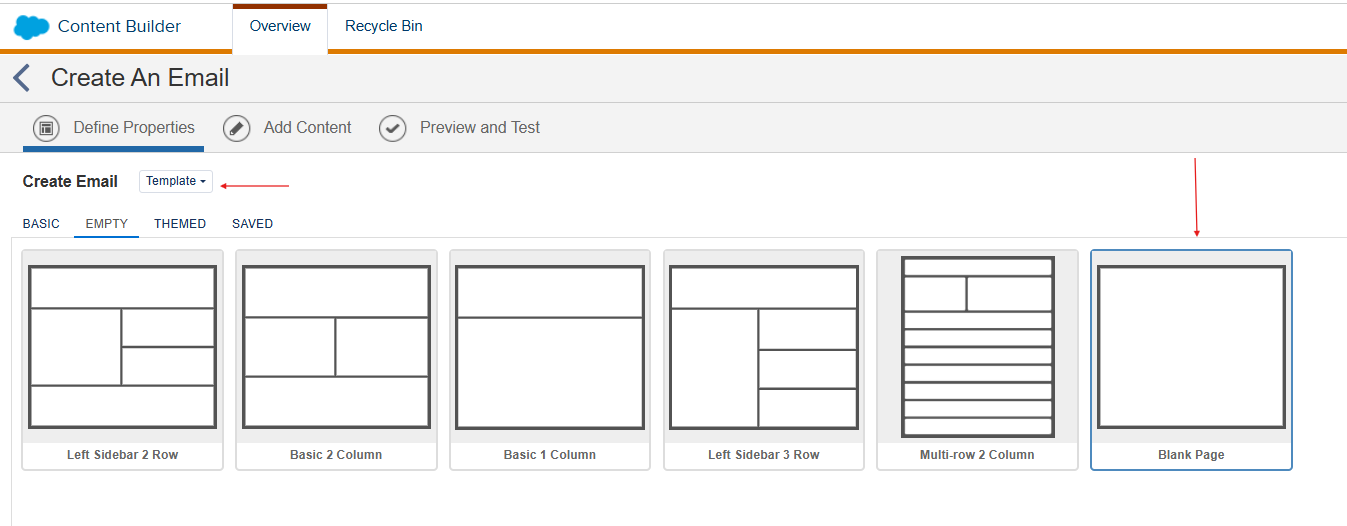
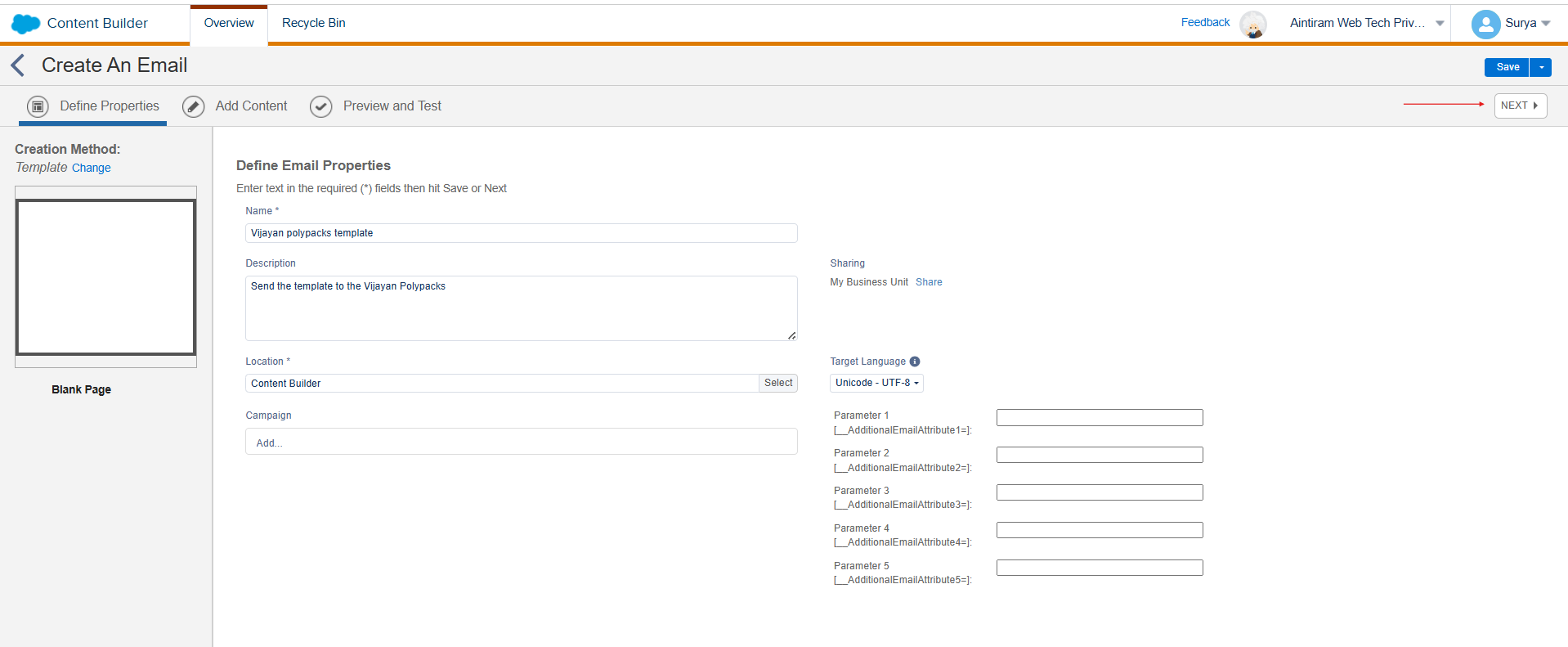
In our case, we select the Template and click the Blank Page.
Fill all the mandatory fields, then click the Next.
Drag and drop the HTML in the drop block.
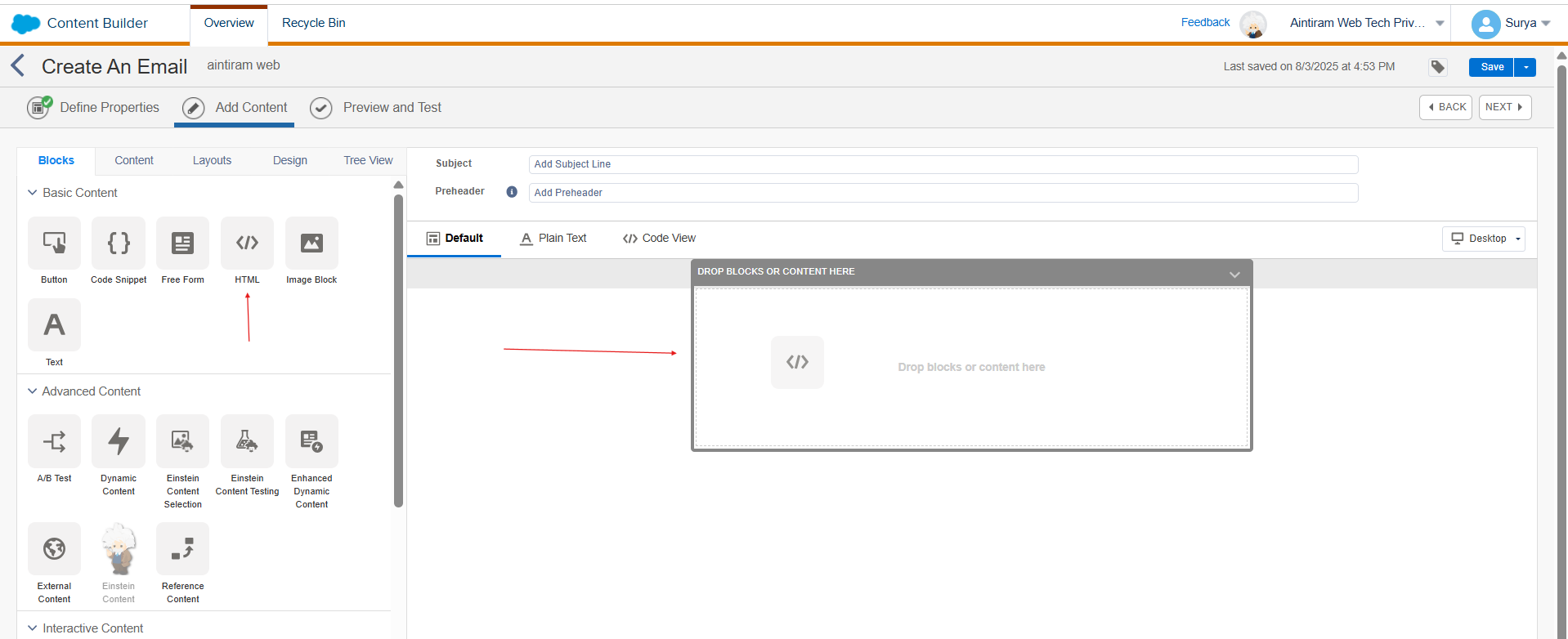
Let’s chill and dive into the functionality of the tab below
Blocks: These are the building elements of your email, like text, images, buttons, or dynamic content. You can drag and drop these blocks into your email to design.
Content: This feature allows you to save and reuse email content components, like pre-designed blocks or entire content sections.
Layouts: Choose from pre-designed layout structures to organize your email, such as one-column or multi-column formats. It helps you arrange your content visually.
Design: Customize of your email, including fonts, colors, and background styles, to match your branding.
Tree View: Provides a hierarchical representation of your email content, making it easier to navigate and manage different blocks and layouts
Let’s make to prepare our code and give the subject line of the template
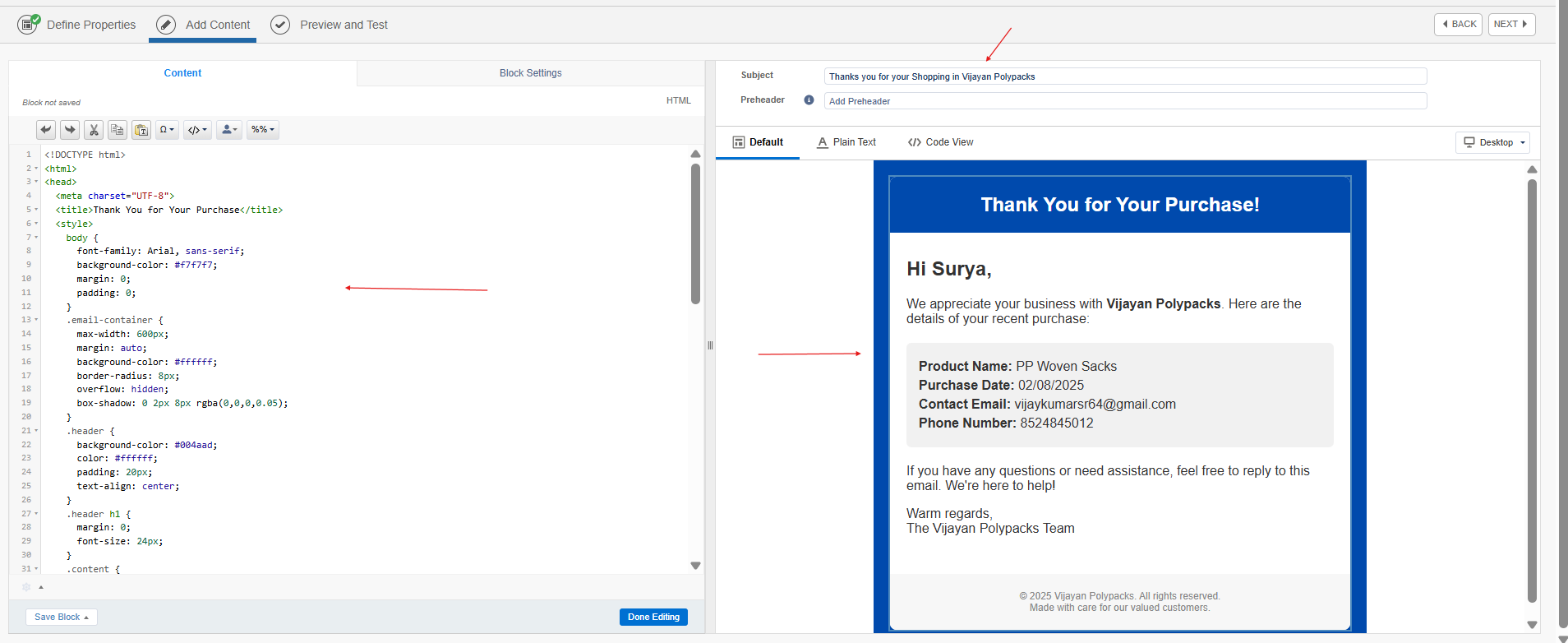
How to dynamically pass the value in the Email Template?
First, select your Data Extension in the Data Source section. Refer to the image below for a detailed step-by-step guide
If you're not sure how to create a Data Extension, refer to our blog for guidance. Once done, you can use your own Data Extension
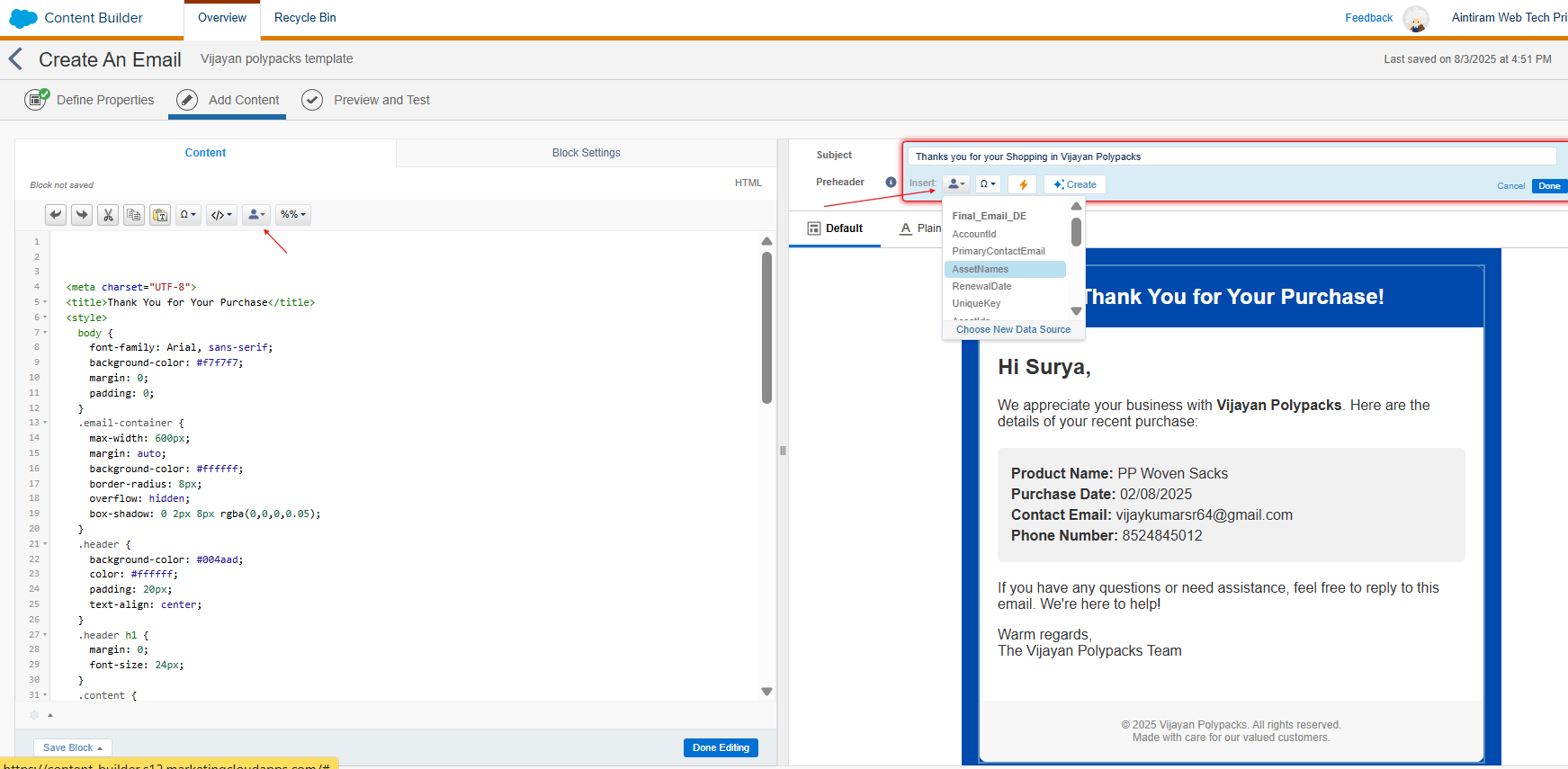
Click Done and Next Button
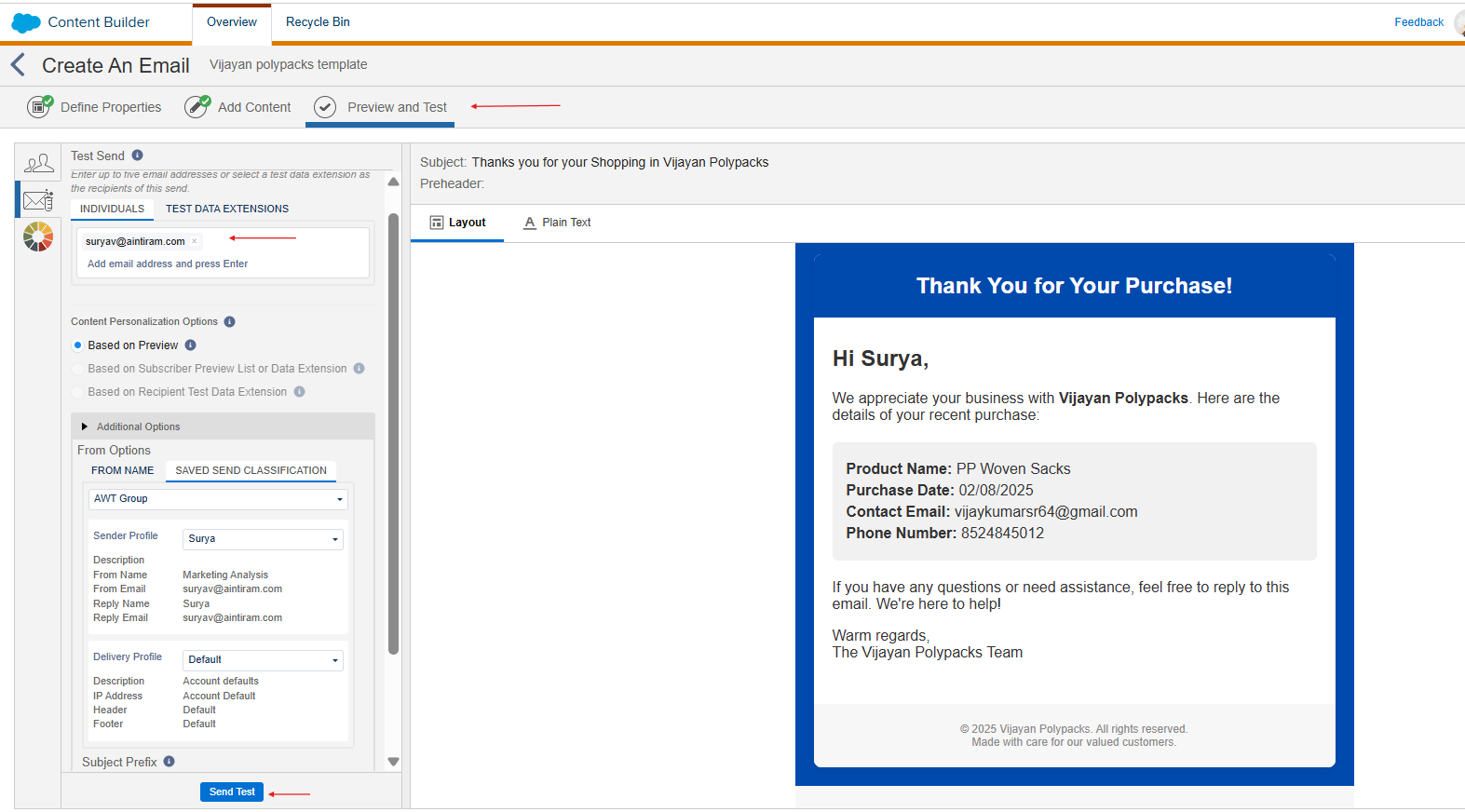
After finalizing your template, Marketing Cloud allows you to test it. If everything looks good on your end, you can confidently send it out to the client.
Conclusion
Email templates in Marketing Cloud Engagement help you send personalized, consistent, and polished messages no matter the scale. Whether it’s a basic confirmation email, templates save you time and keep your branding on point. With tools like Content Builder, AMPscript, and dynamic content, you can build emails that effectively connect with your target audience. Start smart. Design once. Reuse often. That’s the power of email templates in Salesforce Marketing Cloud.
