
 Book Free Consultation

Scale Salesforce testing with Playwright POM
POM streamlines Playwright Salesforce automation, reducing duplication, improving maintainability, adapting to dynamic UI, and scaling reusable test suites.
By Dharmeshwaran Ramasamy
Associate Test Engineer
How Page Object Model Simplifies Salesforce Automation Testing with Playwright
Salesforce Lightning pages are powerful, but they can be challenging to automate. Dynamic components, changing DOM structures, loading spinners, modal dialogs, and seasonal Salesforce releases can make Playwright test scripts fragile when locators and actions are written directly inside spec files.
This blog explains how the Page Object Model helps structure Salesforce automation tests, so they are easier to read, reuse, debug, and maintain. Instead of repeating selectors and browser actions in every test, POM moves page-specific locators, component interactions, and workflows into reusable classes.
With this approach, test files describe the business flow, while page objects handle the implementation details. This separation becomes especially valuable in Salesforce because of the same patterns—modals, lookup fields, combo boxes, buttons, record pages, and toast messages—appear across many objects and workflows.
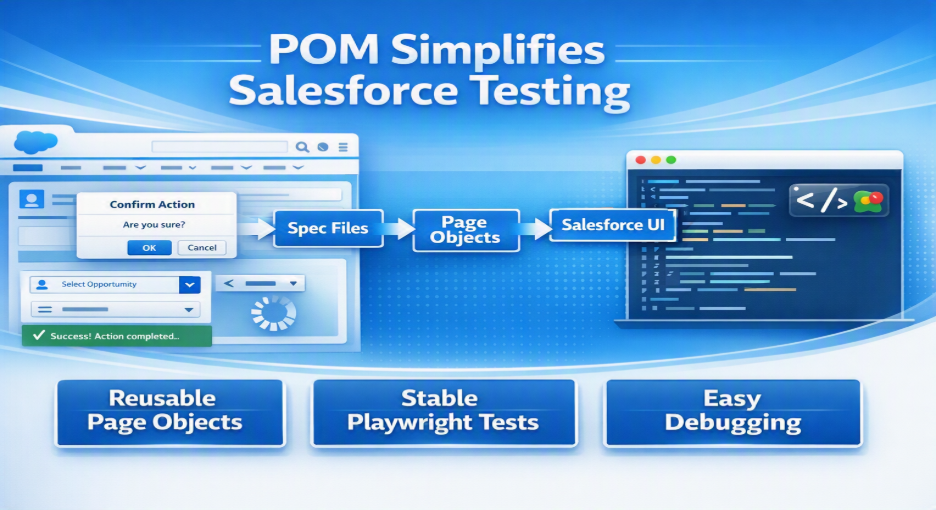
Page Object Model in Playwright for Salesforce
For Salesforce automation, POM protects test logic from Salesforce Lightning’s complex and dynamic DOM structure. It does this by isolating locators, component interactions, and page workflows inside dedicated page and component classes instead of scattering them across spec files.
Instead of hardcoding CSS or XPath locators and browser calls directly inside test scripts, you wrap Salesforce objects and workflows inside dedicated class files. In a Salesforce context, these classes can represent high-level views, such as Account record pages or Opportunity list view page, as well as reusable Lightning components, such as modals, quick action links, buttons, and combo boxes.
Salesforce frequently delivers Spring, Summer, and Winter releases that can change UI elements, add new components, modify auto-generated element IDs such as input-123, or rebuild parts of the DOM tree. Business-driven changes, such as adding a new field or component, can create similar locator updates. With a POM setup, you update the affected locator in one component or page class, and downstream tests continue to use the corrected abstraction.
In short, POM turns fragile Salesforce automation into cleaner, more modular code. For large Playwright suites, it makes tests easier to scale, maintain, and align with Salesforce’s component-based UI.
The following example shows how a Salesforce Account page object can centralize modal handling, field interactions, and form submission logic. Instead of repeating locators in every spec file, the test code can call high-level methods such as navigateToAccountListView, openNewAccountModal, and createAccount.
import {test, expect} from '@playwright/test';

test ('Create Salesforce Account - Inline Script', async ({page }) => {

  // 1. Hardcoded Login Navigation
  await page.goto('https://my-domain.my.salesforce.com');
  await page.getByLabel('Username').fill('admin@company.sandbox');
  await page.getByLabel('Password'). fill('SecurePassword123!');
  await page.getByRole('button', {name: 'Log In' }).click();

  // 2. Direct Navigation to Accounts
  await page.goto('https://my-domain.my.salesforce.com/lightning/o/Account/list');

  // Unhandled asynchronous Salesforce spinner leads to instant runtime failure here!
  await page.getByRole('button', { name: 'New' }).click();

  // 3. Interacting directly with modal controls without scoping or component abstractions
  const modal = page.getByRole('dialog');
  await modal.getByLabel('*Account Name').fill('Acme Corp');

  // Hardcoded combobox sequence directly in the script
  await modal.getByRole('combobox', { name: 'Type'}). click();
  await page.getByRole('option', { name: 'Technology Partner'}). click();
  await modal.getByRole('button', {name: 'Save', exact: true }).click();

  // 4. Inconsistent Toast Assertion
  const toast = page.locator('div.toastElement span.toastMessage');
  await expect(toast).toContainText('Account "Acme Corp" was created.');

});
Page Object Model in Playwright for Salesforce:
A key architectural design pattern that protects your test logic from Salesforce's complex, dynamic DOM structure and component interactions is the Page Object Model (POM).
You wrap Salesforce items and workflows inside specific class files rather than hardcoding CSS/XPath locators, and browser calls directly inside your test scripts. These class files represent both reusable Lightning components (such Modals, Quick actions links, Buttons, and Combo boxes) and high-level views (like Account Record Pages or Opportunity Dashboards) in a Salesforce context.
Salesforce frequently delivers updates (Spring/Summer/Winter releases) Those updates may have UI element changes or add any new element, modifies auto-generated element IDs (such as input-123), due to our business requirement new field or component and rebuilds its DOM tree. A POM setup allows you to update the locator in a single component or page class if an attribute or component structure changes. Without affecting downstream tests, the fix rapidly spreads throughout your whole test suite.
To put it briefly, the POM converts problematic Salesforce automation into durable, clean, and modular code, making large-scale Playwright suites simple to scale, manage, and integrate with Salesforce's unique component architecture.
import { Page, Locator, expect } from '@playwright/test';

export class AccountPage {
  readonly page: Page;
  readonly newAccountBtn: Locator;
  readonly modalDialog: Locator;
  readonly newAccountModalHeading: Locator;
  readonly toastMessage: Locator;
  readonly accountNameInput: Locator;
  readonly typeCombobox: Locator;
  readonly saveBtn: Locator;

  constructor(page: Page) {
    this.page = page;
    this.newAccountBtn = page.getByRole('button', { name: 'New' });
    this.modalDialog = page.locator('div[class="isModal inlinePanel oneRecordActionWrapper"]');
    this.newAccountModalHeading = this.modalDialog.getByRole('heading', { name: 'New Account' });
    this.accountNameInput = this.modalDialog.getByRole('textbox', { name: 'Account Name' });
    this.typeCombobox = this.modalDialog.getByRole('combobox', { name: 'Type' });
    this.saveBtn = this.modalDialog.getByRole('button', { name: 'Save', exact: true });
  }

  async navigateToAccountListView(): Promise<void> {
    await this.page.goto('/lightning/o/Account/list?filterName=Recent');
  }

  async openNewAccountModal(): Promise<void> {
    await this.newAccountBtn.click();
    await this.modalDialog.waitFor({ state: 'visible' });
  }

  async createAccount(accountName: string, accountType?: string): Promise<void> {
    await this.accountNameInput.fill(accountName);

    if (accountType) {
      await this.typeCombobox.click();
      await this.page.getByRole('option', { name: accountType, exact: true }).click();
    }

    await this.saveBtn.click();
  }
}
Before POM: Why Linear Salesforce Test Scripts do not Scale
Before applying POM, the same Salesforce workflow is often written as a long procedural script. Comparing that approach with the page-object version makes the maintenance problem easier to see.
- A common mistake is to copy the same wait logic, locator strategy, and Salesforce UI interaction steps across multiple test cases.
- In Salesforce Lightning, even a simple operation such as creating an account can involve dynamic combo boxes, modal dialogs, Shadow DOM overlays, and asynchronous loading spinners. When testers hardcode raw page.locator() calls and clicks directly inside test files, the result is duplicated code, fragile scripts that break after Salesforce releases, and a high maintenance burden.
- The inline version works for a small demo, but it becomes difficult to maintain once the same login; navigation, modal, and field-handling logic appears across several spec files. The page-object version keeps that repeated behavior in one place.

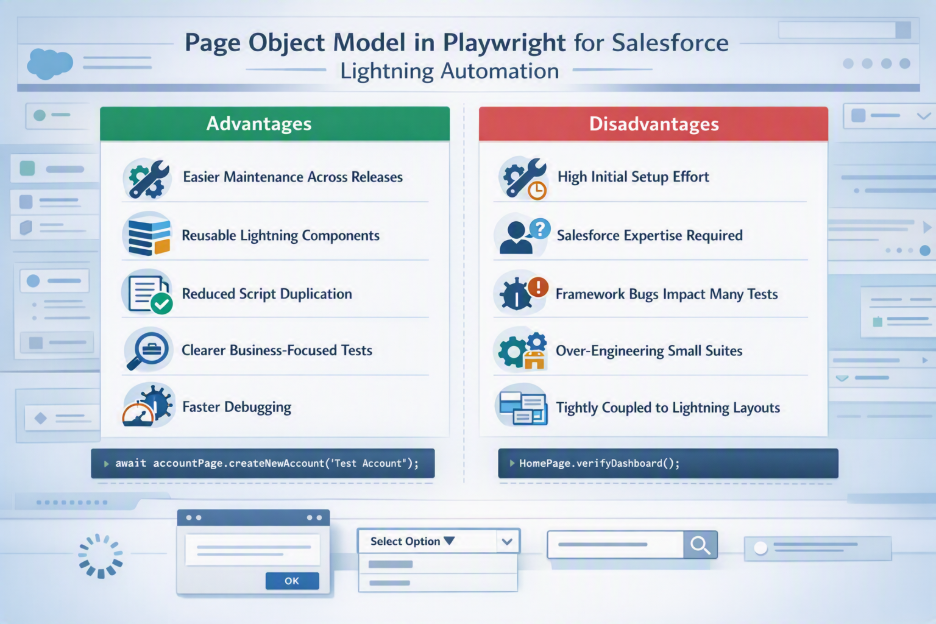
Advantages of POM for Salesforce Automation in Playwright
- Easy Maintenance When Salesforce Changes
- Salesforce updates its UI regularly.
- With POM, you only need to update locators in one place, and all related tests continue to work.
- Better Handling of Dynamic Salesforce Pages
- Salesforce pages load elements dynamically and may show loading spinners.
- POM helps manage waits and loading behavior in one place, making tests more stable and reducing random failures.
- Reusable Components
- Common Salesforce components like lookups, dropdowns, tables, and popups are used across many pages.
- POM lets you create reusable methods instead of writing the same code repeatedly.
- Less Duplicate Code
- Instead of copying the same actions into multiple test files, you write them once in a page object and reuse them everywhere.
- This keeps the framework clean and easier to manage.
- Easier to Read and Debug
- Test scripts focus on business actions rather than technical UI details.
- When a test fails, it's easier to identify whether the issue is with the application, the locator, or the test itself.
Limitation of POM When Applied for Salesforce Pages
High Initial Setup Time & Framework Overhead: Creating a strong Page Object Model (POM) for Salesforce takes time because common Salesforce components like lookups, dropdowns, tables, and popups need to be built and reused before actual test automation can start.
Advanced Salesforce-Specific Skillset Required: Test engineers need more than basic automation skills. They must understand Salesforce-specific concepts such as Lightning Web Components (LWC), Shadow DOM, loading spinners, and how Salesforce pages load dynamically to create reliable and stable tests.
Higher Impact of Framework Bugs: If the Salesforce application has very few customizations or only a small number of test cases, creating Page Objects, component wrappers, and a full framework can add unnecessary complexity and take more time to build.
Too Complex for Small Projects: For orgs with minimal customizations, plain out-of-the-box Salesforce setups, or small test suites (under 20 specs), implementing full POM abstractions, page classes, and component wrappers can introduce unnecessary architectural complexity and slow down initial delivery.
Breaks When Salesforce Layouts Change: If page objects depend heavily on specific page layouts, record types, or custom components, changes made by Salesforce Admins (such as moving fields or updating layouts) can cause many tests to stop working.
Hard to Keep Up with Salesforce UI Changes: Salesforce Lightning pages change dynamically, with elements appearing and disappearing frequently. Strict Page Object designs can be difficult to adapt, requiring extra maintenance and frequent updates when the UI changes.
Implementation framework: recommended structure for Salesforce Playwright POM
Step 1: Create a Project Directory
Create a fresh folder for your Salesforce automation framework (e.g., Salesforce-Playwright-POM).
Step 2: Open Directory in VS Code
Open VS Code, navigate to File > Open Folder, and select your newly created project folder.
Step 3: Open Terminal
In VS Code, click Terminal > New Terminal to open your integrated command-line interface.
Step 4: Initialize Playwright with TypeScript
Run the setup command to initialize Playwright:
npm init playwright@latest When prompted, select TypeScript as your language and accept default choices for test directories.
Upon completion, Playwright automatically generates:
tests/: Directory containing test specs.
playwright.config.ts: Global test execution configuration.
package.json: Dependency tracking and execution scripts.
.gitignore: Git exclusion parameters.
Step 5: Install Playwright Browsers
Download the required browser binaries:
npx playwright installStep 6: Create Salesforce POM Folder Structure
To separate Salesforce page logic, reusable Lightning components, and environment setup, create a dedicated folder structure like this:
salesforce-pom/
├── components/          # Reusable SF components (modals, lookups, comboboxes)
├── pages/               # Domain-specific pages (AccountPage, OpportunityPage)
├── utils/               # SF helpers (auth state, API setup, record generation)
├── tests/               # Playwright spec files (.spec.ts)
└── auth/                # Storage state file for bypassing MFA/login screens
Step 7: Configure playwright.config.ts for Salesforce
Update your configuration file to manage base URLs, extended timeouts, and auth storage states suited for Salesforce's heavy JavaScript environment:
import { defineConfig, devices } from '@playwright/test';

export default defineConfig({
  testDir: './tests',
  timeout: 60000,
  expect: { timeout: 10000 },
  use: {
    baseURL: 'https://your-domain.my.salesforce.com',
    trace: 'on-first-retry',
    screenshot: 'only-on-failure',
    storageState: 'auth/user.json',
  },
  projects: [
    {
      name: 'chromium',
      use: { ...devices['Desktop Chrome'] },
    },
  ],
});
Step 8: Build Base Component & Page Classes
Create your foundational class abstractions to manage base Salesforce behaviors like handling lightning-spinner states before executing spec logic:
components/modal.component.ts: Encapsulates standard [role="dialog"] logic.
pages/AccountPage.ts: Defines account creation workflows using component helpers.
tests/account-creation.spec.ts: Executes high-level business tests using imported page objects.
When to use the Page Object Model in Playwright for Salesforce
You don't need a POM for every test. If you're:
- Running a quick proof of concept (POC)
- Testing a single API endpoint
- Creating a simple demo or video recording
- Writing a few temporary smoke tests
then a simple Playwright script is usually enough. Setting up page objects in these cases may take more time than it's worth.
POM becomes useful when the same Salesforce pages, fields, popups, or components are used in multiple tests.
Use POM When:
Your Test Suite Is Growing
Once you have more than 5–6 test cases, POM helps avoid repeating the same locators and actions in different tests.
It makes tests easier to maintain.
Salesforce UI Changes Frequently
Salesforce releases updates regularly, and admins may also change page layouts.
With POM, you only need to update one page object instead of fixing every test.
Multiple Team Members Work on Automation
Developers, QA engineers, and Salesforce admins can reuse existing page objects.
This keeps the framework organized and consistent.
You Have Complex Business Processes
Workflows such as Opportunity approvals, CPQ, quoting, or multi-step business processes become easier to manage with reusable page methods.
You Work with Dynamic Lightning Components
Salesforce Lightning pages often load elements dynamically.
POM helps handle waits, loaders, and complex components in one place, reducing flaky tests.
Simple Rule of Thumb
If the same locator or UI action appears in more than one test file, move it into a Page Object.
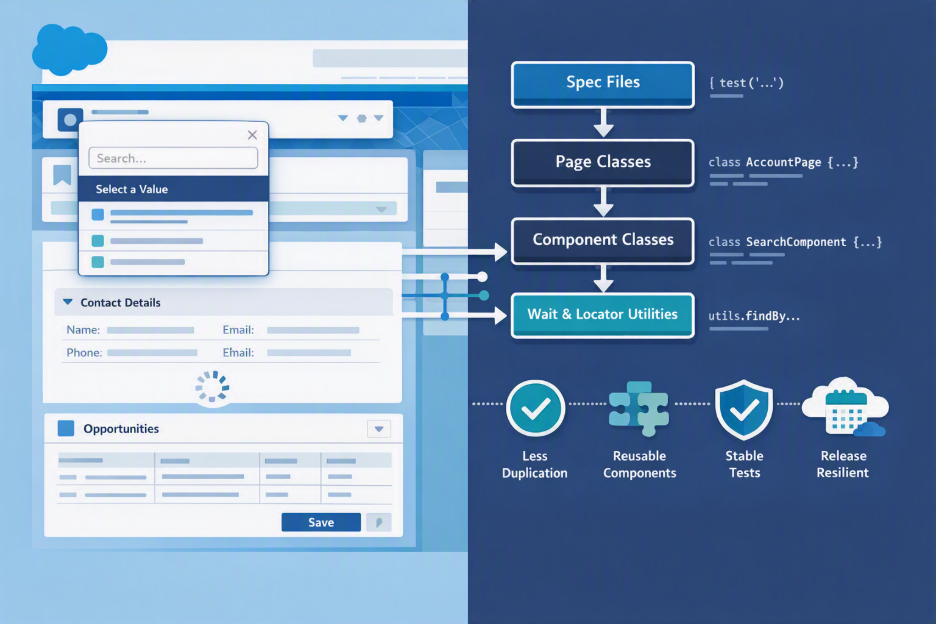
Salesforce Lightning tests can be difficult to maintain when the same locators, actions, and wait conditions are repeated across multiple test files. The Page Object Model (POM) helps by keeping test scripts clean and moving reusable UI interactions into page classes.
For small demos or a few simple tests, using regular Playwright scripts is often enough. But as the automation suite grows, POM makes tests easier to maintain, update, and understand.
In short, POM helps reduce duplicate code, improve test reliability, and simplify updates when Salesforce UI changes. It is a useful approach for building scalable and maintainable Salesforce automation frameworks with Playwright.
