
 Book Free Consultation

Handling Salesforce Visualforce Iframes with Playwright.
Learn how to reliably handle Salesforce Visualforce and nested iframes using Playwright with a practical Custom Labels pagination example.
By Dharmeshwaran Ramasamy
Associate Test Engineer
Many Salesforce pages render their primary content inside Visualforce iframes. These iframes may be loaded dynamically, replaced during navigation, or remain in the DOM after new content has been loaded. As a result, automation that relies on a single iframe reference can become unreliable.
This blog explains a reliable Playwright pattern for working with Salesforce iframes. The approach focuses on dynamically locating the active iframe, validating it against expected page content, and refreshing the frame reference whenever navigation occurs. Although the examples use Custom Labels pagination, the same pattern can be applied to any Salesforce page that uses Visualforce iframes.
Understand Salesforce Iframe Behaviour
Several Salesforce pages render the primary interaction area in a Visualforce iframe. Examples include CPQ quote line editing, product selection, Custom Labels, and Remote Site Settings. These frames may be dynamic, duplicated, or replaced during navigation. Tests that depend on a fixed frame selector or a previously captured Frame object can become unreliable when the iframe lifecycle changes.
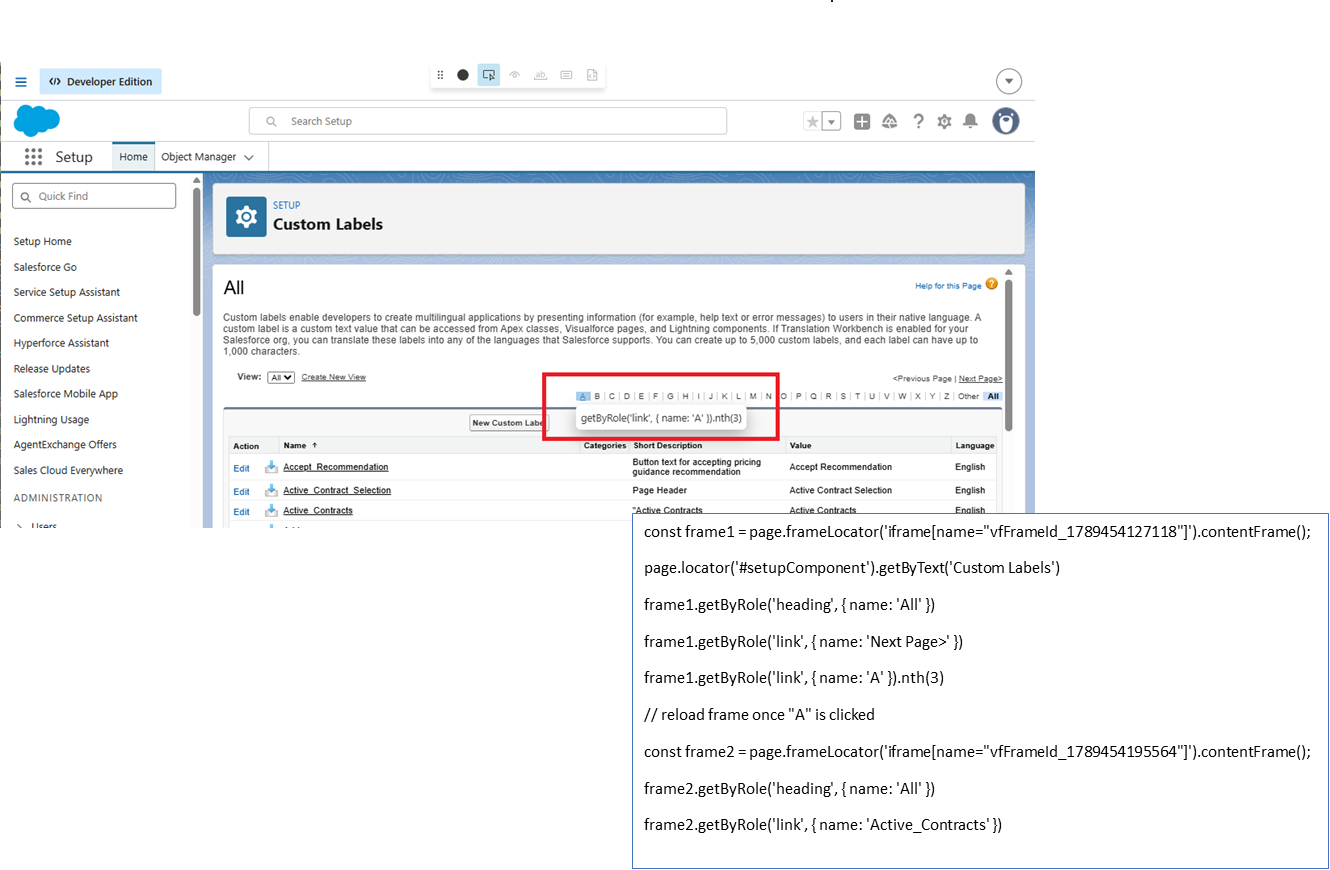
Account for the following iframe behaviours when designing Playwright automation:
The frame ID is dynamic - Salesforce generates the Visualforce iframe name or ID at runtime, so hardcoding a selector such as a fixed frame name may work in one session and fail in the next.
Old frames can remain in the DOM - When you move between Setup pages, Salesforce may leave an earlier iframe attached but inactive while adding a newer one. A generic locator or index-based lookup can accidentally target that stale frame instead of the active content.
The frame may be replaced after navigation - Actions that look like simple in-frame clicks, such as selecting “Next Page,” can cause Salesforce to swap the entire iframe element. Any Frame object captured before the click may then point to detached content, even though the new page is visible in the browser.
For this reason, a simple page.frameLocator('iframe').first() approach may work in a small demonstration but fail in a production test suite. A more reliable solution is to locate the current Visualforce iframe each time, confirm that it contains the expected page, and avoid reusing stale frame references.
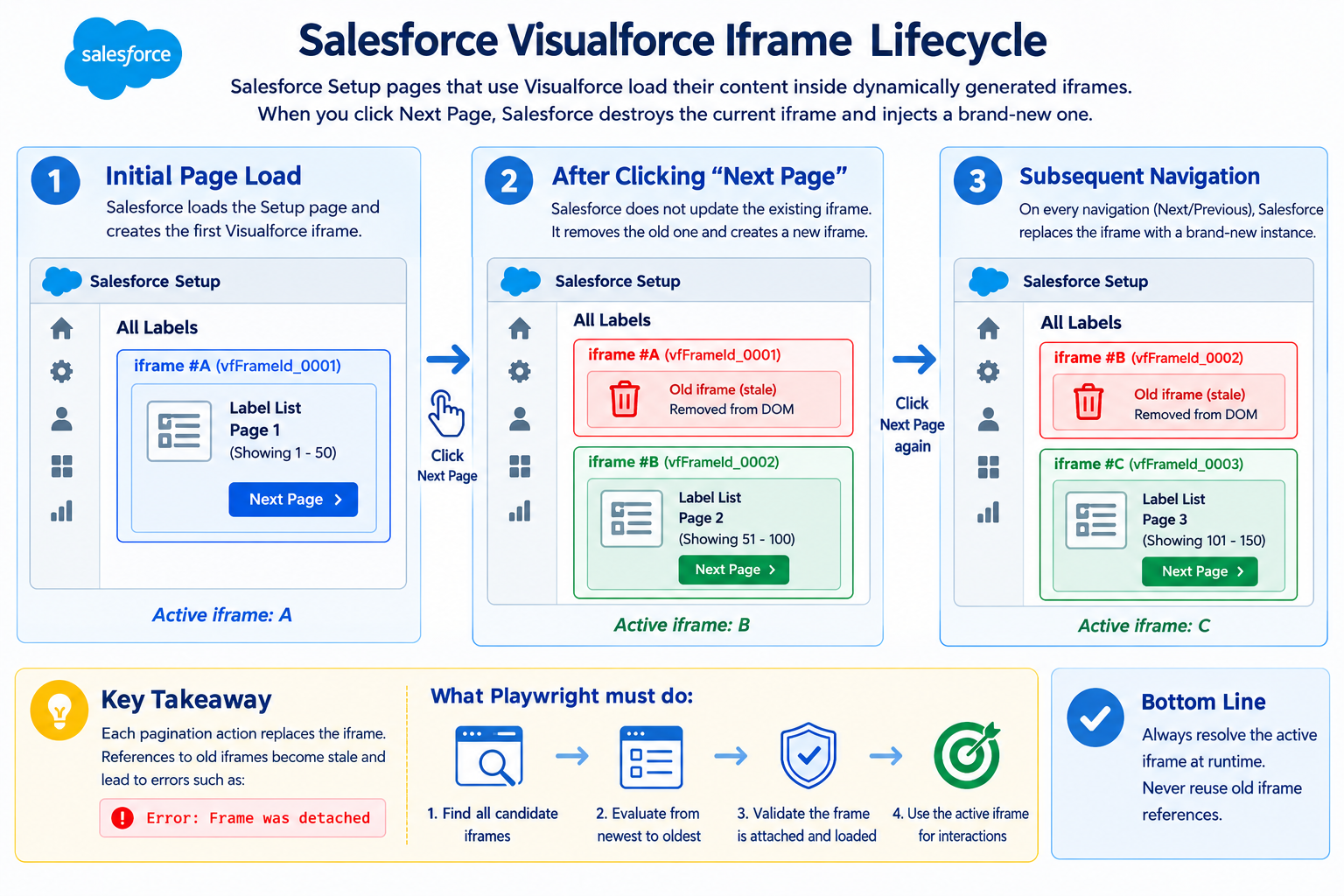
Resolve the Active Iframe at Runtime
Use the following runtime resolution pattern instead of capturing an iframe once and reusing the same reference:
Use the selector iframe[name^="vfFrameId_"] to find all the Visualforce iframes.
Begin with the most recent iframe since Salesforce typically adds new frames at the end.
For every iframe, obtain its contentFrame(). Then check if the iframe includes an element which confirms that you are on the right page, for example a heading or a specific label.
If the iframe in question is not the right one, then go on to the next iframe and carry out this process once more until the required iframe has become available, as it may take a while to load.
Salesforce has the capability to dynamically refresh or replace the Visualforce iframes when navigation takes place, during pagination, or as part of a page update. In such a case, the original iframe is taken out of the DOM and a new iframe is created. Any Playwright Frame, ElementHandle, or locator which was directed at the old iframe then becomes invalid.
Consequently, actions such as contentFrame(), locator(), or element interactions might result in errors such as "Frame was detached" or "Execution context was destroyed". In order to deal with this safely, the helper incorporates a try/catch block when evaluating the candidate iframes; if an iframe is detached during the execution, the helper leaves that iframe out and keeps on looking for a valid active frame rather than stopping immediately.
static async getIFrame(page: Page, requiredLocator?: string): Promise<Frame> {
  return await WaitUtil.poll<Frame>(
    async (): Promise<Frame | null> => {
      const iframeLocator = page.locator('iframe[name^="vfFrameId_"]');
      const iframeCount = await iframeLocator.count();
      if (iframeCount === 0) {
        return null;
      }

      // Check newest frames first
      for (let i = iframeCount - 1; i >= 0; i--) {
        try {
          const iframeElement = iframeLocator.nth(i);

          await iframeElement.waitFor({
            state: 'attached',
            timeout: 5000,
          });

          const iframeHandle = await iframeElement.elementHandle();
          if (!iframeHandle) continue;

          const frame = await iframeHandle.contentFrame();
          if (!frame) continue;

          await frame
            .waitForLoadState('domcontentloaded')
            .catch(() => {});

          if (requiredLocator) {
            const count = await frame
              .locator(requiredLocator)
              .count()
              .catch(() => 0);

            if (count === 0) {
              continue; // Not the expected frame
            }
          }

          return frame;
        } catch {
          // Frame may have been replaced or detached.
          // Ignore the error and continue checking.
          continue;
        }
      }
      return null;
    },
    15000, // total timeout
    500,   // polling interval
    'No active iframe found'
  );
}
The helper searches all Visualforce iframes, checks the newest frames first, validates the expected page content, and returns the active iframe. By combining polling, iframe validation, and error handling, it provides a reliable way to work with dynamically changing Salesforce pages.
Handling Pagination Inside the Iframe
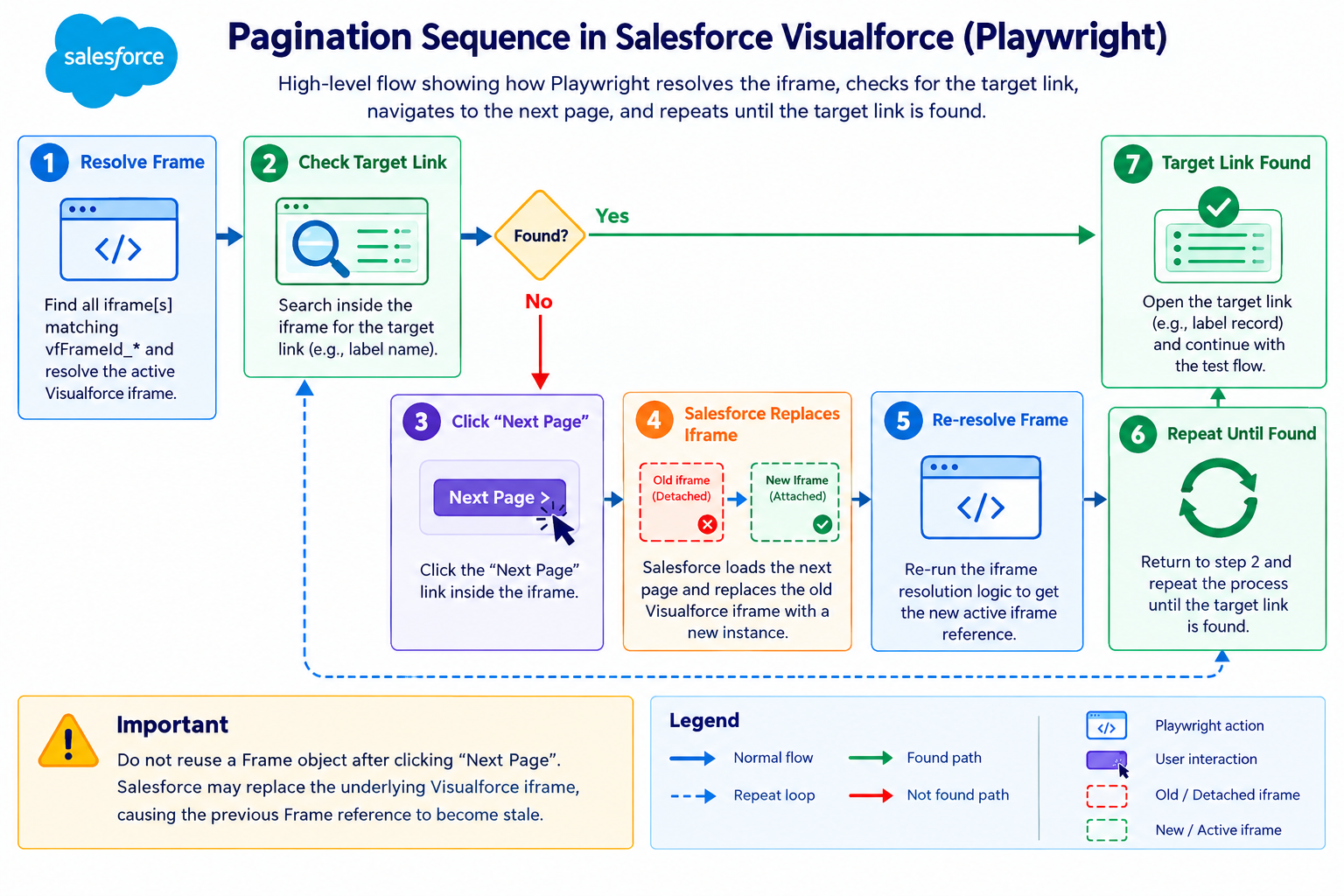
After each pagination action, resolve the iframe again before performing the next lookup or click. Do not continue using a Frame object captured before navigation.
let searchAtFrame = await WaitUtil.getIFrame(page, 'h1:has-text ("ALL Labels")');

while (!(await searchAtFrame.getByRole('link', {name: targetLabel }).isVisible())) {
  await expect(searchAtFrame.getByRole('link', {name: 'Next Page>' }).first()).toBeVisible();
  await searchAtFrame.getByRole('link', {name: 'Next Page>' }).first().click();
  // Re-resolve the frame after navigation to avoid stale references
  searchAtFrame = await WaitUtil.getIFrame(page, 'h1:has-text ("ALL Labels")');
}
await searchAtFrame.getByRole('link', { name: targetLabel }).click();
Re-resolving the frame is required because Salesforce can replace the iframe element during pagination. When replacement occurs, the previous Frame object refers to detached content. Subsequent Playwright queries should target the newly resolved frame.
The pagination loop should terminate under one of the following conditions:
The target link becomes visible - The loop exits, and the test opens the target link.
The “Next Page” link is no longer available - The expect(...).toBeVisible() assertion fails with a clear error rather than allowing the loop to continue indefinitely.
Improving Reliability and Maintainability
To make your tests more reliable, follow these tips:
Avoid using isVisible() right after changing pages The page content may still be loading, so the check can return false even when the element appears a moment later. Wait briefly for the page to finish loading before checking.
Set a limit on pagination If you're searching through multiple pages, use a maxPages limit. This prevents endless loops and gives a clearer error message if the expected item is not found.
Add useful logging If the iframe cannot be found, log the reason. For example, record whether no Visualforce iframe was found or whether none of the available iframes contained the expected element. This makes debugging easier when a test fails.
Make the helper reusable Instead of creating separate scripts for different Salesforce pages, pass the required heading and link name as parameters. This allows the same helper to work across multiple pages and scenarios.
Use test.step() to split your test into smaller steps. For example, create separate steps for opening the page, moving through pages, opening a record, making changes, and saving. This makes it easier to find where a test failed in the Playwright report.
Don't assume the iframe stays the same throughout the test. Always find the current iframe, verify you're on the right page, and re-resolve it after navigation. Doing this can prevent many flaky test failures.
