
 Book Free Consultation

How to Enable SLDS 2 in Salesforce
In my previous blog I explained what SLDS 2 is and how it differs from SLDS 1. Now it's time to get hands-on.
By Jayaprakash Thangavel
Senior UI/UX Developer
How to Enable SLDS 2 in Salesforce
Step-by-step guide you for a activate SLDS 2 in your org, setting your brand's primary color, and you get a modern Salesforce UI that actually looks good and clean.
Why SLDS 2 Matters
In my previous blog I explained clearly what is SLDS 2 and how it differs from SLDS 1. Now it's time to get hands-on. By the end of this blog, your Salesforce org will look completely different with your company's brand color applied across every button, link, and component. No CSS overrides, no manual hex codes. Just a few clicks inside Salesforce Setup.
Haven't read the SLDS 1 vs SLDS 2 comparison yet? Start there first it makes every step in this guide much clearer.
Related Blog: SLDS1 vs SLDS2 - What Changed and How to Use It Right Way
Step 1 — Activate SLDS 2
How to Enable SLDS 2 in Your Salesforce Org
SLDS 2 isn't enabled by default in every Salesforce org. You need to activate it from Salesforce Setup.
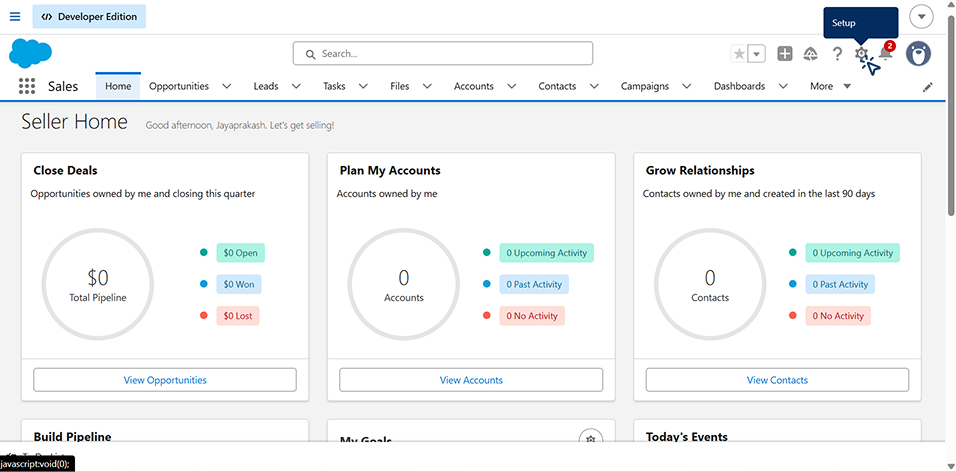
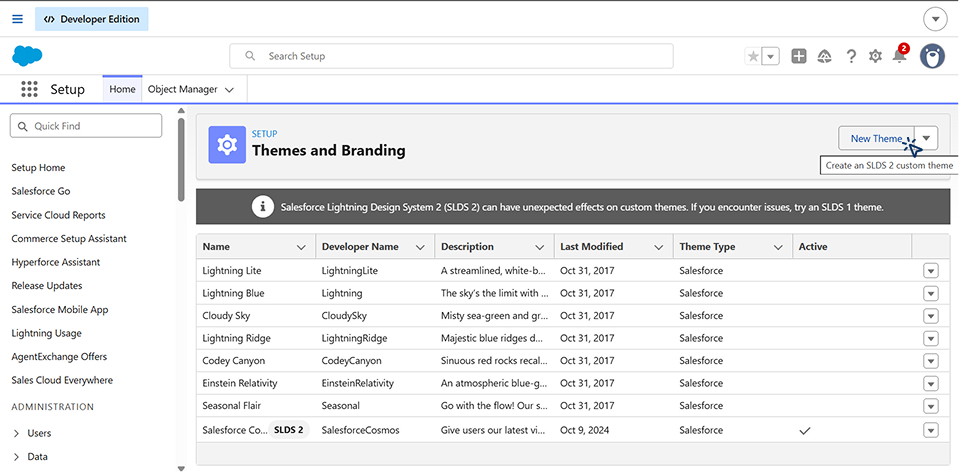
After logging in to your Salesforce org: Click the Gear icon.
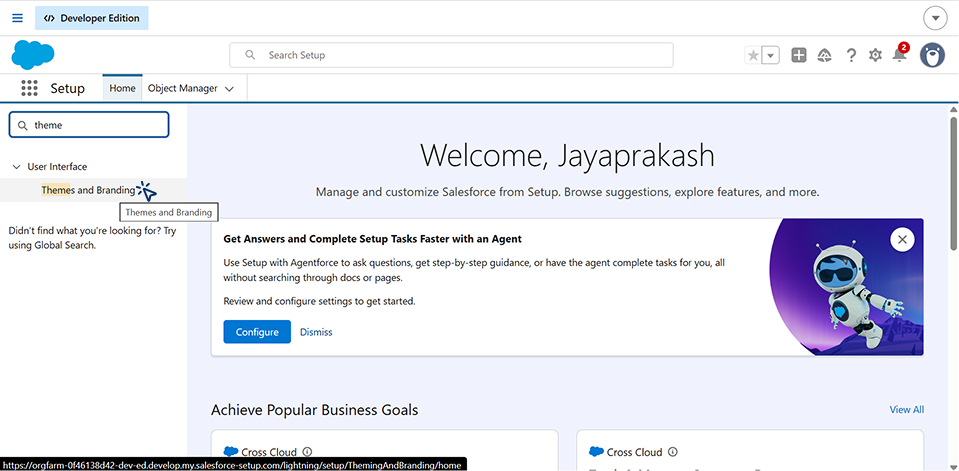
Open the Themes and Branding page.
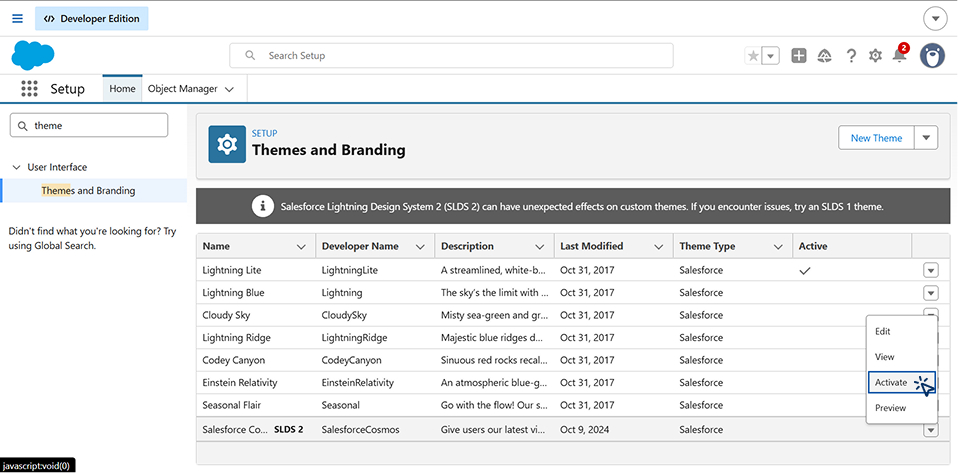
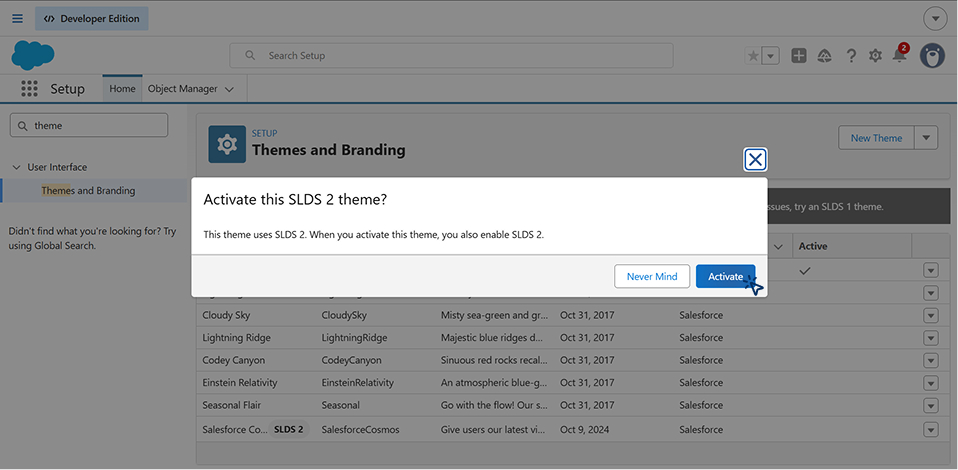
Select the Salesforce Cosmos theme and click Activate.
Step 2 — Create a Custom Theme
Set Your Brand's Primary Color
Click the New Theme button in the top-right corner to create a custom SLDS 2 theme.
What Happens Automatically:
Enter your brand color in the Brand Color field. SLDS 2 is automatically generates accent shades, hover states, focus rings, and link colors based on that single color.
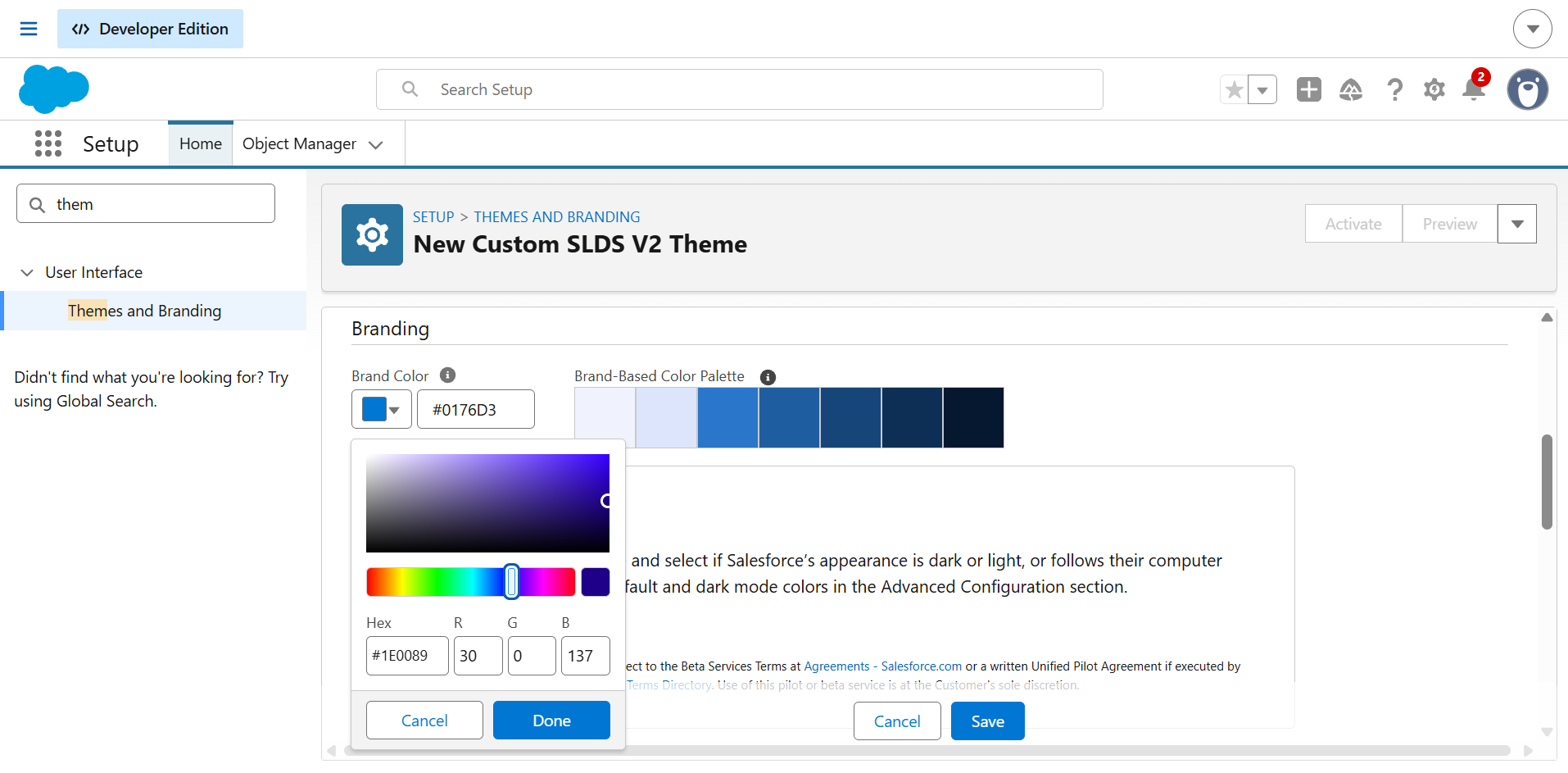
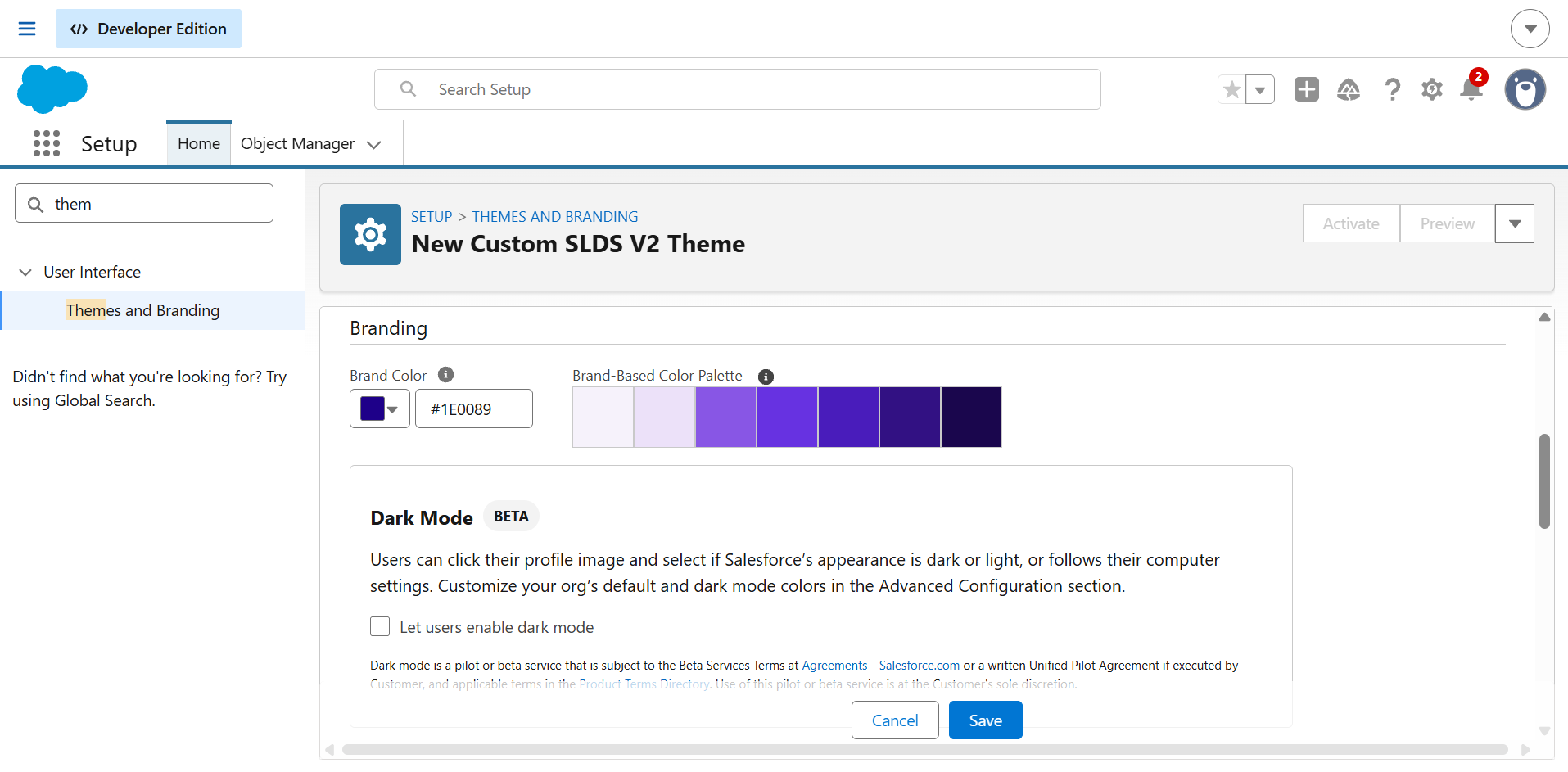
You don't need define each color manually. Once you enter your primary brand color, SLDS 2 generates a complete color system while maintaining accessibility and visual consistency.
Step 3 — Publish and Preview
Publish the Theme to Your Org
Before publishing the SLDS 2 theme:
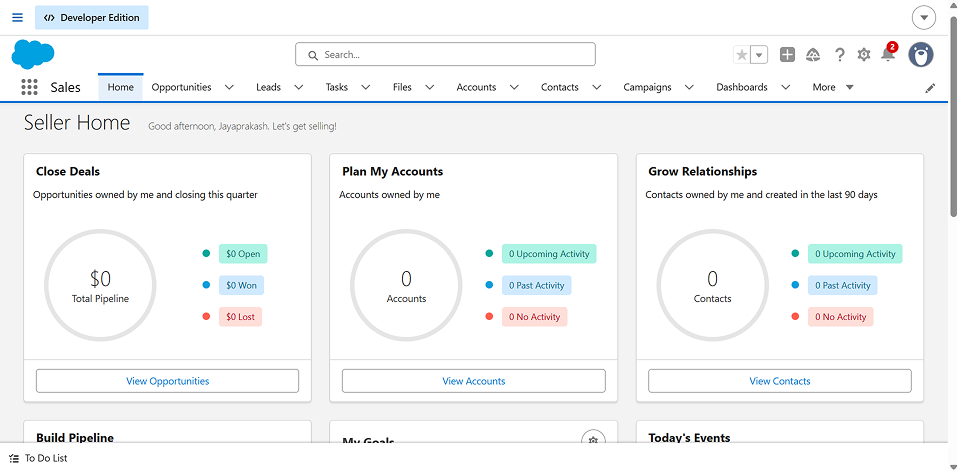
After publishing the SLDS 2 theme:
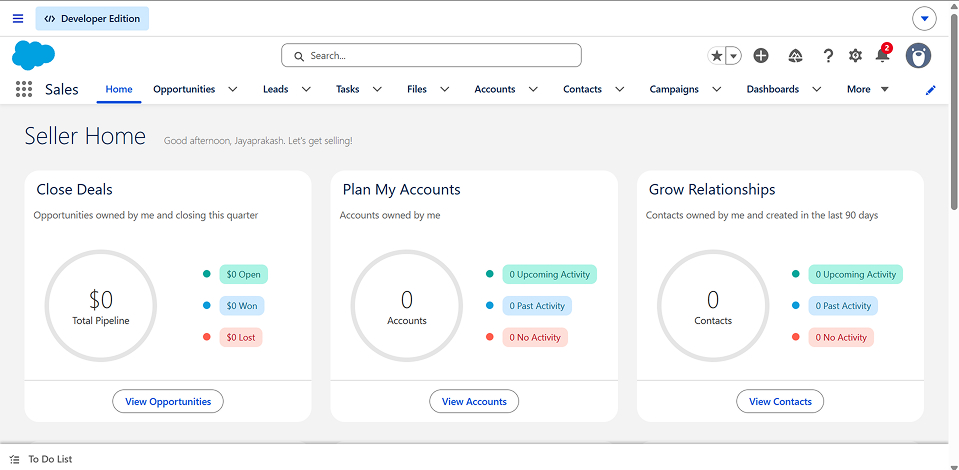
Your Salesforce org now has a modern & cleaner interface with your brand colors applied consistently across the experience.
Conclusion
SLDS 2 is one of the quickest ways to modernize salesforce experience without rewriting existing components.
After activating cosmos theme and configuring a custom theme color, Salesforce automatically applies your branding theme across standard lightning components while maintaining consistency and accessibility.
If you are starting new salesforce project, consider adopting slds2 from the start. for existing project, test the theme in a sandbox before deploying it to production to ensure your branding appears correctly across all pages.
By making few configuration changes, you can create a modern and brand consistent salesforce experience.
