
 Book Free Consultation

Bypass Passkey Salesforce Authentication
Bypass Passkey Salesforce Authentication to login Salesforce in Multiple devices.
By Abishek Kumar
Asst. Software Developer
Bypass Passkey Salesforce Authentication
Introduction
Salesforce Passkeys provide a phishing-resistant authentication mechanism that strengthens account security. Unlike traditional username and password authentication, passkeys use device-based cryptographic credentials to verify the user's identity.
When a passkey is registered, it is associated with the specific device on which it was created. During subsequent logins, Salesforce verifies the passkey from the registered device. As a result, even if an attacker obtains a user's username and password through phishing or other means, they cannot access the Salesforce account without the registered passkey on the trusted device.
Although passkeys are designed to provide secure, device-bound authentication, Salesforce offers legitimate methods for users to access their accounts from a different device when necessary.
How to Use Salesforce on Multiple Devices with Passkey Authentication
Method 1: Temporary Verification Code
Salesforce recently introduced the ability to generate a temporary verification code from a trusted device. This one-time code can be used to authenticate and sign in from another device without permanently registering a new passkey.
Steps to Generate a Temporary Verification Code
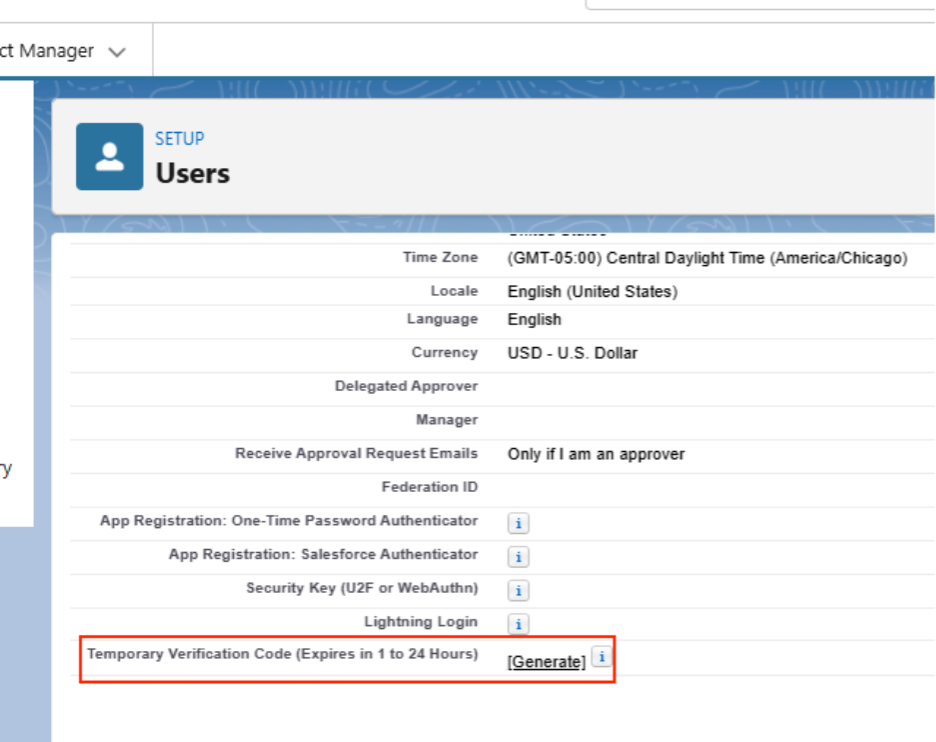
Step 1 : Go to the User record and click the Generate link next to Temporary Verification Code (expires in 1 to 24 hours).
Step 2 : Specify the number of hours for which the verification code should remain valid.

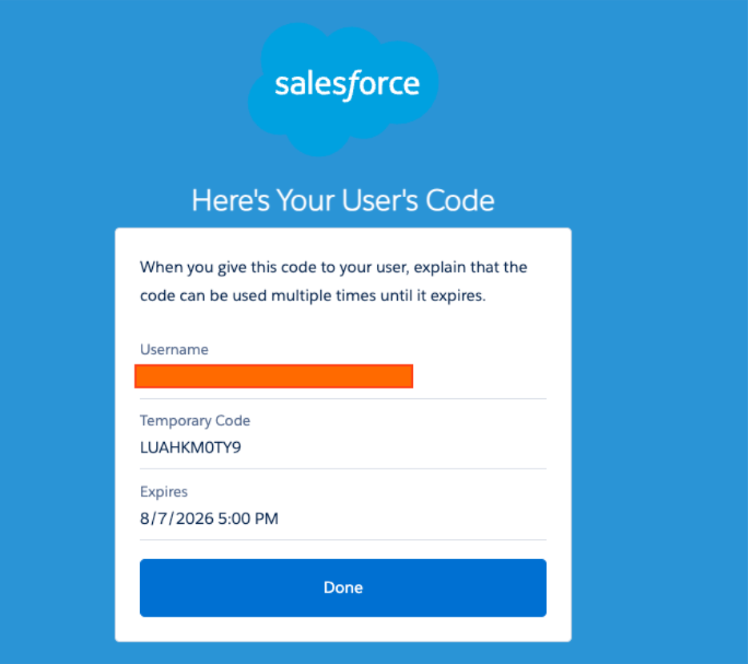
This is one method of bypassing passkeys.
Method 2: Salesforce CLI Authentication
Users can also authenticate through Salesforce CLI using supported authentication methods such as login tokens or web-based OAuth flows. This enables secure access for development and automation scenarios without requiring a passkey on the local machine, depending on the organization's authentication and security policies.
These options provide flexibility for legitimate users while maintaining the strong security benefits of passkey-based authentication.
To verify whether the same Salesforce user can register and use passkeys from multiple devices, perform the following steps.
Steps to Perform
Device 1: Log in using the Salesforce username and password.
Device 1: When prompted, register a passkey. Verify that login is successful.
Device 1: Authenticate in VS Code.
Device 1: Confirm that the existing session on the original device remains active.
Remove/Delete the Built-In Authentication (refer to the steps 2.1).
Device 2: Log in using the Salesforce username and password.
Device 2: When prompted, register a passkey. Verify that login is successful.
Device 2: Authenticate in VS Code.
The user can now open the org using Salesforce CLI on both devices (refer to the steps 2.2).
2.1 Remove the Built-In Authentication
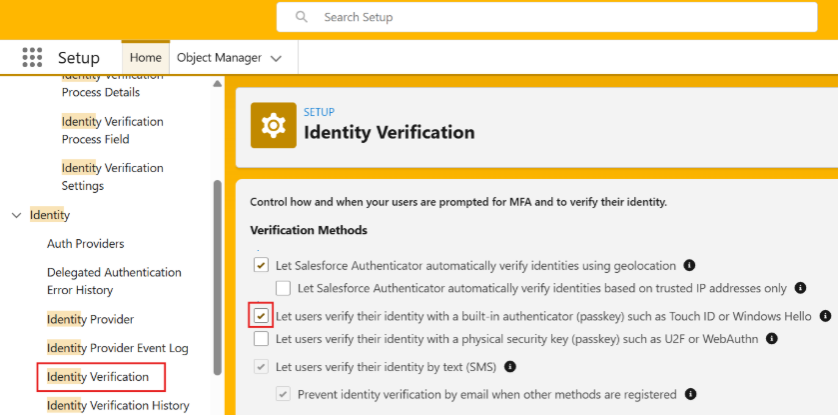
Navigate to: Setup → Identity → Identity Verification
Enable "Let users verify their identity with a built-in authenticator such as Touch ID or Windows Hello."
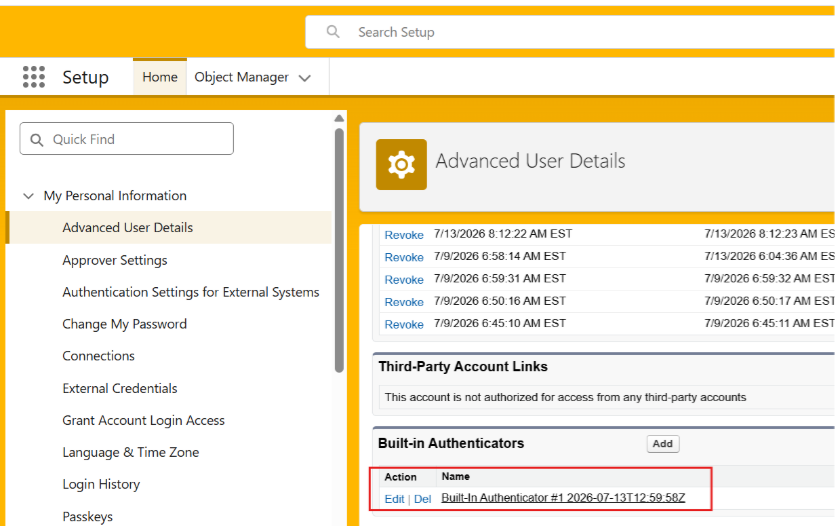
Next, navigate to: User → Settings → Advanced User Details → Built-in Authenticators
Delete the Built-in Authenticator.
2.2 Open the Org Using Salesforce CLI
Run the following command in Command Prompt or Terminal:
sf open org -o "Alias name"
For example, if the org authorized in Visual Studio Code is UATOrg,
run sf open org -o UATOrg
The above command opens the Salesforce org directly in the browser without asking the user to log in again.
Conclusion
By following the appropriate authentication and device management approaches, organizations can maintain strong security while providing flexibility for users who need to work across multiple trusted devices. The recommended approach is to use these supported methods based on the organization's security policies and access requirements rather than attempting to bypass Salesforce's authentication controls. Secure your identity, access with confidence!
