
 Book Free Consultation

Unleashing the Power of AI in Service Cloud
Discover how Einstein Generative AI transforms Salesforce Service Cloud with smart automation, personalized support, and intelligent case management.
By Kishore Selvakumar
Salesforce Developer
Unleashing the Power of AI in Service Cloud
Welcome to the world of smarter customer engagement with AI in Salesforce Service Cloud! In this blog, you'll explore how Einstein Generative AI, the first of its kind for CRM, is transforming service operations through automation, personalization, and intelligent insights. From provisioning Data Cloud to activating AI tools like Einstein Bots, Case Classification, and Reply Recommendations, we’ll walk through everything you need to unleash AI-powered excellence in your organization. Whether you're just starting or optimizing an existing setup, this guide is packed with practical steps to boost your customer experience. So buckle up and dive into the future of service.
How to enable AI in Salesforce Service Cloud
Einstein AI is the world’s first Generative AI for CRM, introduced by Salesforce. It offers many features to improve business sales, including the ability to generate personalized emails, provide services to customers and clarify their queries, suggest products to buyers, and write a description for your product.
We can only enable the Einstein Generative AI in Unlimited Edition. I hope this feature will be live on the developer edition soon.
Follow the steps to enable Einstein.
- Before enabling Einstein, ensure that Data Cloud is provisioned and enabled in your org. Data Cloud is essential for key Einstein Generative AI features, including the Trust Layer.
- To enable Data Cloud, go to Setup
- Search for Data Cloud Setup Home and select it
- Click Get Started and follow the steps to enable it in your org
- Search for Einstein Setup in the quick find box, and select it.
- Click on the toggle button to turn on Einstein

Some of the AI features in Service Cloud
Generative AI in the Service Cloud takes the customer experience to the next level by delivering smart, relevant, and personalized support to the customer. Let's explore some of the AI features in Service Cloud:
- Einstein Bots
- Einstein Case Classification
- Einstein Reply Recommendations
1. Einstein Bots
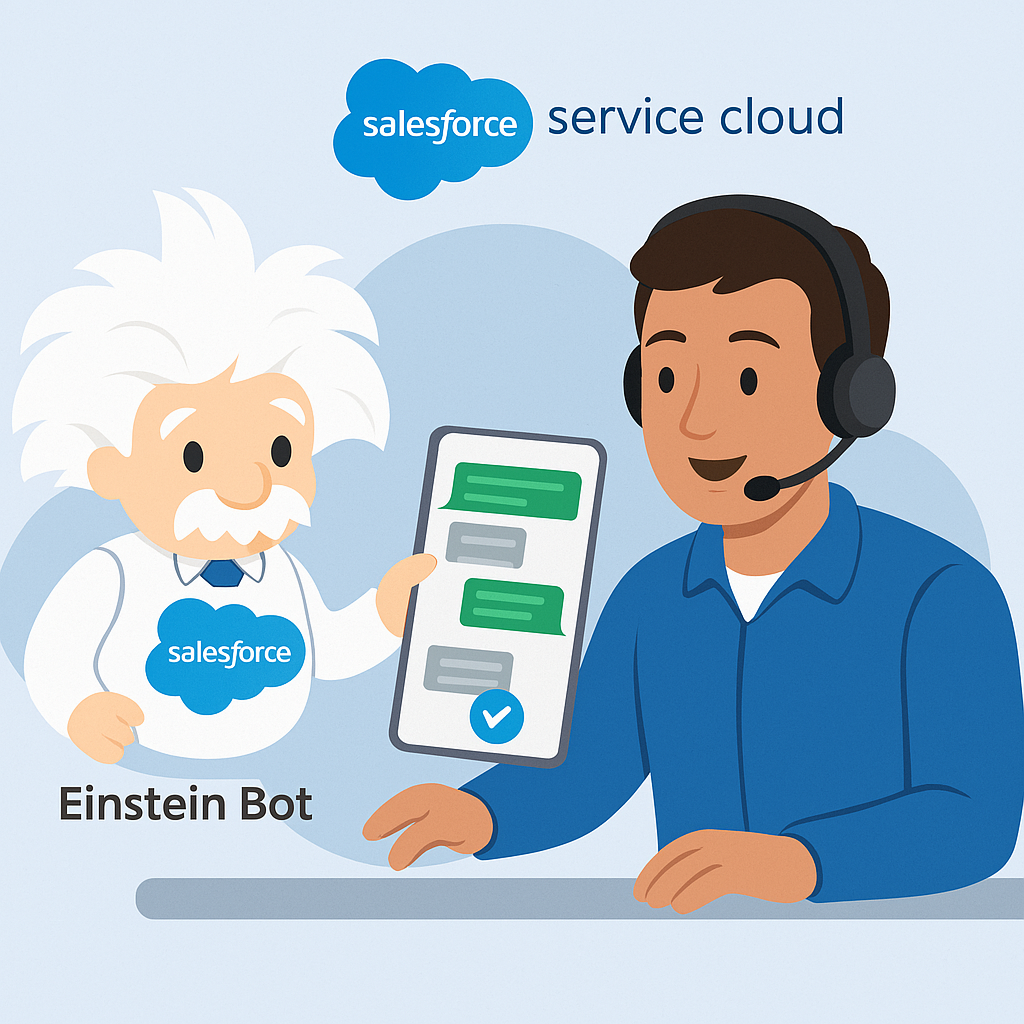
- Einstein Bot plays a supportive role in customer service by managing routine interactions, such as answering FAQs, checking account details, or guiding users through basic troubleshooting. Automating these everyday tasks frees up human agents to concentrate on more complex and high-value conversations that require deeper insight or empathy.
- What makes this possible is Einstein Bot’s integration of Natural Language Processing (NLP). This advanced technology enables the bot to interpret human language accurately, recognize intent, and respond in a way that feels conversational and relevant. The result is a smoother, smarter experience for customers and more efficiency for support teams.
1.1 Set up Einstein Bot
Follow the steps below to set up Einstein Bot.
- Go to Set up, search for Einstein Bot in the Quick Find box
- To turn on Einstein Bots, click the toggle and accept the terms.
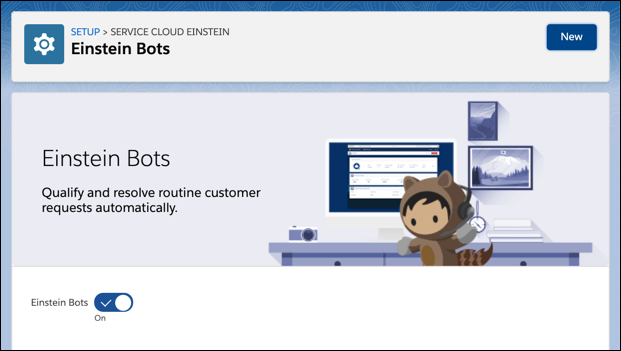
- Click on New and follow the guided setup. To begin with a basic framework, select Start from Scratch. If you want to create a bot with built-in dialogs for various common use cases, select the Intro Template.
- Once you finish the guided setup, you can modify specific settings for your bot on the Bot Overview Page.
1.2 Advantages of Einstein Bot
1. Automate Customer Queries:
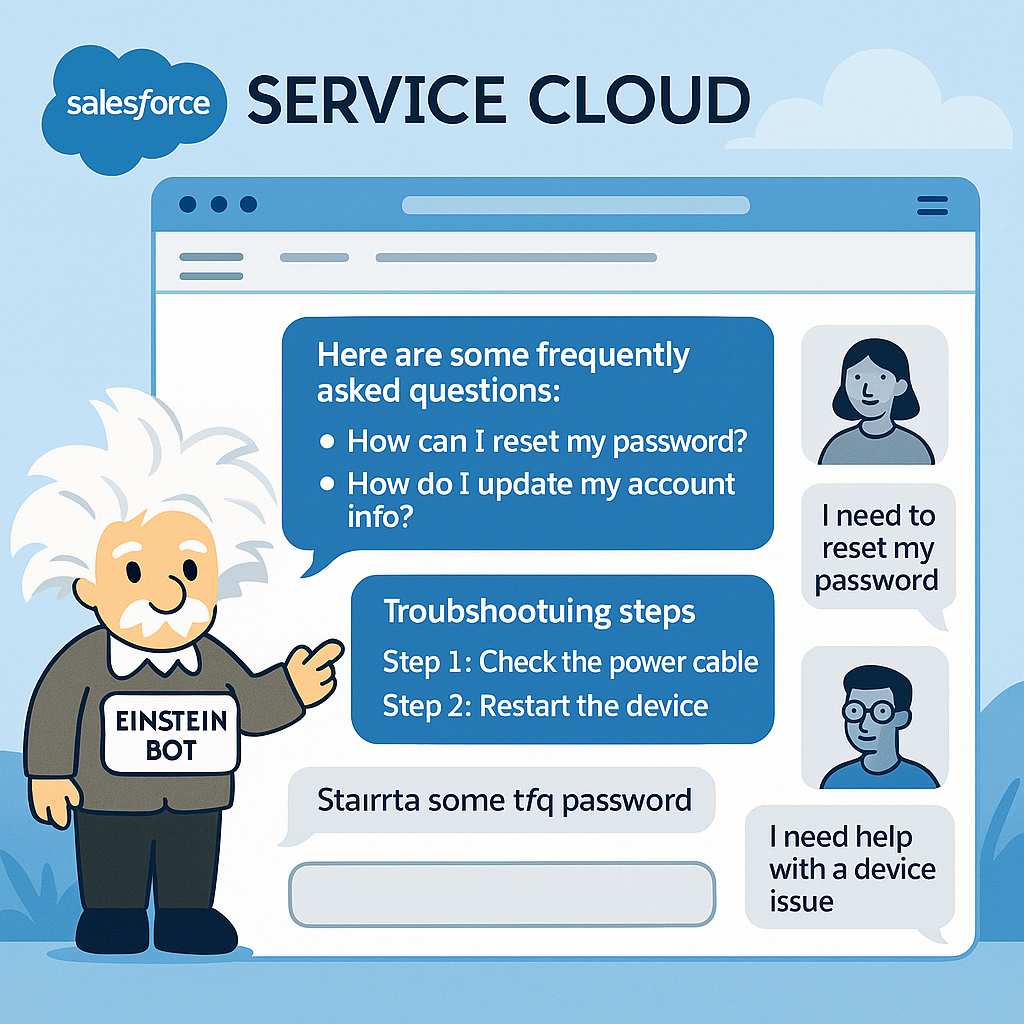
- Einstein Bot is a strong AI-powered solution for streamlining customer service operations by automating repetitive and routine interactions. It is typically used to address routine inquiries—such as product details, account information, and delivery statuses—and to guide customers through simple troubleshooting steps to resolve technical problems.
- By successfully managing these typical requests, Einstein Bot frees up human agents to focus on more complicated and personalised consumer requirements. This not only increases productivity but also improves the overall user experience by delivering prompt, consistent, and accurate support.
2. Available 24/7:
- Einstein Bot provides 24-hour customer service, ensuring that consumers can access help at any time of day or night. This constant availability improves the overall customer experience by ensuring prompt responses and seamless service with no delays. Bots can provide faster and more consistent help than human agents, resulting in higher customer satisfaction and operational efficiency.

3. Escalate the Case to Human:
- Einstein Bot can manage most customer interactions on its own, quickly resolving queries without requiring human support. When it encounters a more difficult problem or struggles to find a suitable solution, it seamlessly transfers the conversation to a human support representative. This built-in escalation method ensures that consumers receive seamless, uninterrupted service, even when the issue requires personal assistance.
1.3 Use Cases of Einstein Bot in Service Cloud
1. Order Status & Delivery Tracking
What it does:
Einstein Bot retrieves real-time order details from Salesforce, including shipping status, carrier, and estimated delivery date.
How it helps:
- Customers get instant answers without waiting for an agent.
- Reduces call/chat volume for simple inquiries.
- Improves customer satisfaction with quick, accurate updates.
Example:
A customer asks: "Where is my order #12345?"
The bot authenticates the user, checks the Order object, and replies: "Your order #12345 was shipped via DHL. Tracking number: DHL123456. Expected delivery: Sept 3, 2025."
2. Returns & Refund Requests
What it does:
Einstein Bot checks return eligibility, creates a return case, and sends the return label to the customer.
How it helps:
- Simplifies the return process for customers.
- Reduces manual effort for agents.
- Speeds up refund cycles, improving customer trust.
Example:
Customer says, "I want to return my shoes." The bot validates the order, confirms it’s within the return window, and emails a prepaid return label.
3. Appointment Booking & Rescheduling
What it does:
The bot integrates with Salesforce Field Service to show available slots and book or reschedule appointments.
How it helps:
- Provides 24/7 self-service scheduling.
- Reduces no-shows by sending confirmations.
- Frees agents from repetitive scheduling tasks.
Example:
Customer says, "I need to reschedule my technician visit." The bot displays available slots, books the new time, and sends a confirmation SMS.
2. Einstein Case Classification
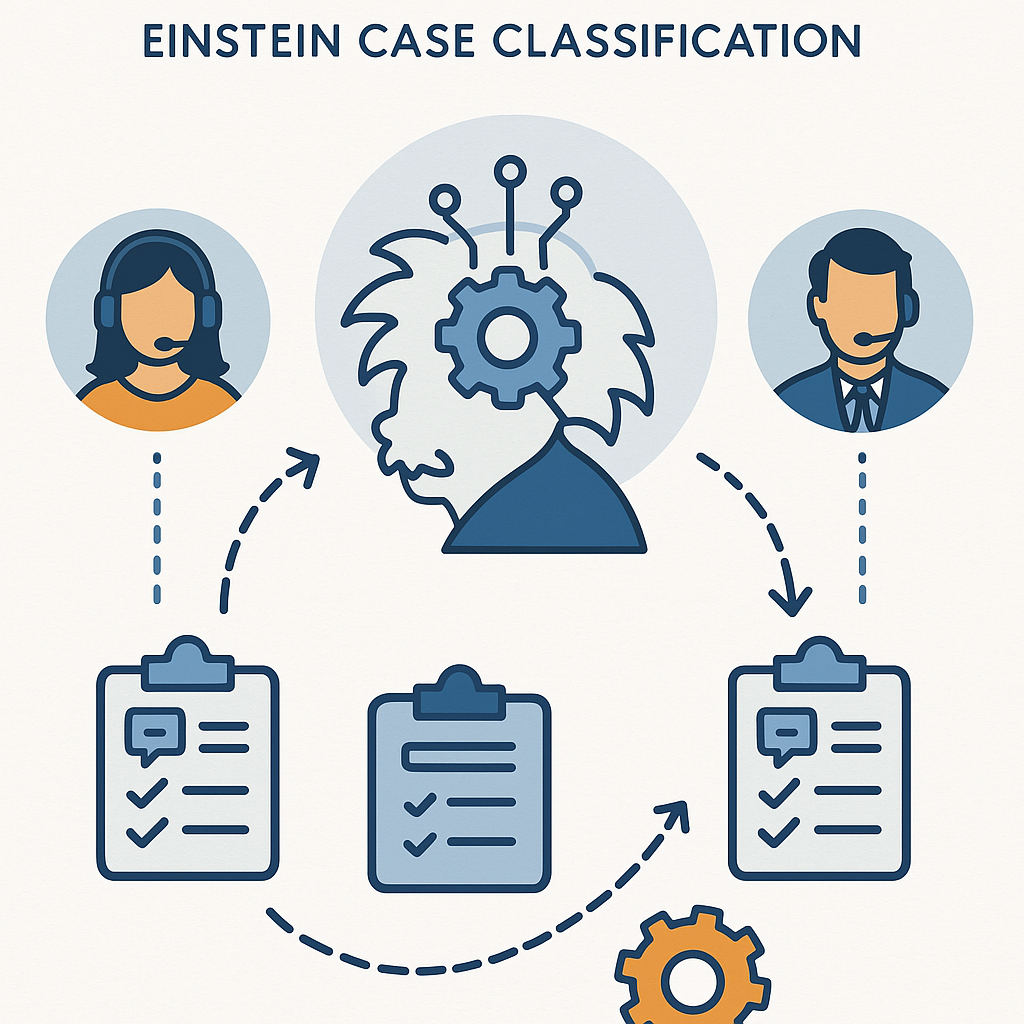
Einstein Case Classification improves customer service by intelligently managing new support issues. It uses past data to automatically populate case fields, saving time and reducing manual work. This efficiency enables service agents to redirect their focus from administrative activities to developing customer connections and providing personalised help.
Beyond that, Einstein Case Classification evaluates the subject and description of incoming cases before categorising and routing them to the most appropriate agent. Whether it's a billing issue or a technical trouble, each case is routed to the person best suited to fix it, increasing response accuracy and overall customer satisfaction.
2.1 Set Up Einstein Case Classification in Service Cloud
Follow the steps below to Set Up Einstein Case Classification: -
- Go to Set up, search for Einstein Classification in the Quick Find box
- Under Service Cloud Einstein Select Einstein Classification
- Click on the toggle button to turn on Einstein Classification Apps.
Click on Get Started on the Einstein Classification setup page.
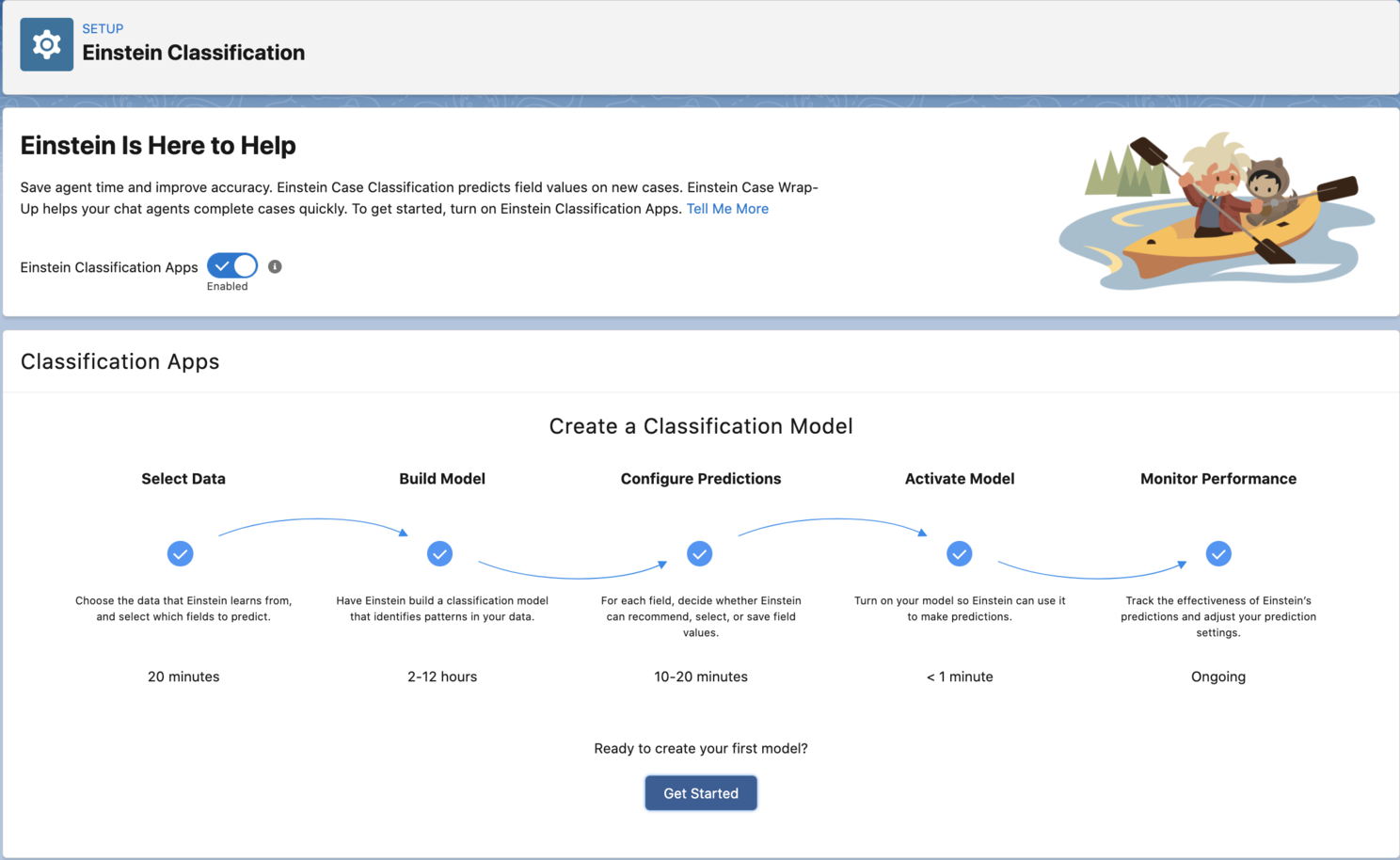
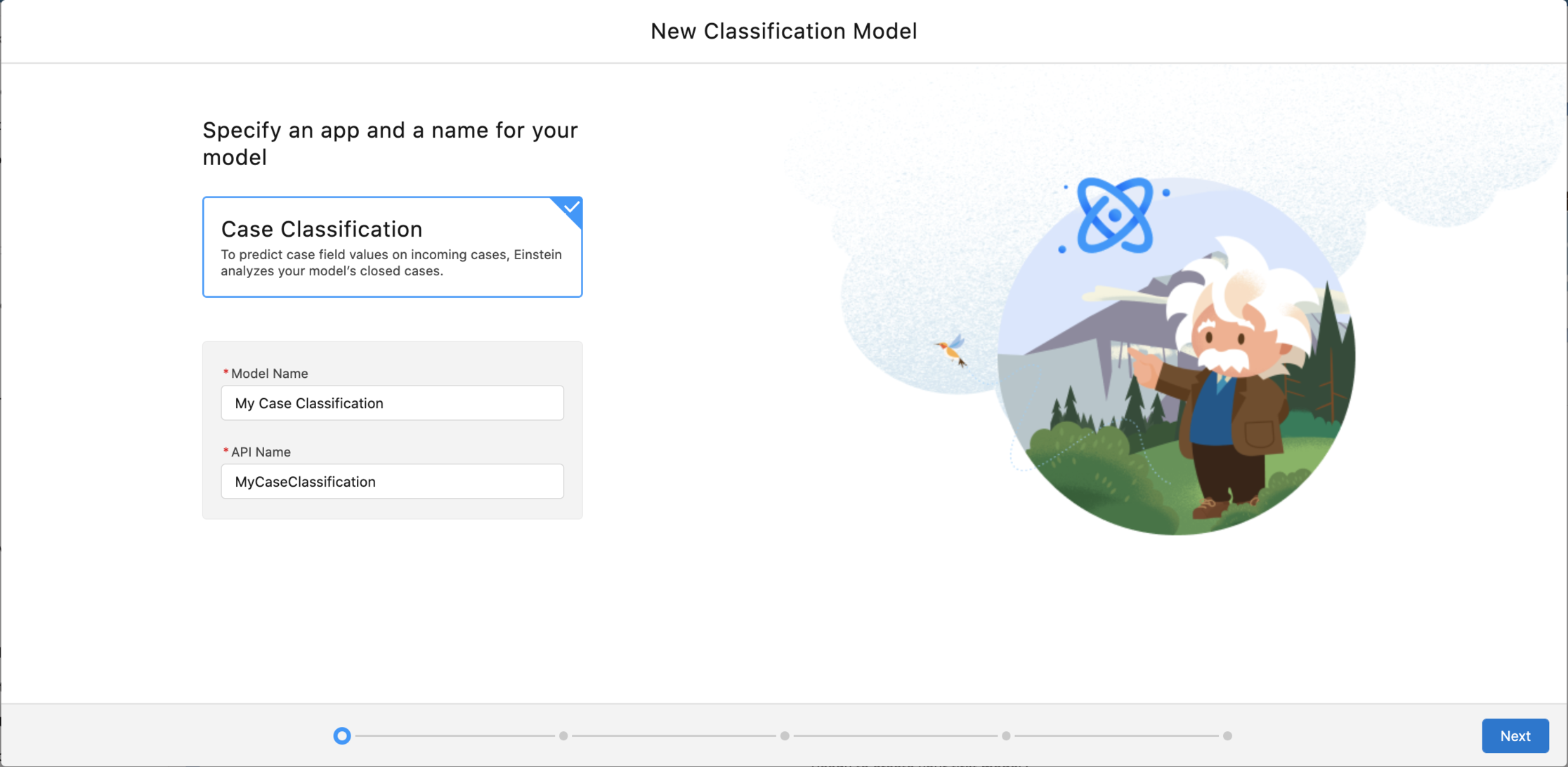
On the next screen, select Case Classification, enter the name for your model, and click Next.
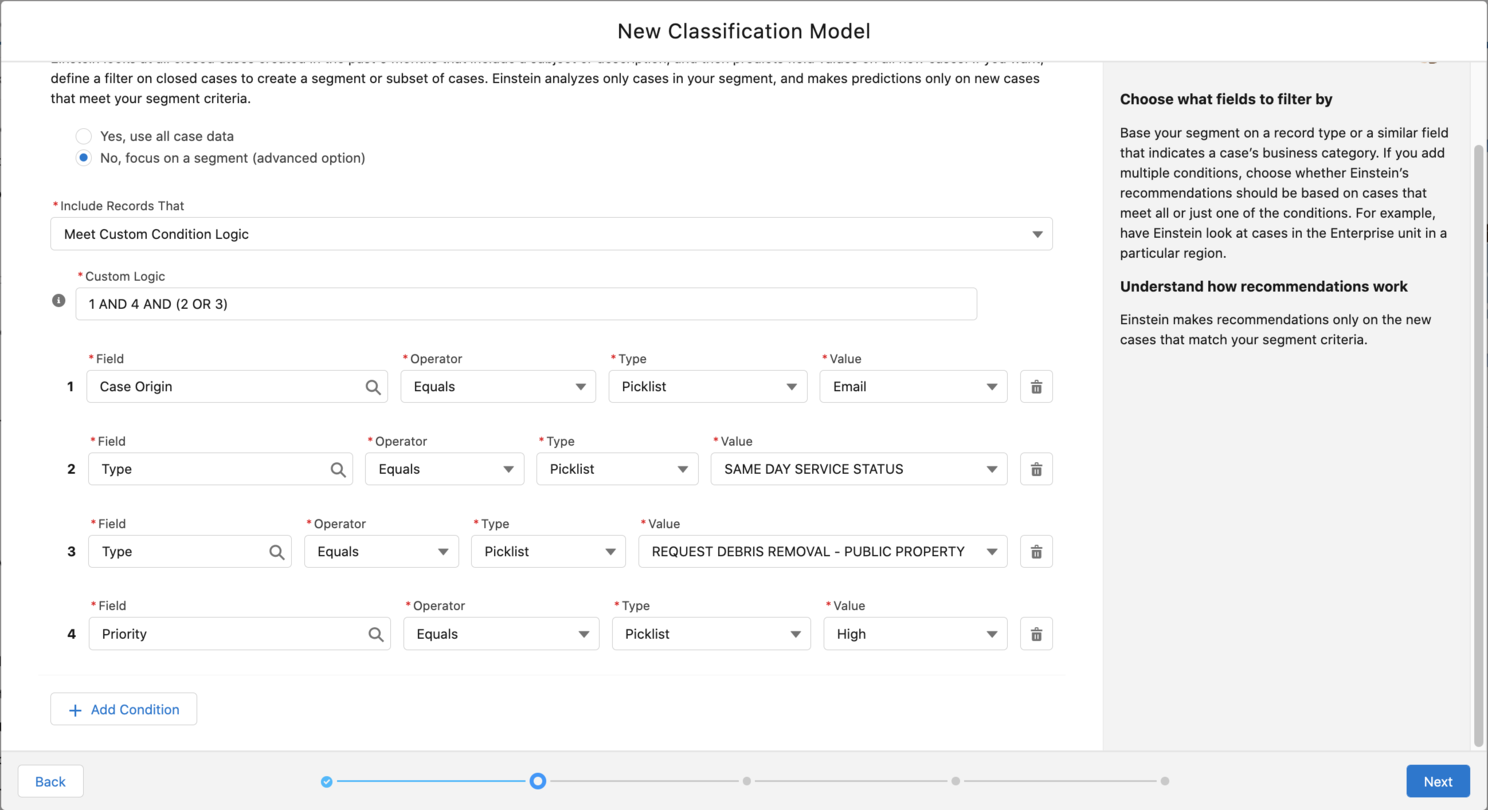
As a next step, we need to tell the system for which Cases the values should be predicted. This means we can ask the model to consider all the new Cases or Cases specific to a business unit or a category.
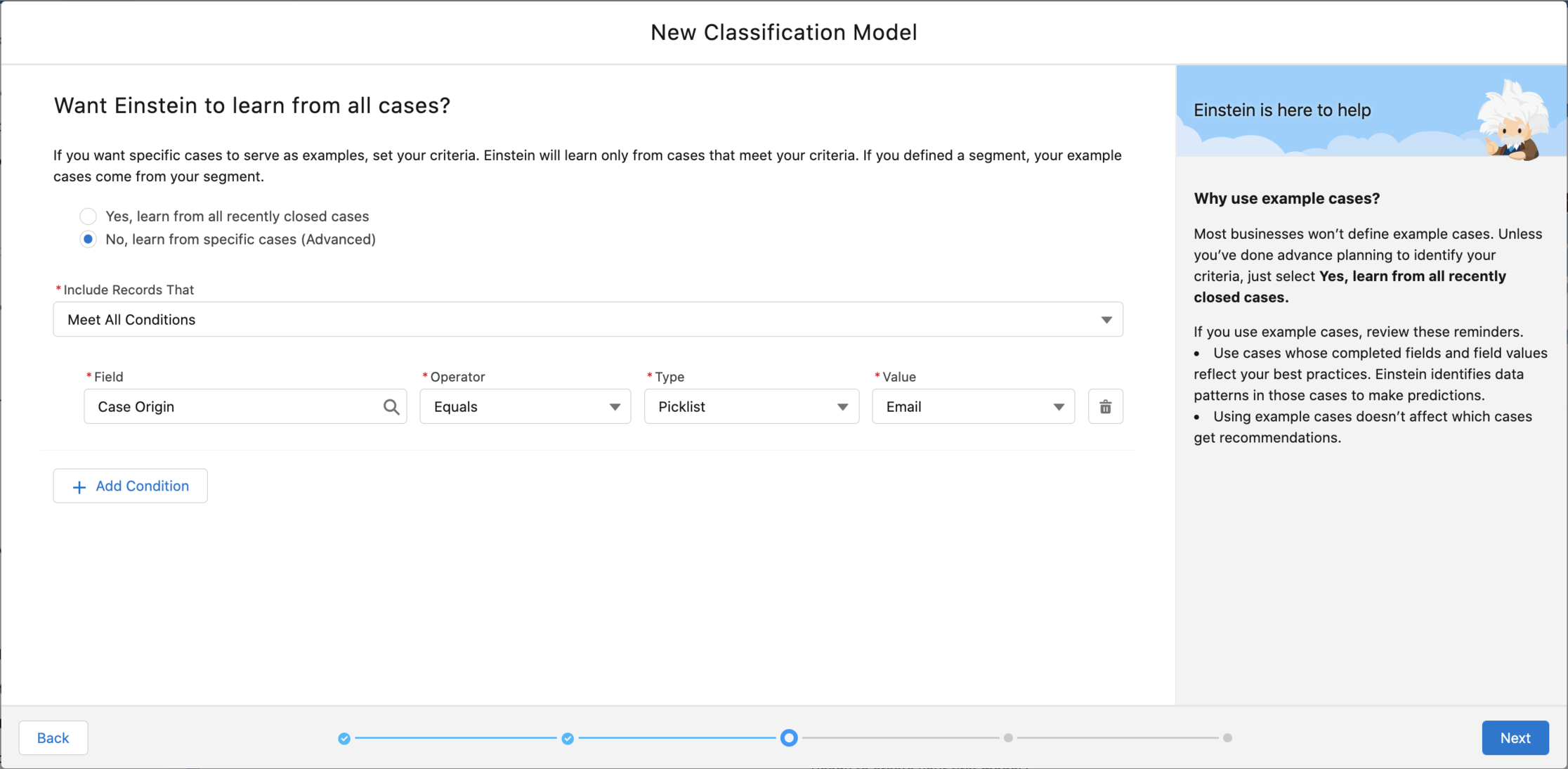
Now we have decided which new Cases to have predictions, but where does this prediction originate? The model considers the existing Closed Cases to build the prediction model. You have the flexibility to either use all the recent(up to six months) or specific Cases.
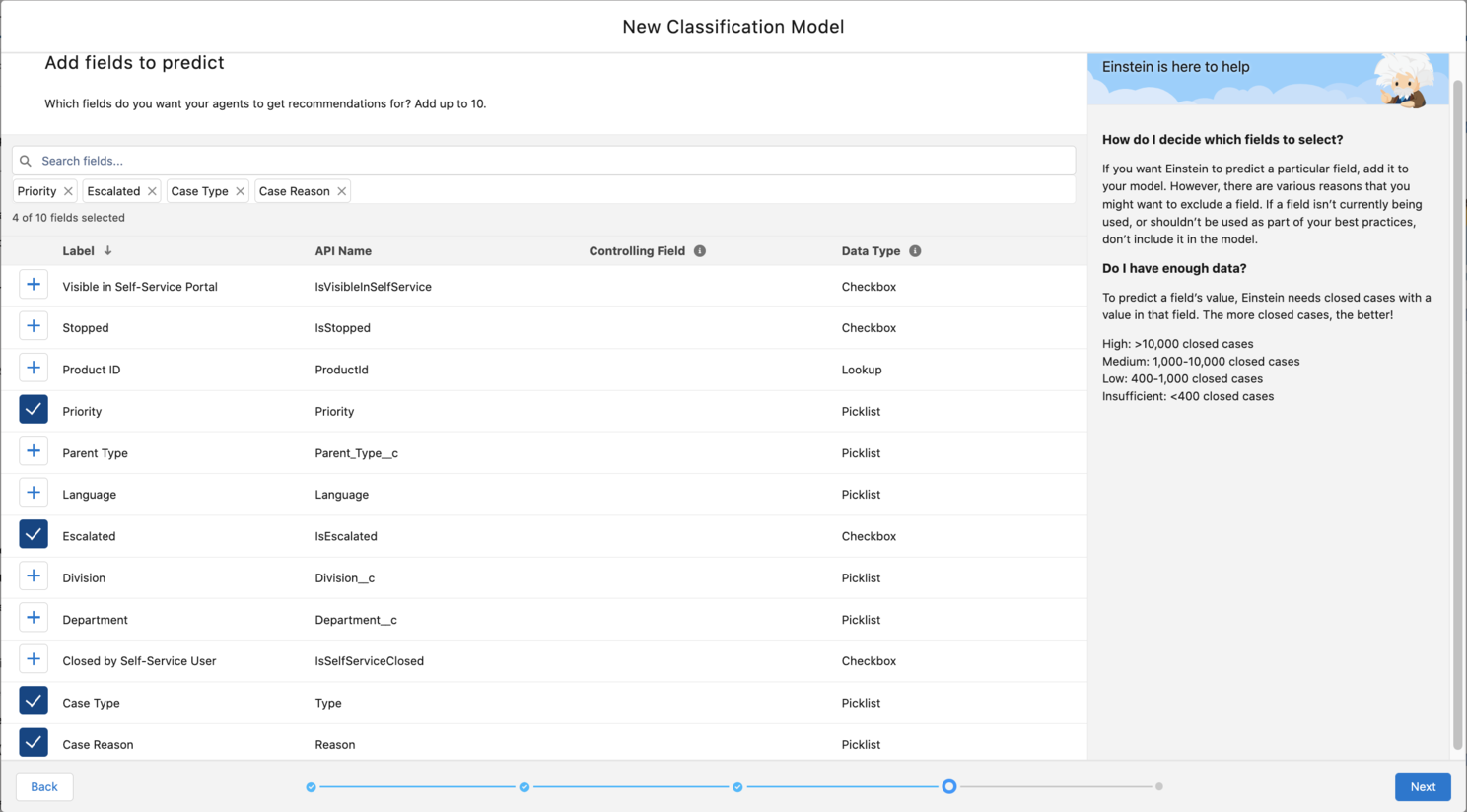
Next, identify which field values you need to set the prediction on.
When we click next on the screen, we will see something like a summary of what we have done. The table at the bottom shows which fields will be predicted. A crucial factor to consider is that fields should contain diverse values; otherwise, they will fail if the values are too similar. For instance, if there are 10,000 records with all Medium or Low priorities, this will fail. Also, your organization should have plenty of data to build the model.
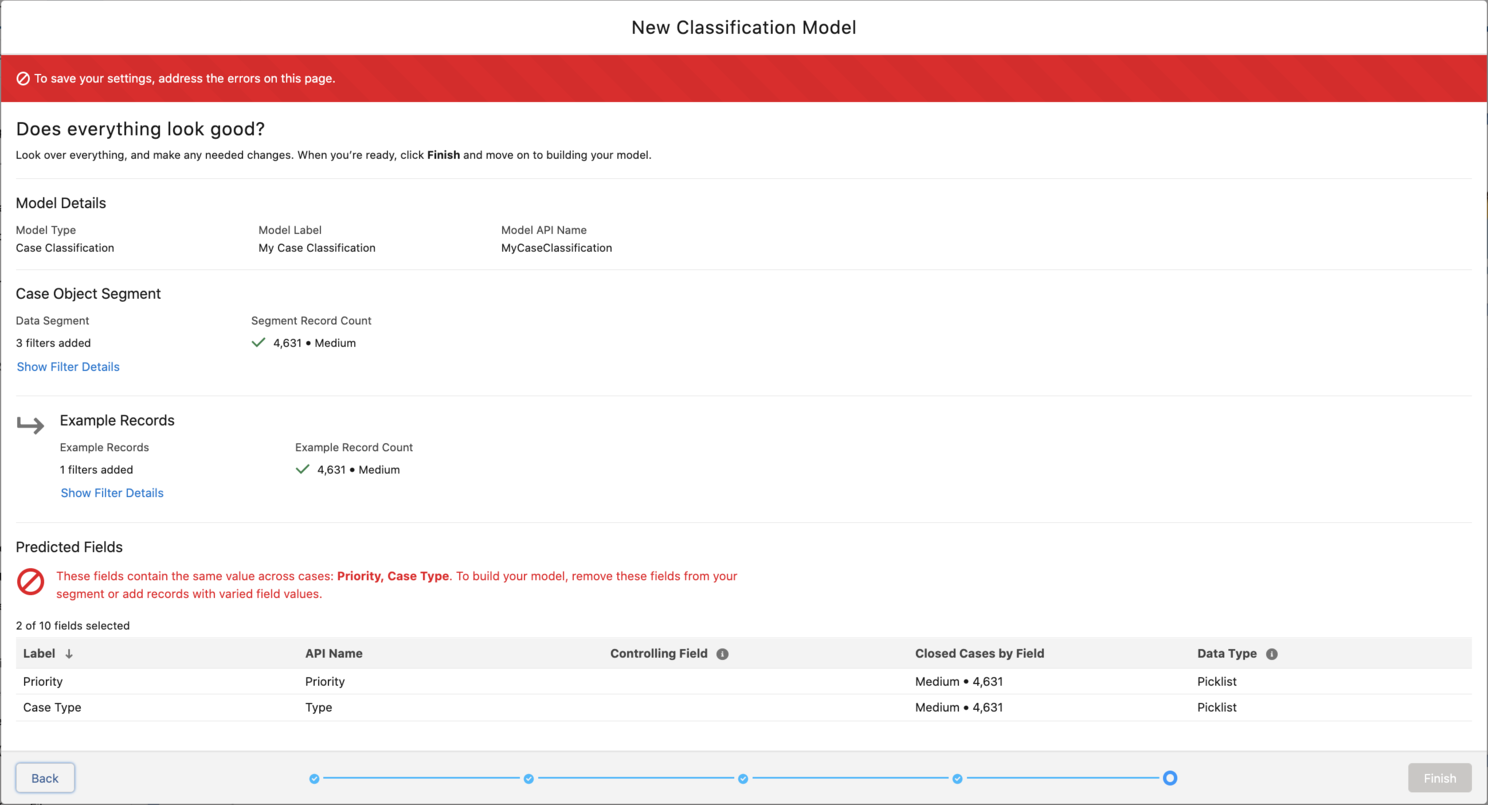
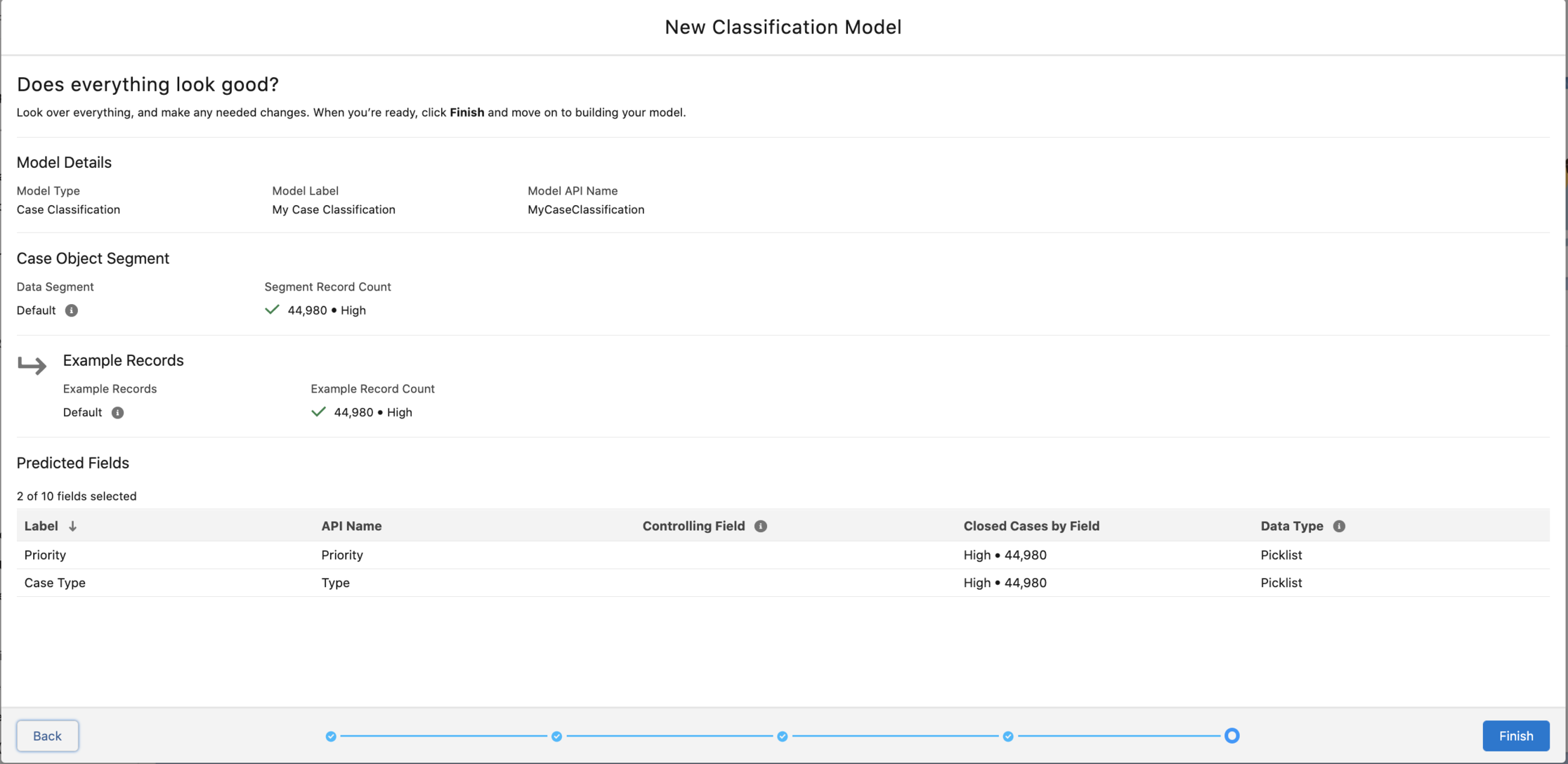
Finally, click finish, but wait, it is still half the job done.
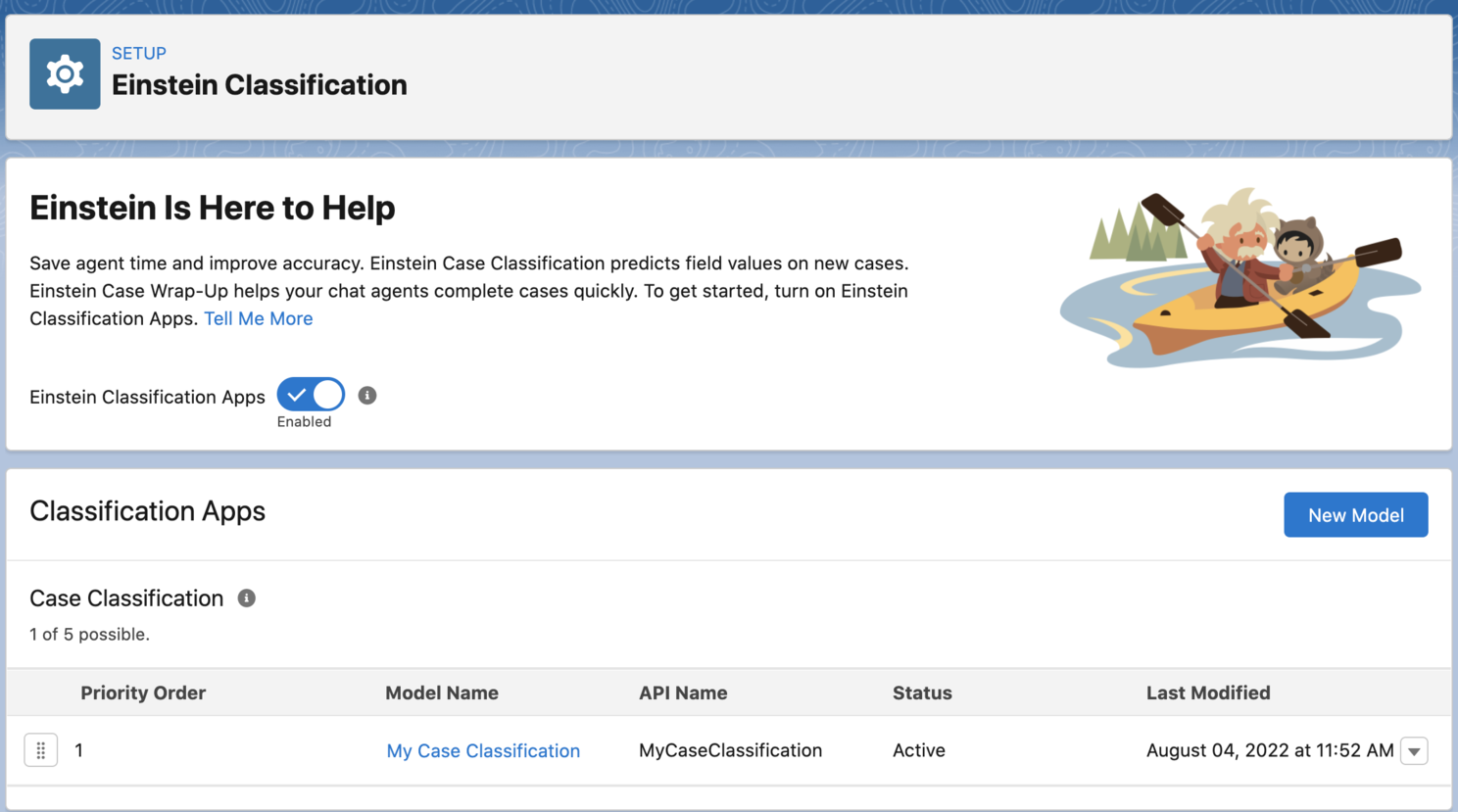
It's time to build our Classification Predictive Model. Once again, go to the Einstein Classification Setup page and select the model name. Click on the Setup tab. We can also remove a field from the model and select Remove from the Action menu. To add fields, select Edit under Configure Data. At last, we can now click Build to generate the model.
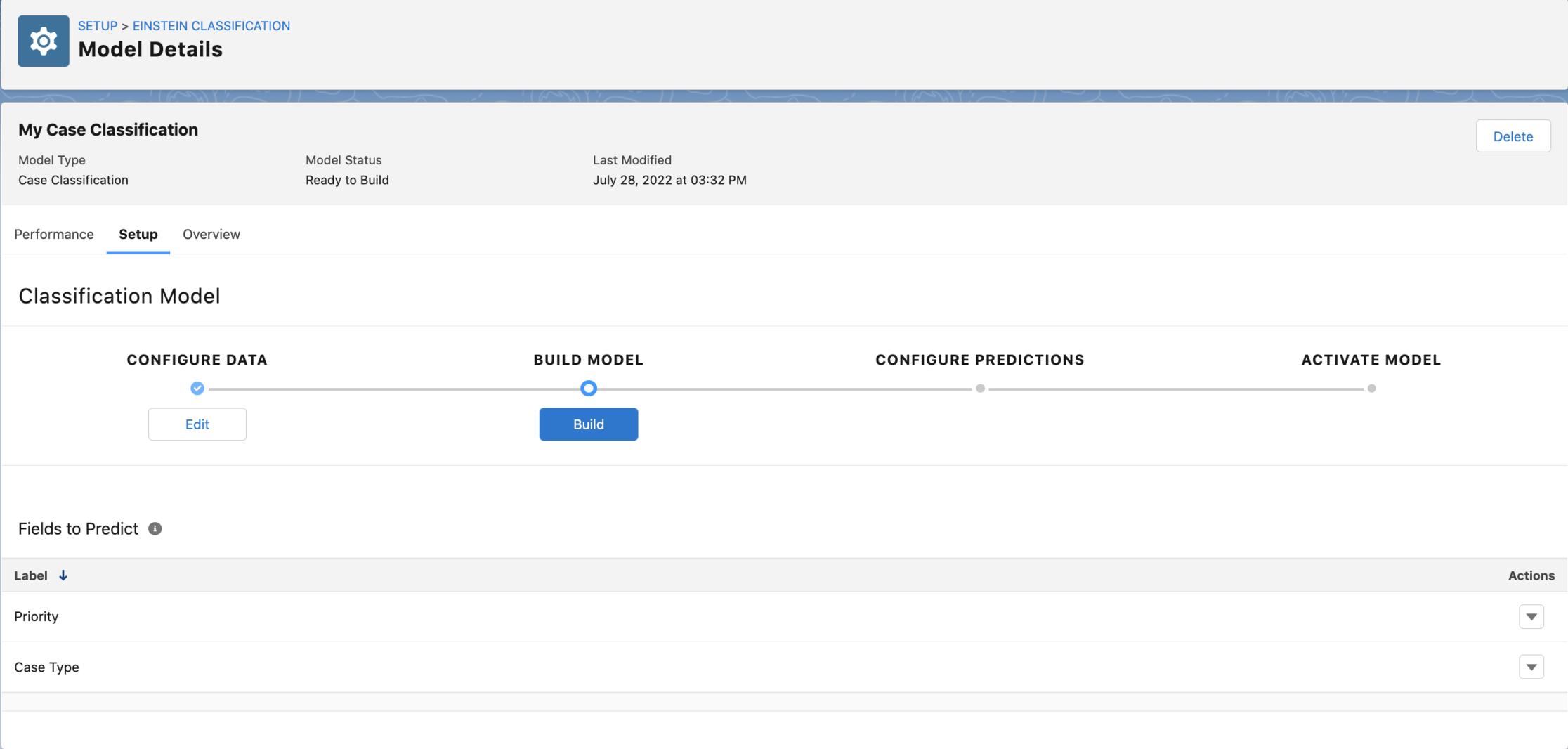
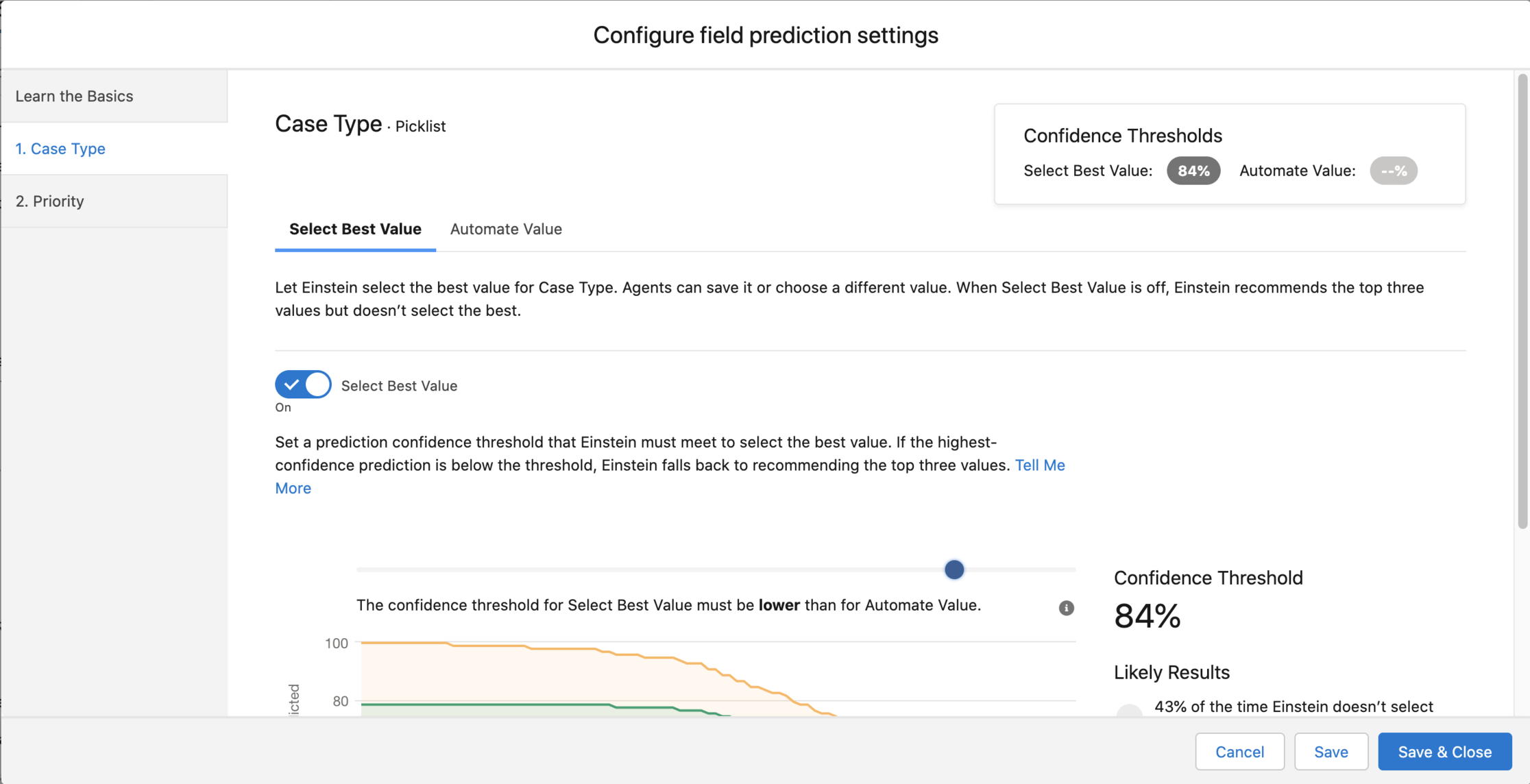
We are inching towards the end. Now, we need to configure Field Prediction Settings. What we are doing here is that we are asking the model that is built to decide the level of prediction automation. With the lowest level of automation, Einstein recommends the top three field values for each field in your model. Or we can have Einstein select and save the best value automatically.
We can do this by clicking edit under Configure Predictions and selecting a field. Alternatively, select edit next to a field in the list.
Below, we are telling the model to show the top values for those fields that need to be predicted. The model will show the values, but will not set or select for you. Here, you will also need to set the prediction confidence threshold, which is your minimum required confidence level for selecting the best value. A prediction’s confidence level represents the likelihood that the recommendation for the field value is correct.
We can also ask the model to prepopulate the fields with the best values determined by the model. You can click on the Automate value tab and turn on the Automate value. The field will show the best value already selected with the BEST label next to the value. Again, you will need to set the prediction confidence threshold.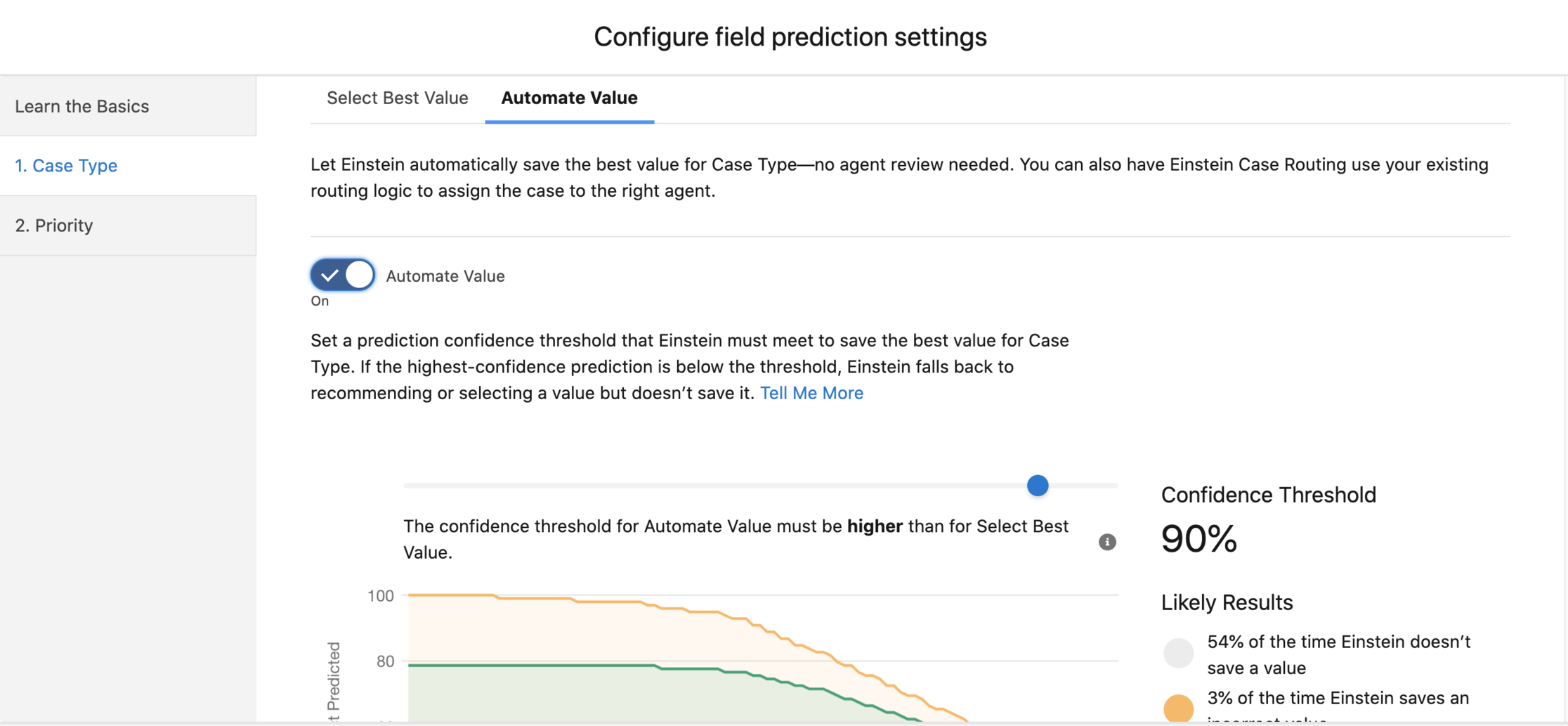
Select Save & Close. Your changes take effect immediately, and the prediction settings appear in the field list. You can now click on the Activate button.
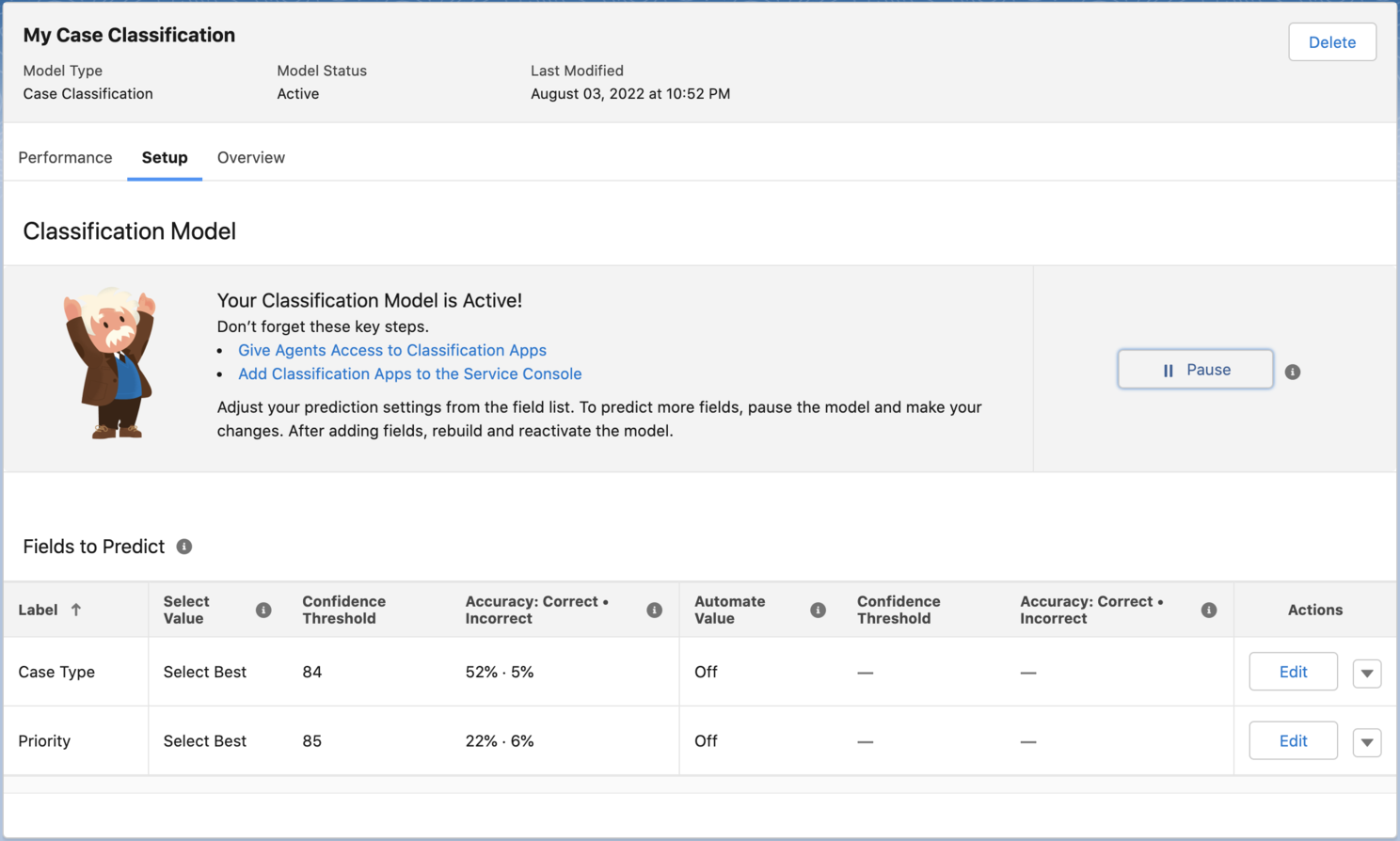
Grant Users access to Einstein Classification. The new permission set, Einstein Case Classification, is already created as soon as you complete the second step. Manage Assignments and assign users to the permission set.
Add Classification Apps to the Case layout. Drag the Einstein Field Recommendations component onto the page. Select Case Classification and relevant Update Action. Save your changes.
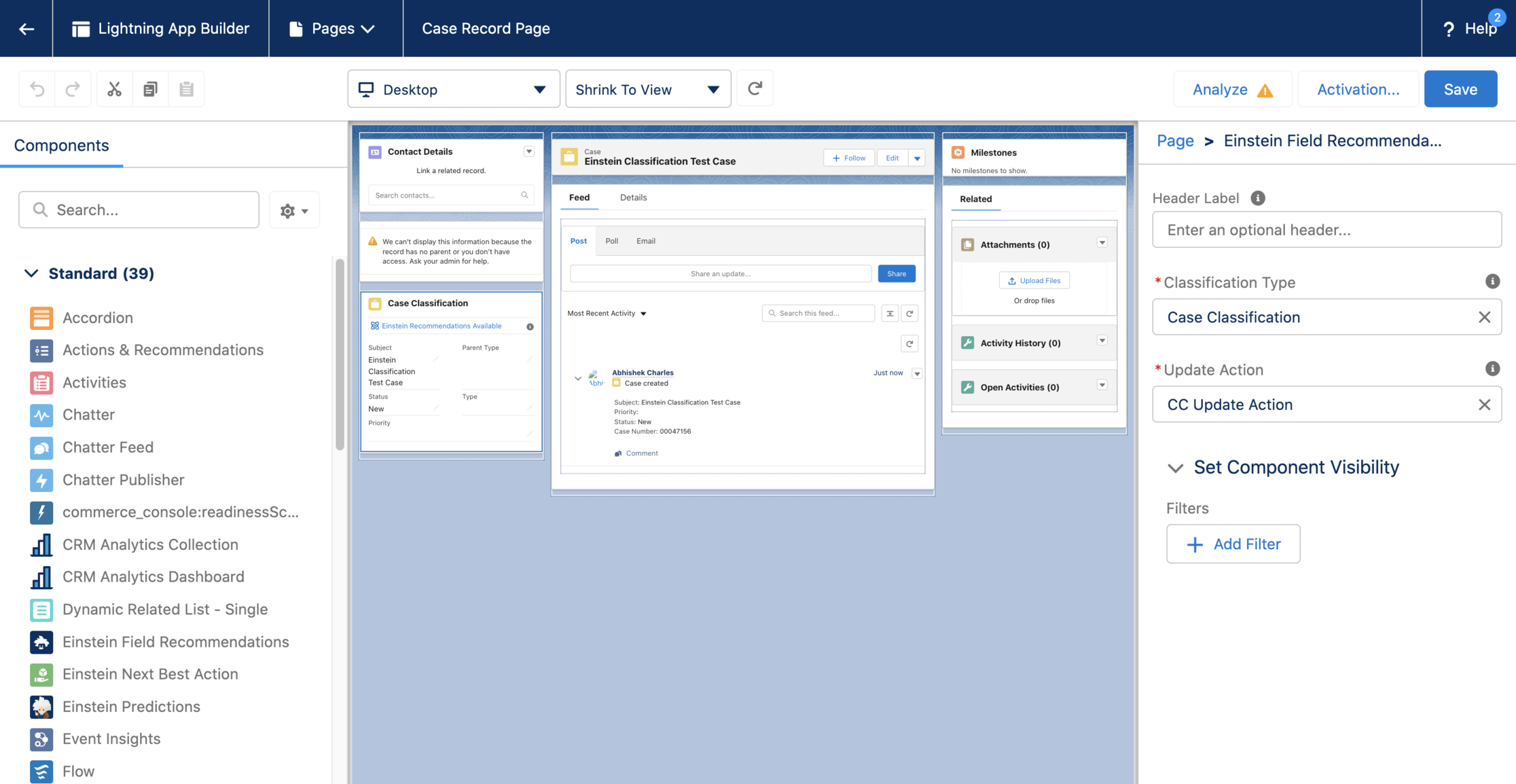
Now, this is ultimately what the user will see when they create a Case.
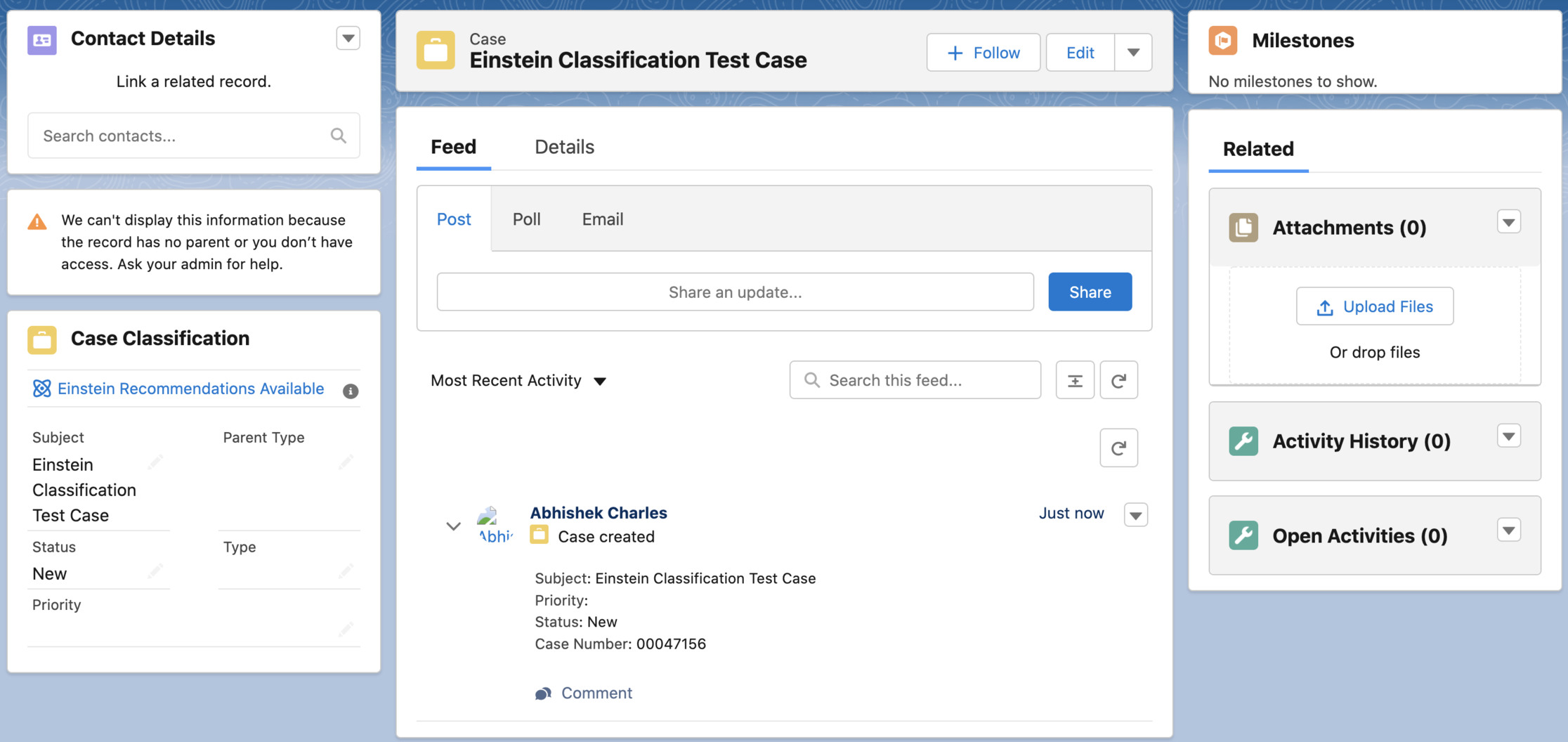
You will see the Einstein Recommendations Available link. If you click on the link, you will see your selected fields to be predicted highlighted with a green dot.
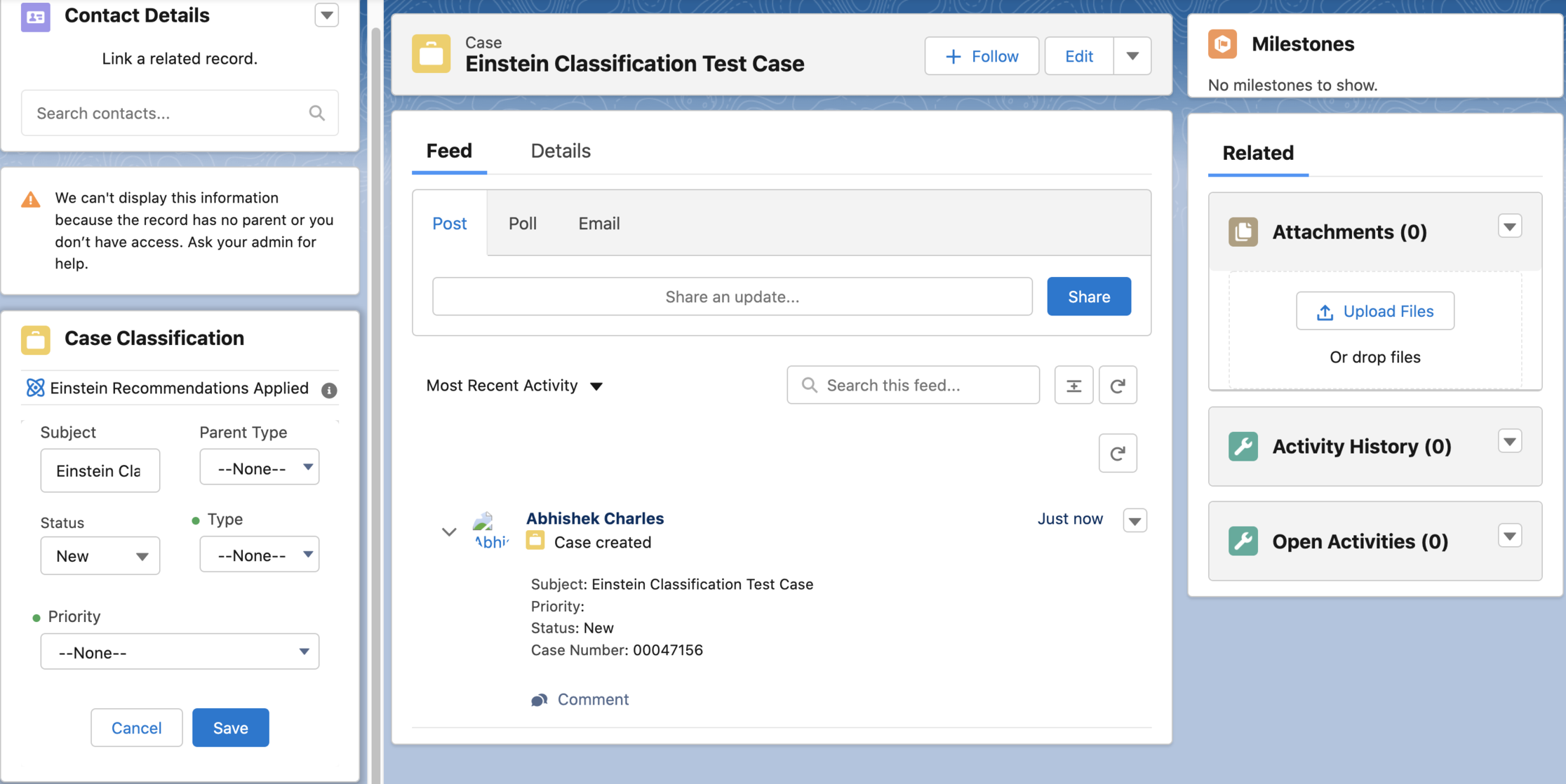
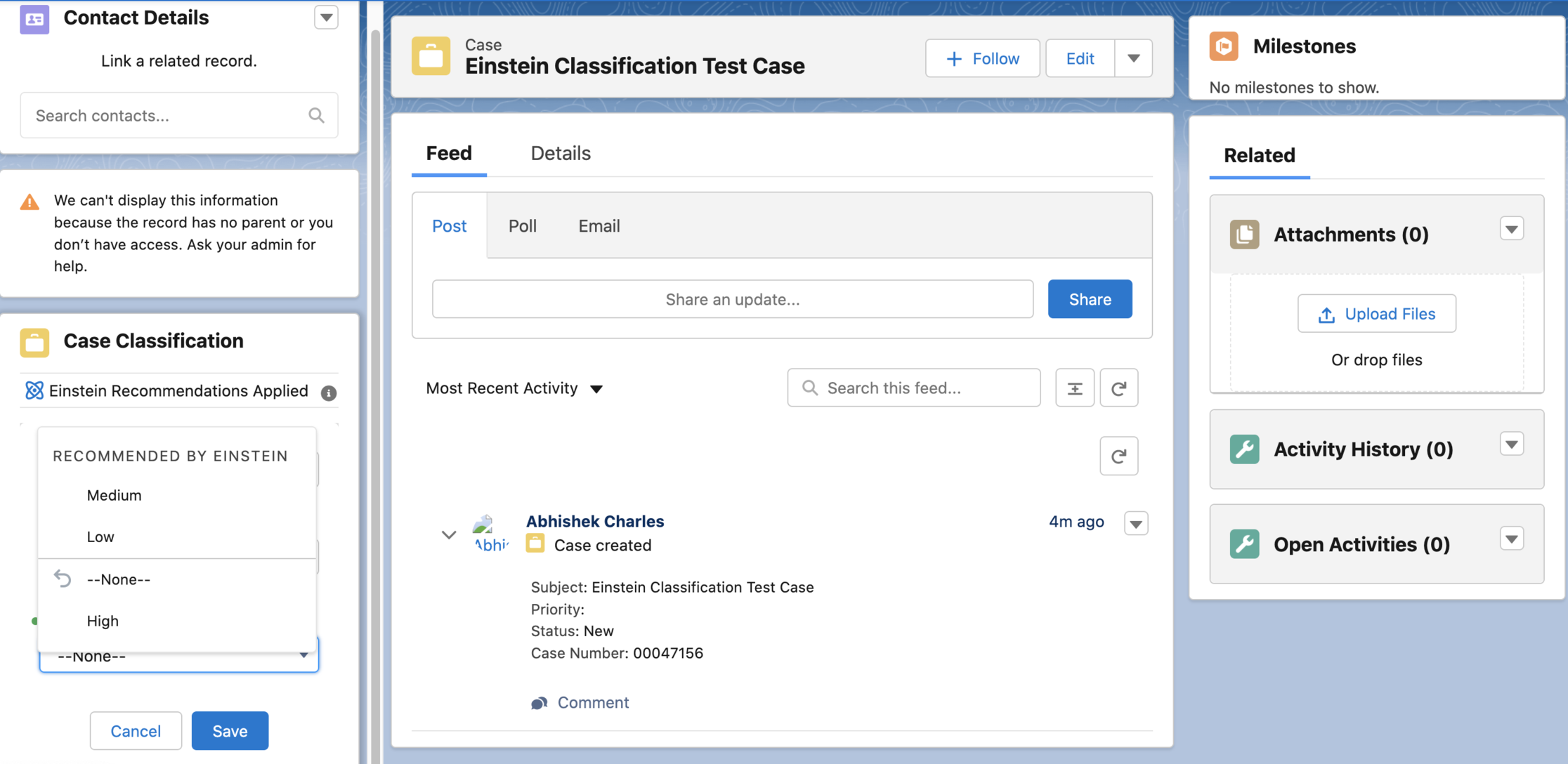
If you click on any prediction-enabled field, you will see the Einstein Recommended Values.
2.2 Advantages of Einstein Case Classification
1. Automated Case Assignment:
- Einstein Case Classification intelligently matches incoming support cases to the most appropriate agents based on their talents and areas of expertise.
- This automated routing technique reduces the need for manual case assignment, hence minimizing delays and increasing operational efficiency.
- By ensuring that each case is assigned to the appropriate agent from the start, service teams can fix issues faster and provide more personalized, effective support to consumers.
2. Case Prioritization:
- Einstein Case Classification helps teams stay organised and responsive by automatically prioritising cases based on urgency and importance. It evaluates incoming cases using contextual information such as keywords, sentiment, and previous interactions to identify which issues need immediate attention and which may be addressed later.
- This guarantees that vital items are handled quickly while preserving orderly lines for less urgent demands. By intelligently assessing case priorities, agents can better manage their workload, reduce response times for high-impact issues, and enhance overall customer satisfaction.

3. Efficiency in Case Management:
- Einstein Case Classification improves case management efficiency by streamlining two key processes: assignment and prioritisation. Instead of depending on time-consuming manual activities, the system automatically assigns each incoming case to the most appropriate agent based on their experience. At the same time, it assesses the urgency and relevancy of each case to determine the appropriate priority levels.
- This intelligent automation shortens response times, decreases workload bottlenecks, and allows service agents to focus on providing meaningful support, making customer service faster, smarter, and more consistent.
2.3 Use Cases of Einstein Case Classification in Service Cloud
1. Automated Case Assignment
What it does:
Einstein Case Classification analyzes the subject and description of incoming cases and predicts the most suitable agent or queue based on historical data and agent expertise.
How it helps:
- Eliminates manual case routing, reducing delays.
- Ensure cases go to the right agent the first time.
- Improve resolution speed and customer satisfaction.
Example:
A case with the subject "Unable to process payment" is automatically assigned to the Billing Support queue because the model predicts it’s a billing issue with 95% confidence.
2. Case Prioritization
What it does:
The system evaluates case urgency using keywords, sentiment, and historical patterns to assign priority levels automatically.
How it helps:
- High-impact issues are addressed first.
- Reduces SLA breaches by surfacing urgent cases.
- Helps agents manage workload efficiently.
Example:
A case with the description "My account is locked and I can’t access payroll data" is flagged as High Priority because it affects critical business operations.
3. Multi-Language Classification
What it does:
Einstein understands and classifies cases in multiple languages without requiring separate models.
How it helps:
- Support global service operations.
- Reduces dependency in language-specific teams.
- Improve response time for international customers.
Example:
A case submitted in Spanish: "No puedo actualizar mi suscripción" is correctly classified as a Subscription Update Issue and routed to the right team.
3. Einstein Reply Recommendations
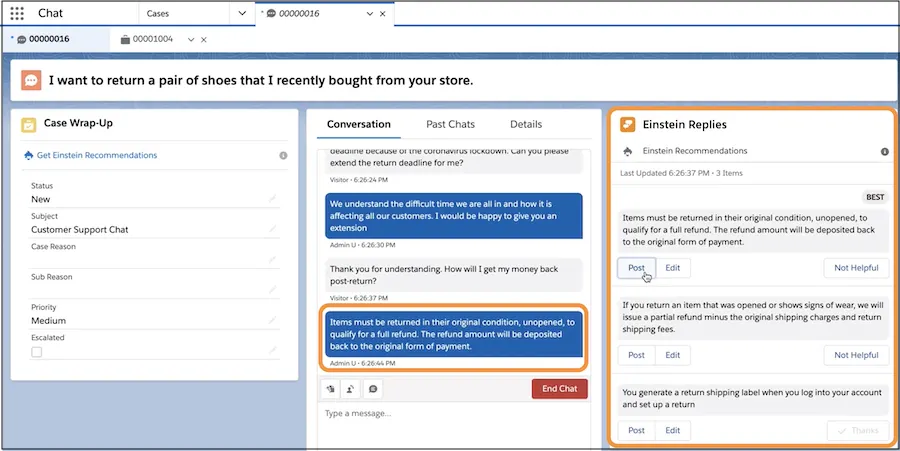
Einstein Reply Recommendation enhances customer support by intelligently suggesting the most effective responses to service representatives. It analyzes previous interactions and draws from historical case data to understand what replies have worked well in similar scenarios. This allows support reps to respond more quickly, consistently, and accurately—improving overall communication and reducing resolution time. By learning from past conversations, the system not only saves time but also ensures that customers receive thoughtful and relevant replies that align with proven best practices.
3.1 Set up Einstein Reply Recommendations
Follow the steps below to set up the Einstein Reply Recommendations.
- Go to Setup and search for Einstein Reply Recommendations in the quick find box and select it.
- To turn on Einstein Reply Recommendations, click the toggle.

- After turning on the Einstein Reply Recommendation, on the Einstein Reply Recommendations Setup page, click Let's Go.
- To create your model and generate a list of up to 100 common replies, click on Build Model (It will take around 48 hours to build your model).
- Once completed, it will show all the generated replies for your review on the setup page.

- Once you have reviewed all Einstein's replies, you can move those replies to the quick text by selecting all the replies you want to publish and clicking on the Publish to Quick Text button. While publishing the quick text, you can publish it to different folders to make sure the quick texts are also available as searchable quick texts in the Chat and Messaging channels.
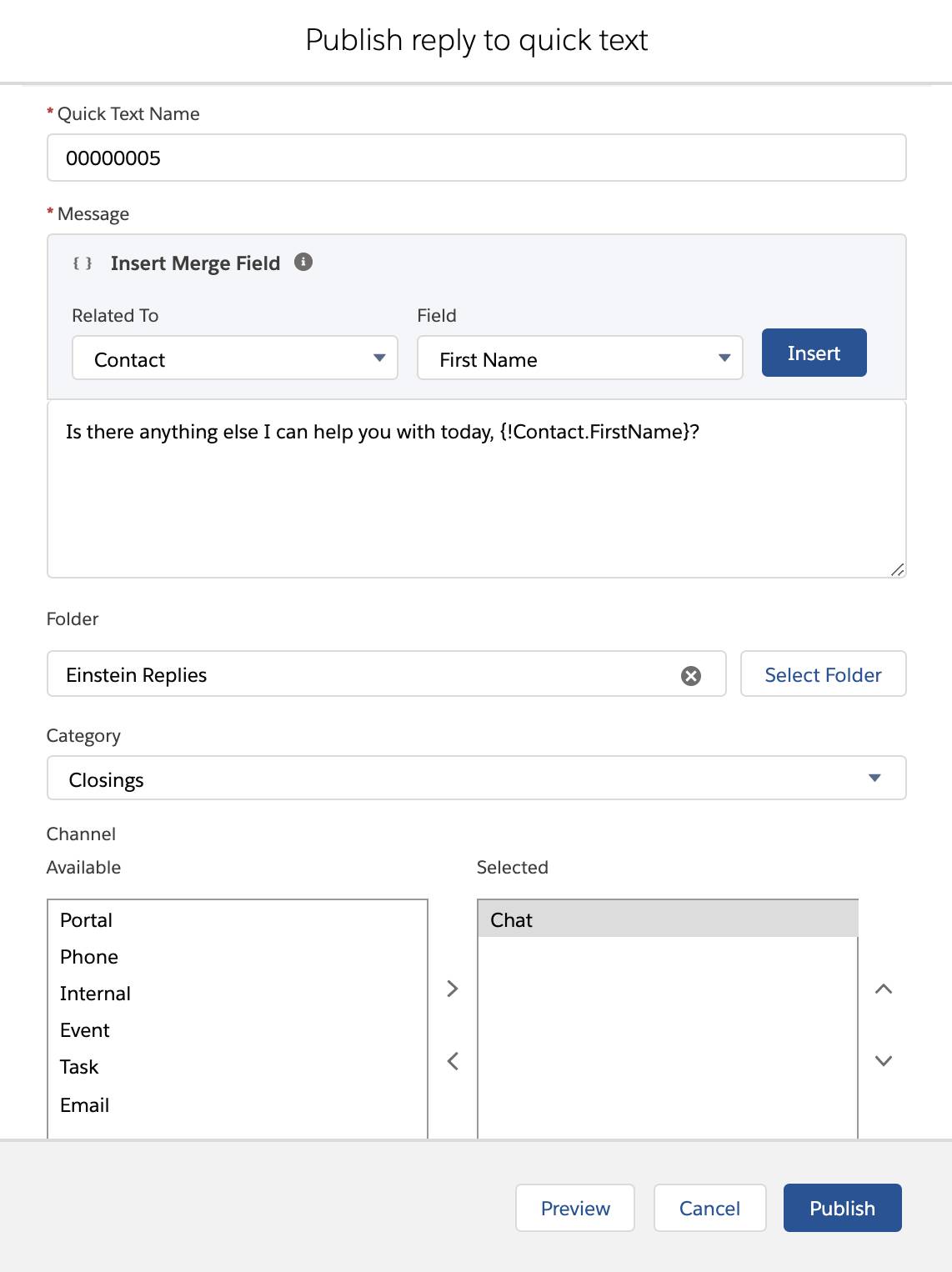
- Make sure all replies you want to use list a status of Published to Quick Text and click on Activate.
- To use all those replies on the chat, ensure the user has been assigned with Einstein Reply Recommendations User permission set and access to the quick text folder containing the published replies.
3.2 Advantages of Einstein Reply Recommendations
1. Faster Reply Time:
- With Einstein Reply Recommendations, support representatives can respond to customer inquiries with greater speed and accuracy. By analyzing previous conversations and identifying successful response patterns, the system suggests relevant replies tailored to the current case. This not only accelerates response times but also helps maintain a consistent and professional tone across customer interactions.

2. Improved Accuracy:
- Because Einstein Reply Recommendations are grounded in historical data from past successful interactions, they greatly improve the accuracy of customer support replies. By tapping into what has worked well before—whether it's resolving technical issues or addressing product concerns—the system increases the chances of delivering a response that truly meets the customer's needs.
- This approach ensures consistency in service quality, reduces the guesswork for support agents, and leads to faster, more reliable resolutions. It's like having a seasoned mentor quietly guiding every reply.

3.3 Use Cases of Einstein Reply Recommendations in Service Cloud
1. Faster Reply Time
What it does:
Einstein analyzes historical case data and suggests the most relevant responses to agents in real time.
How it helps:
- Reduces time spent drafting replies.
- Ensures quick, consistent responses across the team.
- Improves agent productivity and customer experience.
Example:
A customer asks, "How do I reset my password?"
Einstein suggests:
"You can reset your password by clicking ‘Forgot Password’ on the login page. Here’s the link: [Reset Password]."
The agent clicks and sends instantly.
2. Consistent Brand Voice
What it does:
Einstein ensures all suggested replies align with the company’s tone and style guidelines.
How it helps:
- Maintains brand consistency across all agents.
- Reduces training time for new hires.
- Enhances customer trust and satisfaction.
Example:
Instead of an informal response like “We’ll check it out,” Einstein suggests:
“Thank you for bringing this to our attention. We’re reviewing your request and will update you shortly.”
3. Multi-Language Support
What it does:
Einstein provides reply suggestions in the customer’s language, based on multilingual case history.
How it helps:
- Supports global teams without needing separate models.
- Improves response time for international customers.
- Reduces dependency on translation tools.
Example:
Customer writes in French: “Je n’arrive pas à accéder à mon compte.”
Einstein suggests:
“Veuillez réinitialiser votre mot de passe en utilisant ce lien : [Lien de réinitialisation].”
Summary
Salesforce Service Cloud, powered by Einstein Generative AI, brings smarter automation and deeper personalization to CRM workflows. From setting up Data Cloud to enabling advanced features like Einstein Bots, Case Classification, and Reply Recommendations, users gain practical steps to supercharge service operations. Each tool is carefully designed to streamline agent tasks, improve response accuracy, and deliver fast, relevant support to customers. As you explore these capabilities, you'll unlock new levels of efficiency and customer satisfaction in your business. Keep experimenting, keep optimizing—happy learning! 🎉🤖
