
 Book Free Consultation

Scheduling Policies in Salesforce FSL
Learn how Salesforce Field Service automation selects the right technician for service appointments using scheduling policies
By Anandhakumar Thangasamy
Senior Salesforce Developer
Scheduling Policies In Salesforce FSL
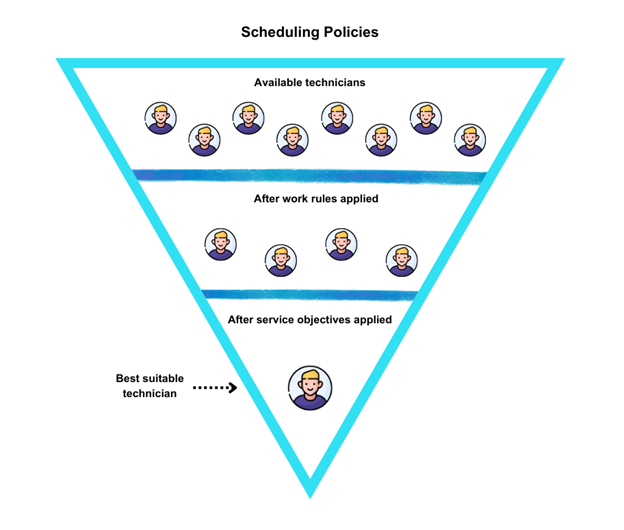
In our last blog we saw about the Service Appointments in Field Service Lightning. In this blog we will look into Scheduling Policies which is an automation provided in scheduling the service appointments. Scheduling Policies are rules that determine how service appointments are scheduled and assigned to field service technicians. These policies will consider various factors like technician skills, location, availability, customer preferences etc. The Scheduling Policy is a combination of Work Rules and Service Objective.
Work Rules define who is able to complete the respective service appointment. It is based on questions like Does the technician have an available slot at the respective time? Does he/she belong to the right territory? Do the technicians have the required skills etc. Work Rules will remove unqualified candidates.
Service Objectives are a set of your company’s goals, like minimizing travel. It can be used to filter out the right technician from the result of work rules. You can configure the weight to each goal to indicate its importance. During scheduling each candidate will get a score from 0 to 100 based on how fully the objective was met.
For Example, a service appointment has 5 eligible candidates who can complete the work. But based on service objective score, only one candidate who gets the maximum score among all the 5 will be assigned to the appointment.
Work Rules
Work Rules are used to filter out an unqualified technician and it can be of
Database rule
Apex Rule
Database Rule: These rules will be applied and eliminate the unqualified candidates at SOQL query level.
Apex Rule: These rules will be applied on the resources returned from the database SOQL query. For example, the apex rule will iterate over the resources returned from the SOQL query and validate them based on certain criteria. If the resource doesn’t meet the criteria. They will be eliminated.
Work Rule Types
| Work Rule Type | Description |
| Count Rule | This apex rule will define how many appointments or work orders should be assigned to a particular resource in a day or we can define the duration that a service resource should work per day. For example, if you define that a resource can get 5 assignments per day, then this rule eliminates the resources who already have 5 or more appointments. |
| Excluded Resources | This apex rule will check the work order’s resource preference related list, if any resource is listed as excluded, then that resource won’t be assigned to the appointment. |
| Match Boolean | If a configured checkbox field is enabled in service resource record, then those resources only will be considered for the assignment. If the checkbox field is not true, then that resource won’t be assigned to the appointment. |
| Match Fields | Match fields rule will compare the fields between service resource and service appointment. If both fields are the same, then that resource will be assigned to that appointment. |
| Match Skills | This rule will consider the work order’s skill requirements related list and service resource’s skills, if the service resource has the required skills listed in the work order, then that resource will be qualified otherwise they will be eliminated. |
| Match Territory | The Match Territory database rule will compare the appointment’s territory with the resource's territory. If the resource’s primary or relocation territory is matched with the appointment’s territory, then the resource will be qualified. |
| Match Time | Match Time rule will limit the scheduling time by considering the service appointment’s date time properties. For Example, you can define the match time rule as ‘Schedule End Time should be before or equal to the due date of the appointment’. |
| Required Resources | This rule will consider the work order’s resource preference related list. If any resource is listed as required, then those resources only will be qualified. |
| Work Capacity | We can define a capacity for each and every resource. For example, per day/week/month, a resource can work for 6 hours and can be assigned with 3 appointments only. It can be done through the Capacities related list in the service resource record and the Capacity-Based checkbox should be selected. Once this rule was added to the policy, that particular resource will be assigned for 6 hours and 3 appointments only, more than that, assignments cannot be done. |
| Working Territories | Similar to match territory rule, working territories rule will match the service appointment’s territory with service resource’s secondary territory. If they match, that particular resource will be qualified. |
| Extended Match | Extended Match rule will be used to filter out the candidates based on custom criteria. It uses a junction object to match a field on the service appointment with the service resource field. For example, create a custom object called ‘Service Areas’ which has the service territory (as a lookup field) and service territory area (as a string). This object is used to store the service areas under a territory. Now Add a custom lookup field for ‘Service Area’ in the service appointment object to know, in which area the service is required. Create a junction object called ‘Service Resource Areas’ which will store Service Resource and Service Area. This will be used to find which resource works for which service area. Now Extended Match rule will consider the Appointment’s service area and use the junction object to find out the resources who all are working for that particular service area. Those resources will be qualified. |
| Maximum Travel from home | This database work rule will set a maximum distance or travel time between the service resource and customer location. When this rule applied to a policy, Only the resources who are having the maximum distance or travel time as mentioned will be qualified. This helps to minimize the travel time for service resources. |
| Service Appointment Visiting Hours | This apex rule will consider the customer’s operating hours (Account’s Operating hours) and schedule the appointment at that time. For Example, if an account’s operating hours are weekends (Saturday and Sunday) between 10am to 5pm then service appointments of that account will be scheduled on either Saturday or Sunday between 10am to 5pm. |
| Service Resource Availability | This apex rule will be used to ensure that a service resource is available to perform a service appointment. In this rule, breaks during work, travel time or breaks between appointments can be scheduled. And during break, appointments cannot be assigned to the resource. If this rule is not added to the policy, then resource’s presence will not be considered while scheduling. |
| Time Slot Designated Work | This rule will ensure that if a particular time slot is reserved for a specific type of work, then other types of appointments cannot be assigned on that day. For example, if Tuesday is reserved only for lower priority appointments, then other types of appointments cannot be assigned on Tuesday. |
| Service Crew Resources Availability | Every work order has a field called ‘minimum crew size’. This rule will be used to ensure that If a work has a minimum crew member size more than one, then service resource of type crew which is having the same number of members will be assigned to the service appointment. For example, If the work order has minimum crew size 3, then a service resource of type crew which has 3 members in it will be assigned to the appointment. |
Service Objectives
Service objectives filter out the result from work rules and return the best suitable technician for the service appointment. There are some categories of service objectives which we need to choose while creating the custom service objective, those are,
| Service Objective | Description |
| Preferred Resource | This objective will consider the parent work order’s resource preference related list, if a candidate is listed as preferred resource in work order, then this objective will give a full score to that resource. Otherwise the score is 0. For Example, if we have 4 candidates (A,B,C,D) who got filtered from the work rules, and in the work order, candidate A is mentioned as preferred resource then candidate A will get a full score 100 and will be assigned to the appointment. |
| Resource Priority | Resource Priority objective will give a score to the candidate based on the candidate’s priority. It will consider the priority field in the service resource object. If the service resource has priority as 1, then he will get a 100 score. For Example, we have 2 candidates filtered out from work rules who have priority 1 and 2. The Resource Priority objective will give full score to the candidate who has priority 1. |
| Skill Level | Skill level objective has two options, Least Qualified and Most Qualified. Least qualified will choose the resource who has the least skill level and is good enough to complete the job. For Example, if we have candidates with skill level 50 and 80, the candidate who is having skill level 50 will get the full score. Most Qualified will give the full score to the candidate who is having the highest skill level among other candidates. |
| Minimize Travel | This objective is used to minimize the travel of the service resource. It considers the appointment’s address and resource’s address and gives a full score to the resource who has the minimum distance to reach the service site. |
| Same Site | It considers the location of a service appointment and the location of a mobile worker to ensure minimal technicians visit the same location. |
| Minimize Overtime | It counts the overtime hours and appointments with minimum overtime hours gets higher points. For example, if the full time of the schedule is entirely on overtime then the score will be 0, if half of the time is on overtime then the score is 50. |
| ASAP | As per the name, it finds the technician who has the ability to attend the service as soon as possible. The soonest scheduling option receives the score of 100 out of 100 and the longest option receives 0 of 100. |
Standard Scheduling Policies
Field Service managed package already comes with the set of Scheduling Policies, Work Rules and Service Objectives and also we can create our own policies if those standard ones are not fit for our business needs. Let's have a quick look to the standard scheduling policies,
| Scheduling Policy | Can be used when |
| Customer First | You want to give great customer service with travel minimization. This policy checks the preferred technician asked by the customer first and then travel minimization as the second priority. |
| Emergency | To dispatch emergency service appointments and which assigns the closest available technician. This really acts as first come first serve. |
| High Intensity | The job weight is really high and it will take longer to complete the work. If that is the case, productivity is important than the customer preferences |
| Soft Boundaries | This is the same as Customer First policy and the only difference is which allows the technicians who belong to other territories as well. |
Custom Scheduling Policy
Let’s consider we have an appointment that needs to be scheduled and dispatched. Customers prefer the resource who worked for them before. So we need to find the correct resource based on skills and assign the appointment to achieve customer satisfaction.
Create a work order for the request, add the skill requirements and list the preferred candidate in the resource preference related list.
Auto create the Service Appointment
Now go to ‘Scheduling Policies’ and click on new
Name the policy and go to related tab
In the work rules related list, Due date and Earliest Start Permitted rules will be available as they are mandatory rules for every policy
If you don’t find the Scheduling policy work rules or Scheduling Policy Objective in the related list, add those in the page layout
Click on the work rule list new button, click on the work rule field and new work rule
Choose Match Skills record type and next
Name the rule and uncheck the Match Skill Level checkbox
Make sure active checkbox is checked and save the rule
Click save again, Match skills work rule is added under the policy
Now Click the New button in the objective list
Click on Service Goal and New Service Objective
Choose Skill level record type and click next
Name the objective and select Most Qualified and save
Give the weight as 100 and Click save again (You can give weight as any number, as we added only one objective to the policy, it will consider the full score 100)
Now in the App Launcher search and open Field Service and open field service tab
Choose the policy we created now
Click the appointment and click on candidates to see the candidates list filtered from the work rule along with score
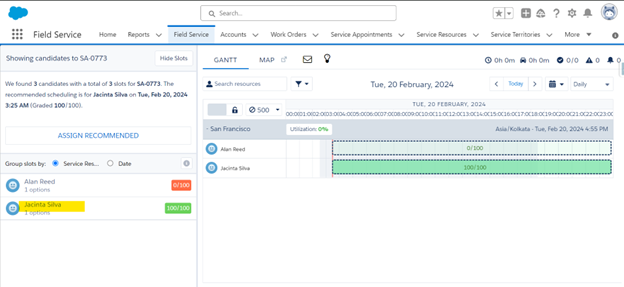
Now click on Hide Slots
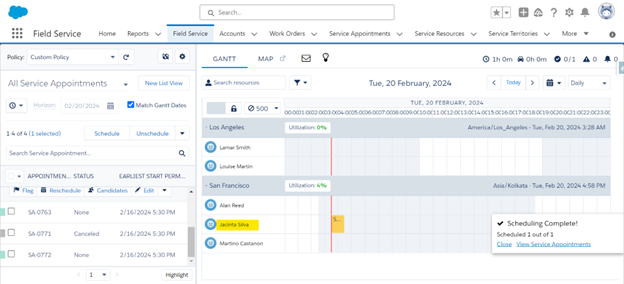
Select the appointment and click on schedule, it will automatically assign the appointment to the correct candidate based on the rules and objectives we defined
Conclusion
In this blog, we explored how Salesforce Field Service automation helps identify and assign the right technician for a service appointment by evaluating multiple business factors and organizational policies. Using these scheduling capabilities effectively ensures better resource utilization and improved service outcomes. This is one step toward mastering intelligent scheduling in FSL. Smarter scheduling. Better resource utilization. Stronger customer satisfaction.
