
 Book Free Consultation

Salesforce OmniStudio Integration Procedure
The Omni Studio integration procedure is a server-side process used to read, write, and fetch data from Salesforce and external servers or systems.
By Prithvi Dineshkumar
Asst. Software Developer
OmniStudio Integration Procedure
Introduction
Integration procedures can read and write data from Salesforce and from external systems (using REST calls) and can call Apex code. Integration procedures provide a drag-and-drop designer build using the same technology as OmniScript. It provides different actions to run on Salesforce Servers to reduce round-trip to the client.
When to use Integration Procedures?
Data from outside sources must be accessed and transformed.
There is no need for user interaction.
Data Input
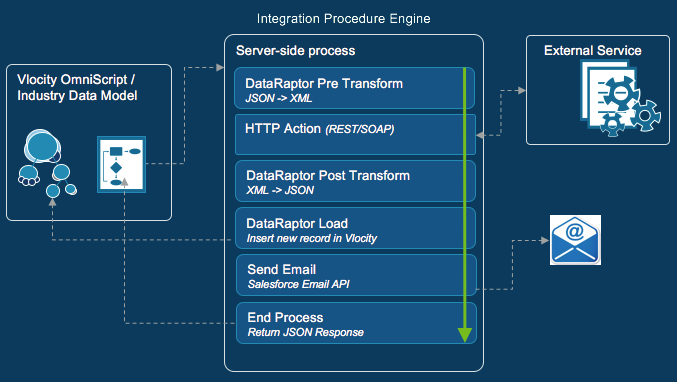
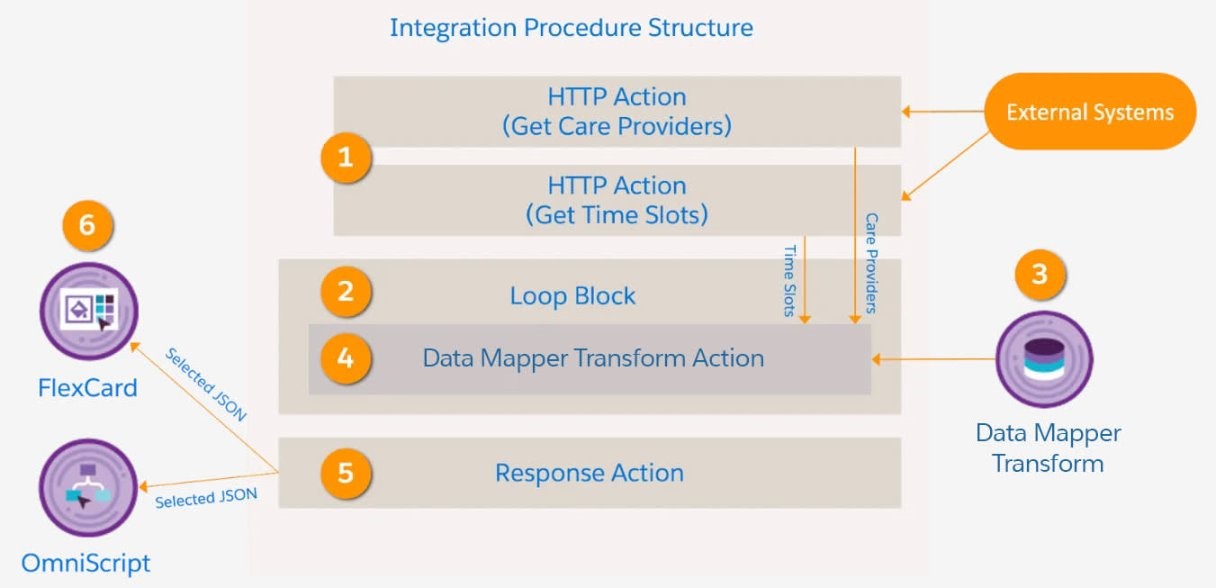
IP can be used to get data from a Salesforce object using DataRaptor Extract, or we can get data from an external system using API, and we can get data from an Apex class as well using Remote Action. Integration procedures are portable, can be used in flex cards, and in OmniScript once created as below,
Flex Cards: Integration Procedures can serve as a data source for Flex Cards. Flex Cards are components used in Salesforce Lightning Experience to display information from various sources. By configuring an Integration Procedure as a data source for a Flex Card, you can dynamically fetch and display relevant data within the card.
Omniscripts: Similarly, Integration Procedures can be integrated into Omniscripts. Omniscripts are user interface scripts used in Salesforce to guide users through complex processes. By incorporating Integration Procedures into Omniscripts, you can automate and streamline various tasks and interactions within the user interface, making it easier for users to navigate and complete processes seamlessly.
Designer
The three parts of the OmniStudio Integration procedure designer are as follows:
Components Panel
Structure Panel
Preview Pane
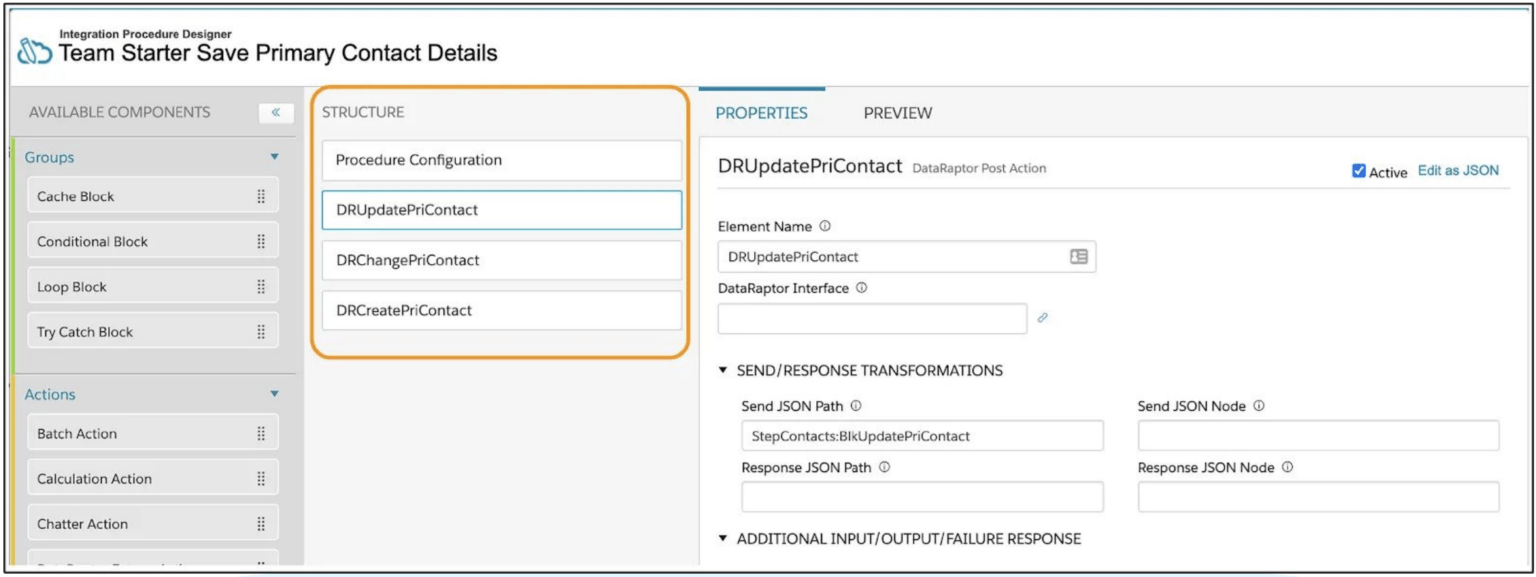
Available Components: All the supported components are divided into Groups and Actions.
Structure: This is where the components used for the development of the integration procedure will appear; you need to drag and drop the components.
Properties: Properties provide the information of the integration procedure, such as type, subtype, tracking, rollback, required permission, and chaining, etc.. will go through them in detail.
Preview: After the IP is saved preview tab appears and is used to test the IP.
Integration Procedure Actions
APIs Used in Omnistudio Integration Procedure
REST API
Widely used for integration with external applications.
Allows real-time data exchange with JSON-based requests.
HTTP Action Element
Part of Integration Procedures.
Configures API calls to external services using REST.
Supports GET, POST, PUT, PATCH, and DELETE methods.
Data Mapper APIs
Not external APIs, but internal to Omnistudio.
Used to fetch, transform, and load data in Salesforce.
Data Mapper Vs Integration Procedure:
Data Mapper | Integration Procedure |
| If you need to read data from or write data to SObjects that have a defined relationship, Data Raptor would be a suitable choice. | You need to read from or write to multiple data source types, such as SObjects, CSV files, external objects, Apex classes, or REST APIs. |
| You only need to read data from SObjects or write data to SObjects, but not both. | You need to perform actions such as sending emails, merging lists, or handling errors. |
| You need to modify the data structure by mapping input JSON nodes to output JSON nodes. | You need to call at least two Data Raptors to read from and write to one or more SObjects. |
| You do not need to read or write CSV files, Apex classes, REST APIs, or external objects. | You can control access to Data Mappers and Integration Procedures using settings that reference Sharing Settings and Sharing Sets or Profiles and Permission Sets. |
| You do not need to send emails, merge lists, or handle errors. |
Create an Integration Process to Get Data
Choose Omni Studio Data Mappers from the Console tab.
Click “New” to Create a Data Mapper
Choose the type of Data Mapper:
Extract – to retrieve data from Salesforce.
Transform – to manipulate/reshape data.
Load – to insert/update data in Salesforce.
Turbo Extract – a faster version of Extract (limited transformation logic).
For Data Mapper Extract:
Under the Extract tab:
Select the Salesforce Object (e.g., Account, Contact).
Add fields to extract (e.g., Name, Phone, Industry).
Add Filter Criteria to narrow down results (e.g., Id = {AccountId)

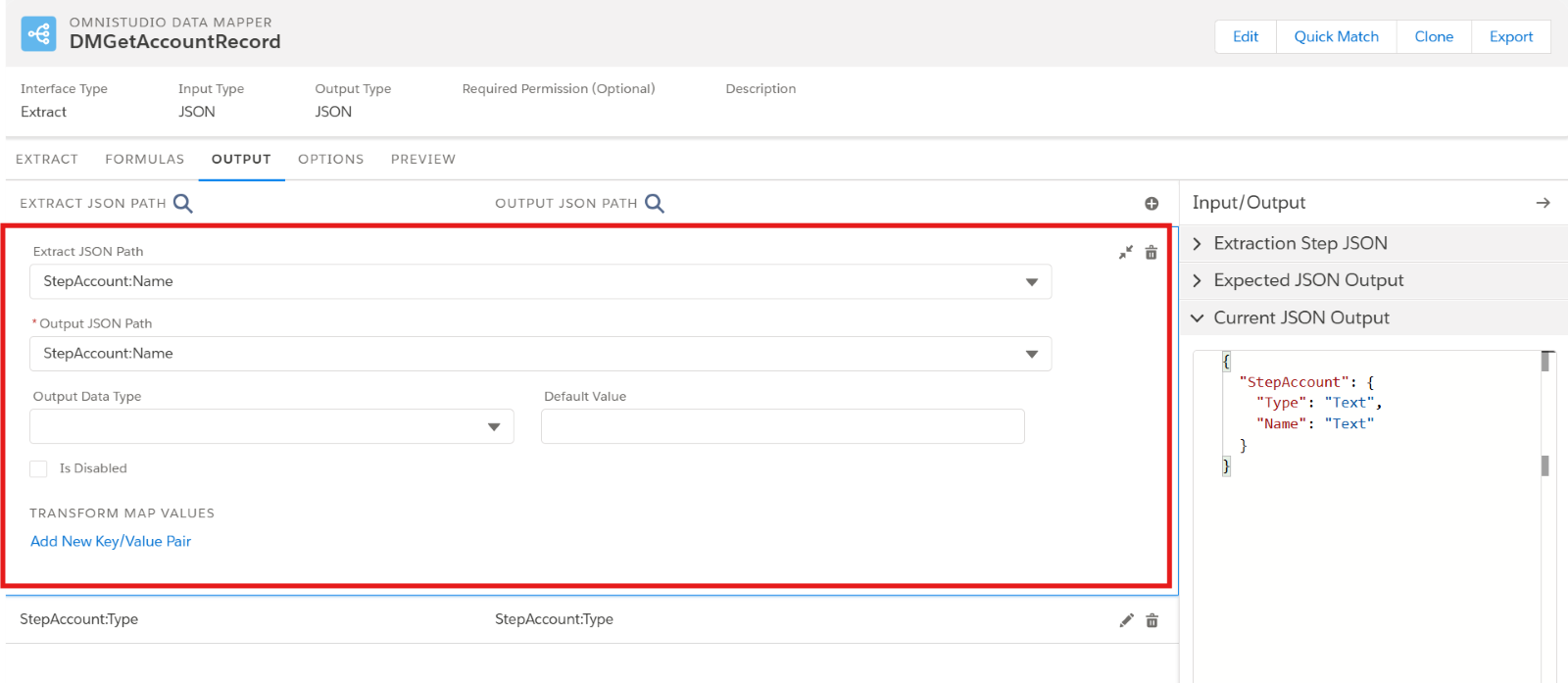
The Extract Output tab in Data Mapper lets you specify how the data that is extracted from Salesforce is organized in the final JSON output. Map particular fields from the extracted data to the appropriate places in the final JSON structure as part of this process.
Extract JSON Path: In this, you choose the Source field of the object.
Output JSON Path: Here, you specify the desired output for the chosen field in the final output JSON.
For testing the input and output of a DataRaptor Extract, we can use the Preview tab by providing the value to the key. For Example, give ‘AccountId’ in the key field and the ‘Id’ in the Value field. Now, the preview tab will provide the output according to the value given in the ‘Input Parameters’.
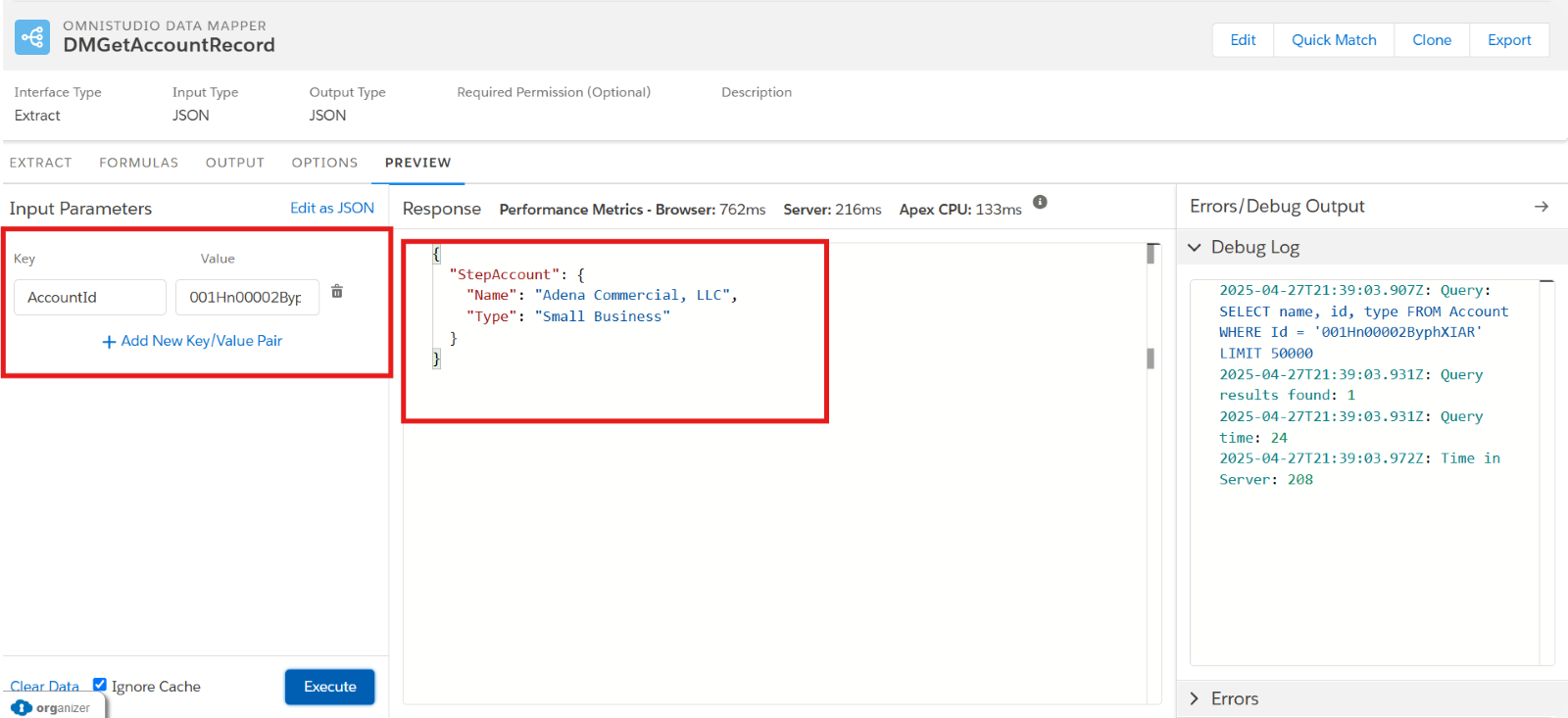
Navigate to the OmniStudio in the app launcher and click the drop-down button, and select the OmniStudio Integration Procedure. Click New.
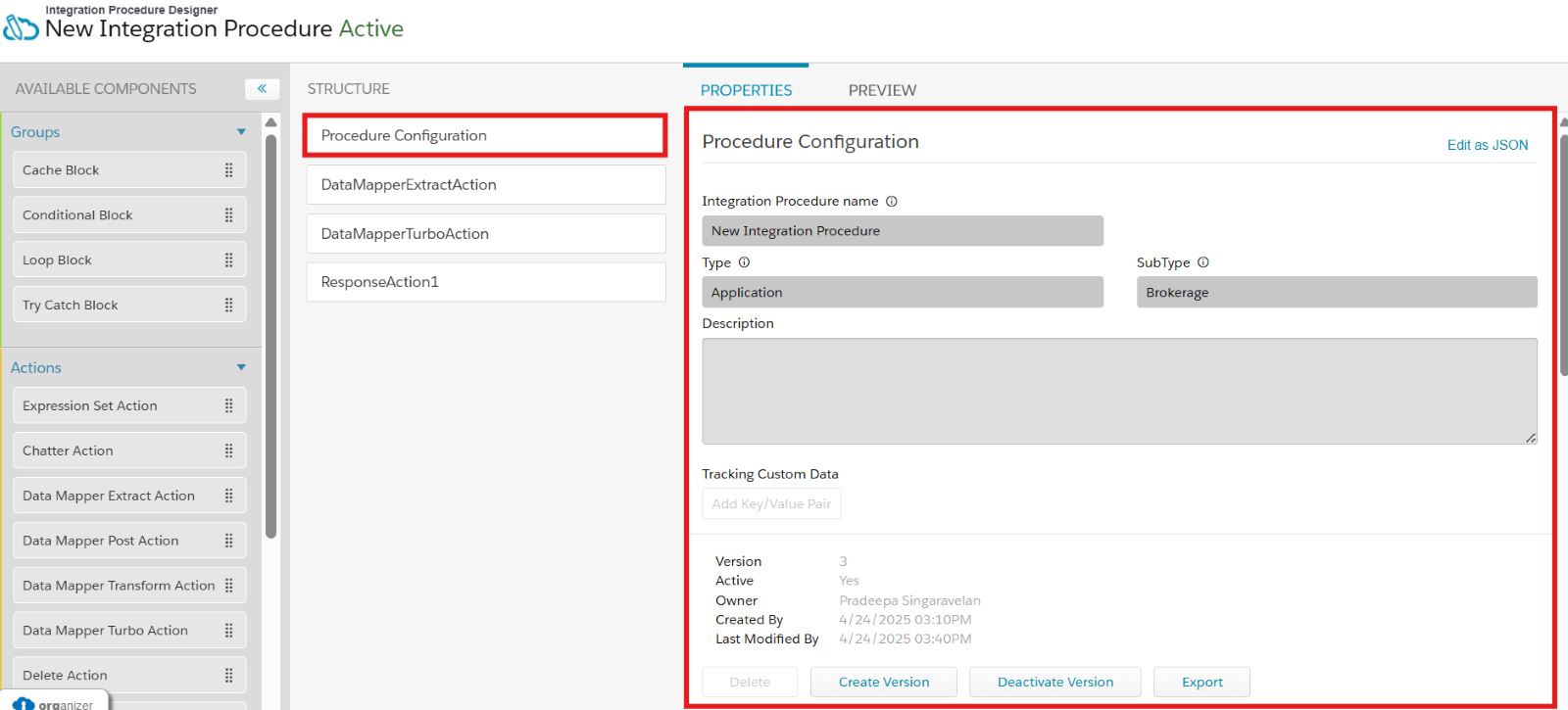
In the “Procedure Configuration” tab, enter IP(Integration Procedure) Name, Type, and Sub Type.
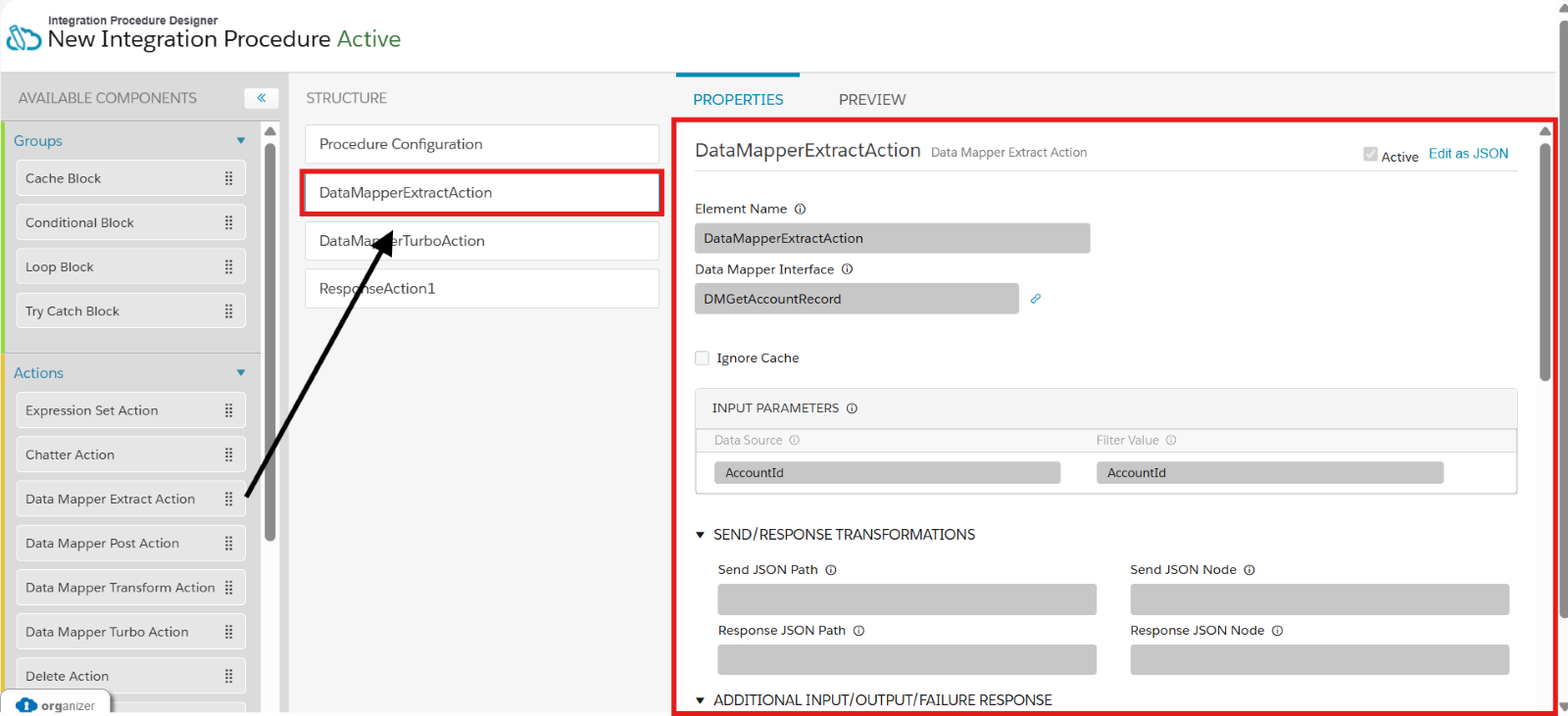
Drag and drop the Data Mapper Extract Action in the Structure Layout. In the Properties layout, enter a name for the Element. In the Data Mapper Interface, enter the name of the Data Mapper that will be used by the action.
In the Input Parameters, give Data source(to define where the data comes from) and Filter value (to show the specific record in the UI) .
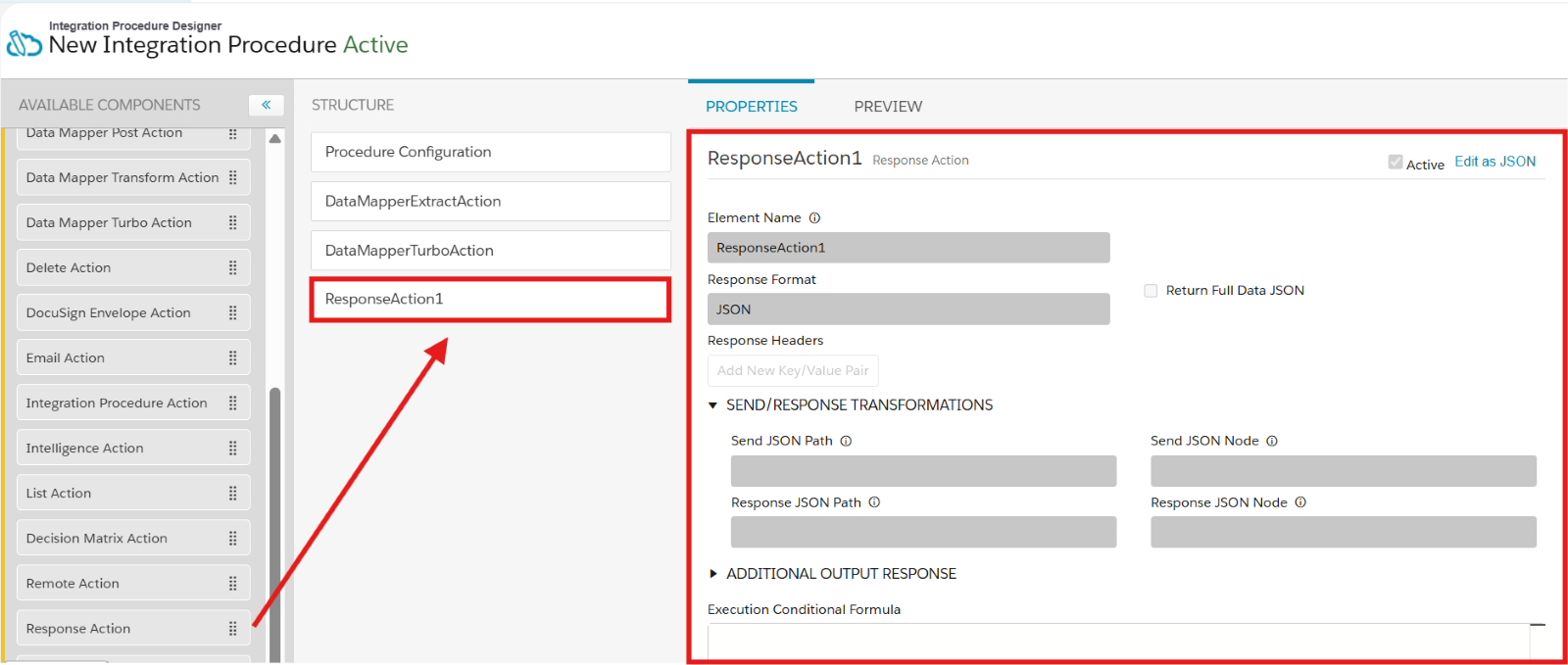
Drag and drop the Response Action in the Structure, in the properties panel, enter the ‘Element Name’, and in the ’Response format’ enter ‘JSON’.
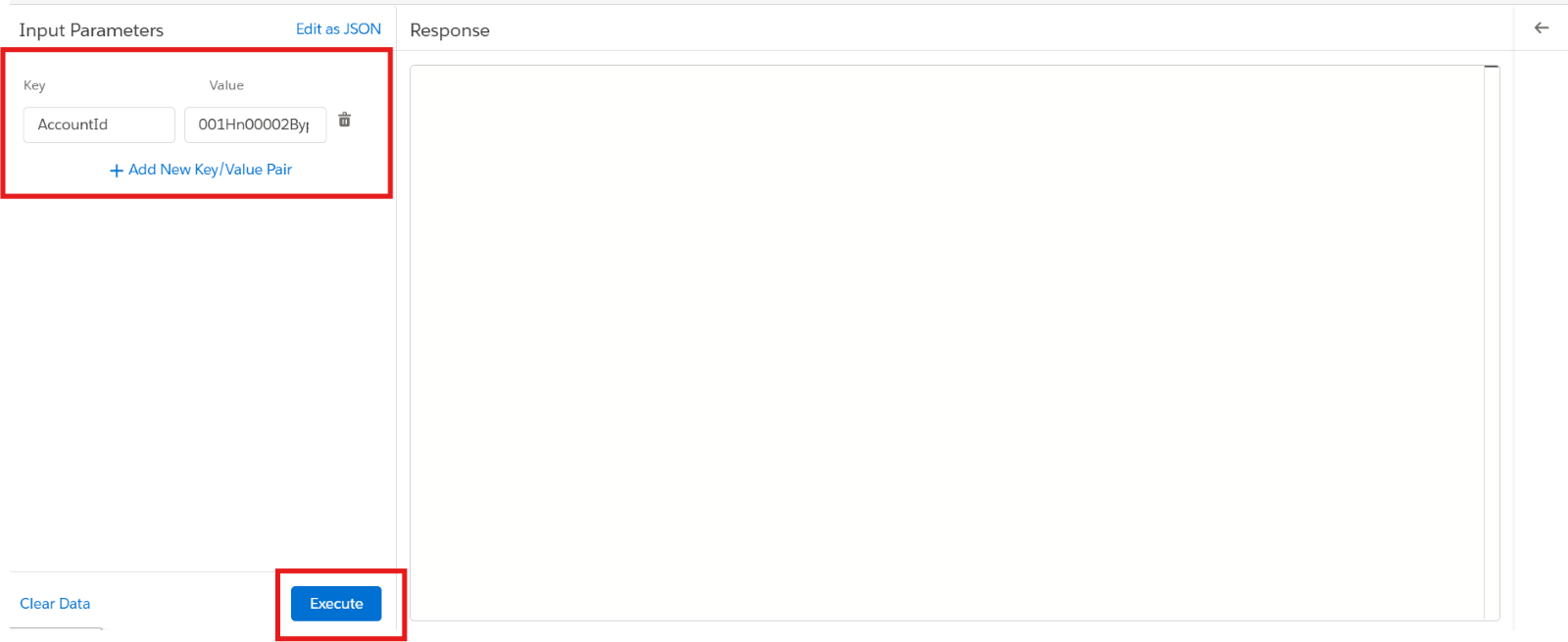
In the final step, click the “Preview” button to see the In the preview pane,l click the ‘+ Add New Key/Value Pair’
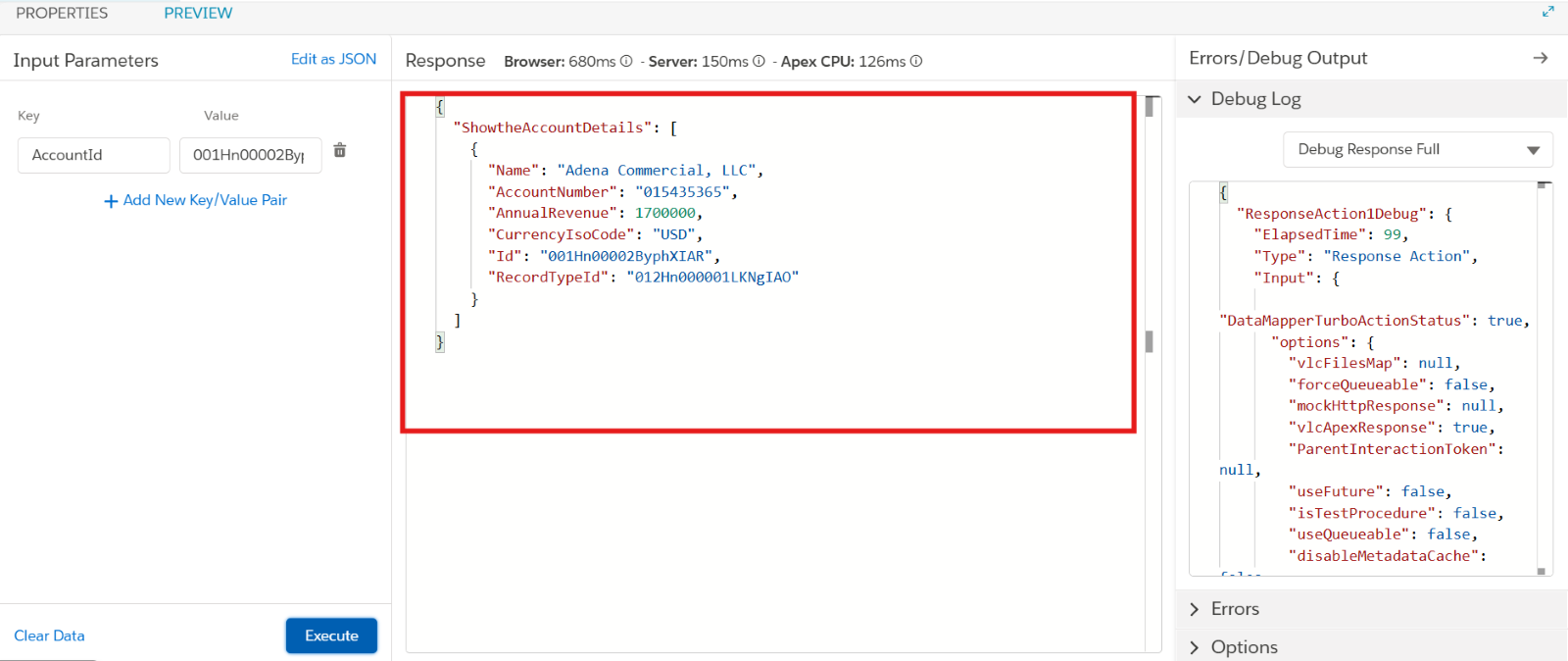
Enter the Key as ’AccountId’, which was given in the Input parameter Data Source, and value as any ’Account Record Id’, for example - (001Hn00002ByphXIAR). After entering the value, click the ’Execute’ button.
It will show the record Details Like – Name, Account Number, Annual Revenue, Currency Iso Code, etc..
Advantages
Low/No Code: With a drag-and-drop interface, developers and administrators can create complex logic without using a lot of Apex code.
Effective Management of Data: You can effectively process, filter, and organize data as well as chain several data sources.
Suitable for Integration: REST/SOAP calls are used to seamlessly interface with external services. Apex classes, external services, and DataRaptors are all supported by default.
Conditional Logic: Provides flexibility without the need for scripting by supporting error handling, loop components, and conditional branching.
Manageable and Scalable: Centralizes intricate business logic, simplifying its management and updating.
Safe Operation: Operates in a safe server-side setting, preventing private information from reaching the client.
Conclusion
In Salesforce OmniStudio, an Integration Procedure (IP) is a powerful server-side data processing tool that can be used to organize complex data tasks like getting, changing, and saving data from multiple sources (Salesforce, external systems, or both) without the user having to do anything.
