
 Book Free Consultation

PDF Generation in Salesforce using JS Custom Libraries
Generate PDFs in Salesforce using custom JavaScript libraries — without Visualforce limitations.
By Babhu Ganesh Palanisamy
Salesforce Developer
PDF Generation in Salesforce using JS Custom Libraries
PDF generation is a common requirement in Salesforce projects - whether it’s for invoices, contracts, quotes, or reports. While Salesforce provides Visualforce renderAs="pdf", it comes with several limitations, like restricted styling, no dynamic charts, and limited JavaScript support.
To overcome these challenges, we can leverage custom JavaScript libraries inside Lightning Web Components (LWC) combined with Apex to generate and download PDFs.
Why Not Just Use Visualforce?
Limited CSS/JS support
No modern fonts or responsive layouts
Difficult to integrate charts, images or dynamic UI elements
Poor rendering in some browsers
Generating PDFs in Salesforce Using jsPDF + dom-to-image
Why This Combo?
dom-to-image → Converts any Lightning DOM element into an image (PNG, SVG, or JPEG).
jsPDF → Embeds that image into a PDF file and allows text/metadata additions.
Works directly in Lightning Web Components (LWC).
Preserves Salesforce UI styling & charts.
To overcome the Lightning Locker Issue when using the jsPDF .html() method.
In this blog, we’ll explore how to use dom-to-image and jsPDF together in Salesforce to generate a PDF of Account details from a Lightning Web Component.
Steps to Build the LWC with PDF Generation
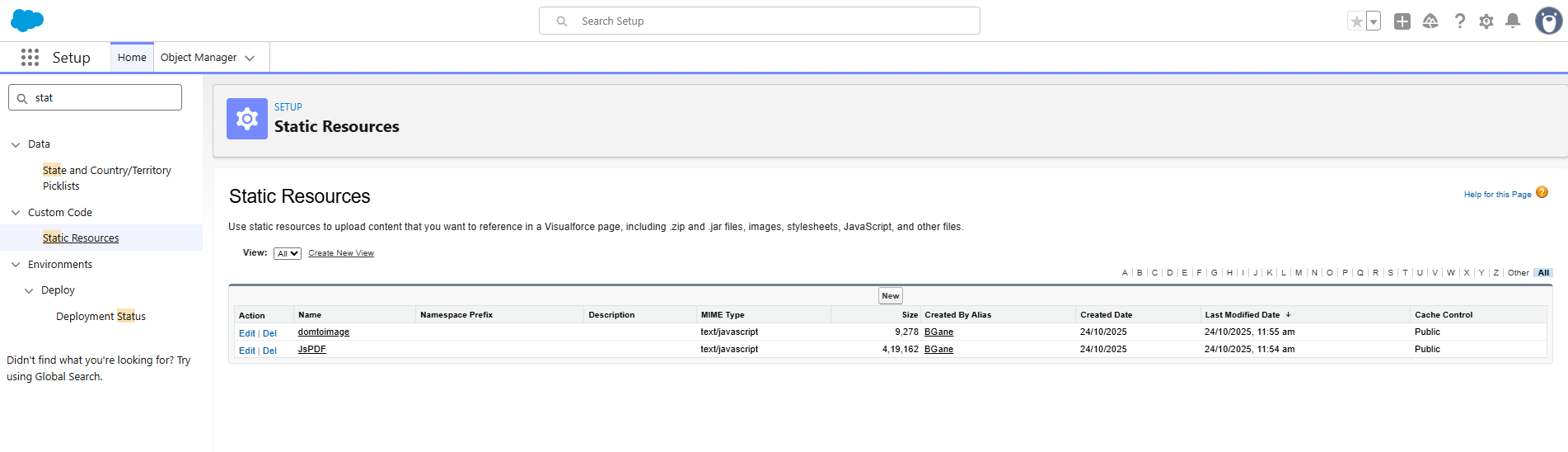
Step 1: Upload Libraries to Salesforce.
Download the libraries and upload them as Static Resources in Salesforce:
https://github.com/parallax/jsPDF
Download the file "jspdf.umd.min.js" and upload it to the Static resources.
https://github.com/tsayen/dom-to-image
Download the file "dom-to-image.js" and upload it to Static resources.
Step 2: Create LWC component – AccountPdfGenerator
HTML (Template)
<template>
    <lightning-card >
        <template if:true={account}>
            <div class="pdf-wrapper">
                <div class="content">
                    <h2>{account.Name}</h2>
                    <p><b>Account Number:</b> {account.AccountNumber}</p>
                    <p><b>Type:</b> {account.Type}</p>
                    <p><b>Industry:</b> {account.Industry}</p>
                    <p><b>Phone:</b> {account.Phone}</p>
                    <p><b>Website:</b> {account.Website}</p>
                </div>
            </div>
        </template>

        <div class="slds-m-around_medium">
            <lightning-button
                label="Download"
                onclick={generatePdf}
                variant ="brand">
            </lightning-button>
        </div>
    </lightning-card>
</template>
JavaScript (Controller)
import { LightningElement, api, wire } from 'lwc';
import { getRecord } from 'lightning/uiRecordApi';
// Apex Imports
import getAccountDetails from '@salesforce/apex/AccountPdfGeneratorController.getAccountDetails';
// Static Resources
import jsPDFLib from '@salesforce/resourceUrl/JsPDF';
import domToImageLib from '@salesforce/resourceUrl/domtoimage';

import { loadScript } from 'lightning/platformResourceLoader';

export default class AccountPdfGeneration extends LightningElement {
    @api recordId;
    account;
    librariesLoaded = false;

     @wire(getAccountDetails, { recordId: '$recordId' })
    wiredAccount({ error, data }) {
        if (data) {
            this.account = data;
        } else if (error) {
            console.error('Error fetching account details:', error);
        }
    }

     fetchAccount() {
        if (!this.recordId) {
            this.error = 'recordId is not provided';
            return;
        }
        getAccountDetails({ recordId: this.recordId })
            .then(result => {
                this.account = result;
                this.error = undefined;
                console.log('Account fetched:', JSON.stringify(this.account));
            })
            .catch(err => {
                this.error = err;
                this.account = undefined;
                console.error('Error fetching account:', err);
            });
    }

    connectedCallback()  {
        if (this.librariesLoaded) return;
        this.librariesLoaded = true;

        Promise.all([
            loadScript(this, jsPDFLib),
            loadScript(this, domToImageLib)
        ])
        .then(() => console.log('Libraries loaded successfully'))
        .catch(error => console.error('Error loading libraries', error));
    }

    async generatePdf() {
        try {
             const content = this.template.querySelector('.content');
                domtoimage.toPng(content).then(dataUrl => {
            const { jsPDF } = window.jspdf;
            const pdf = new jsPDF();
            pdf.addImage(dataUrl, 'PNG', 10, 10, 190, 0);
            pdf.save(`${this.account.Name}_Details.pdf`);
        });
        } catch (error) {
            console.error('PDF generation failed', error);
        }
    }
}
Apex Controller
public class AccountPdfGeneratorController {

// Method to get the Account Details
	 @AuraEnabled(cacheable=true)
    public static Account getAccountDetails(Id recordId) {
        return [
            SELECT Id,
                   Name,
                   AccountNumber,
                   Type,
                   Industry,
                   Phone,
                   Website
            FROM Account
            WHERE Id = :recordId
            LIMIT 1
        ];
    }
}
CSS
.pdf-wrapper {
    display: flex;
    justify-content: center;
    align-items: center;
    background: #f4f6f9;
    padding: 40px;
    min-height: 400px;
    border-radius: 12px;
}

.content {
    background: #ffffff;;
    padding: 40px 50px;
    border-radius: 12px;
    box-shadow: 0 4px 16px rgba(156, 234, 232, 0.1);
    font-family: 'Salesforce Sans', Arial, sans-serif;
    color: #16325c;
    width: 500px;
    text-align: left;
}

.content h2 {
    margin-bottom: 20px;
    font-size: 22px;
    color: #0176d3;
    font-weight: 600;
    text-align: center;
}

.content p {
    margin: 10px 0;
    font-size: 16px;
    line-height: 1.5;
}

.content b {
    color: #032d60;
}

lightning-button {
    display: flex;
    justify-content: center;
    margin-top: 25px;
}
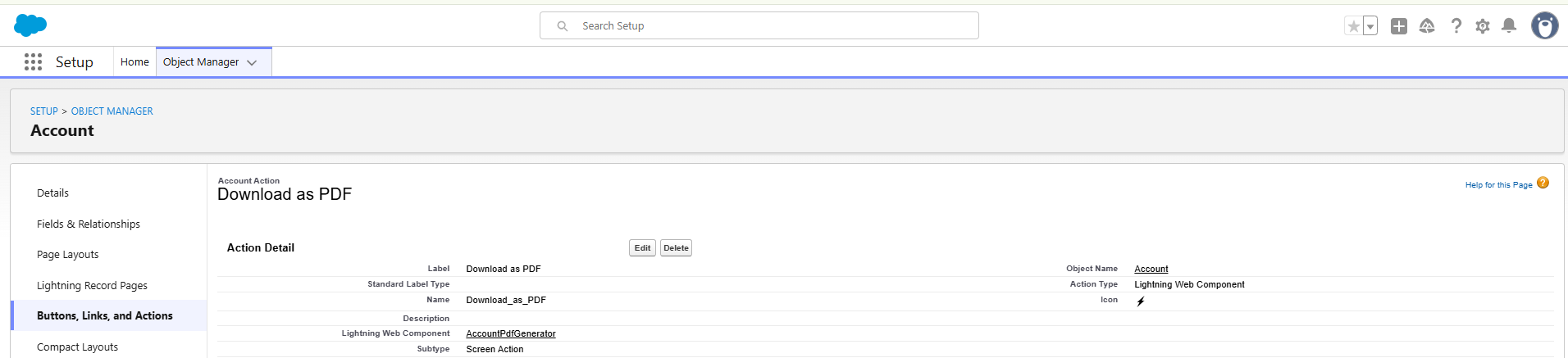
Step 3: Create a button in the Account object called "Download as PDF".
Add the LWC AccountPdfGenerator created in step 2 to this button.
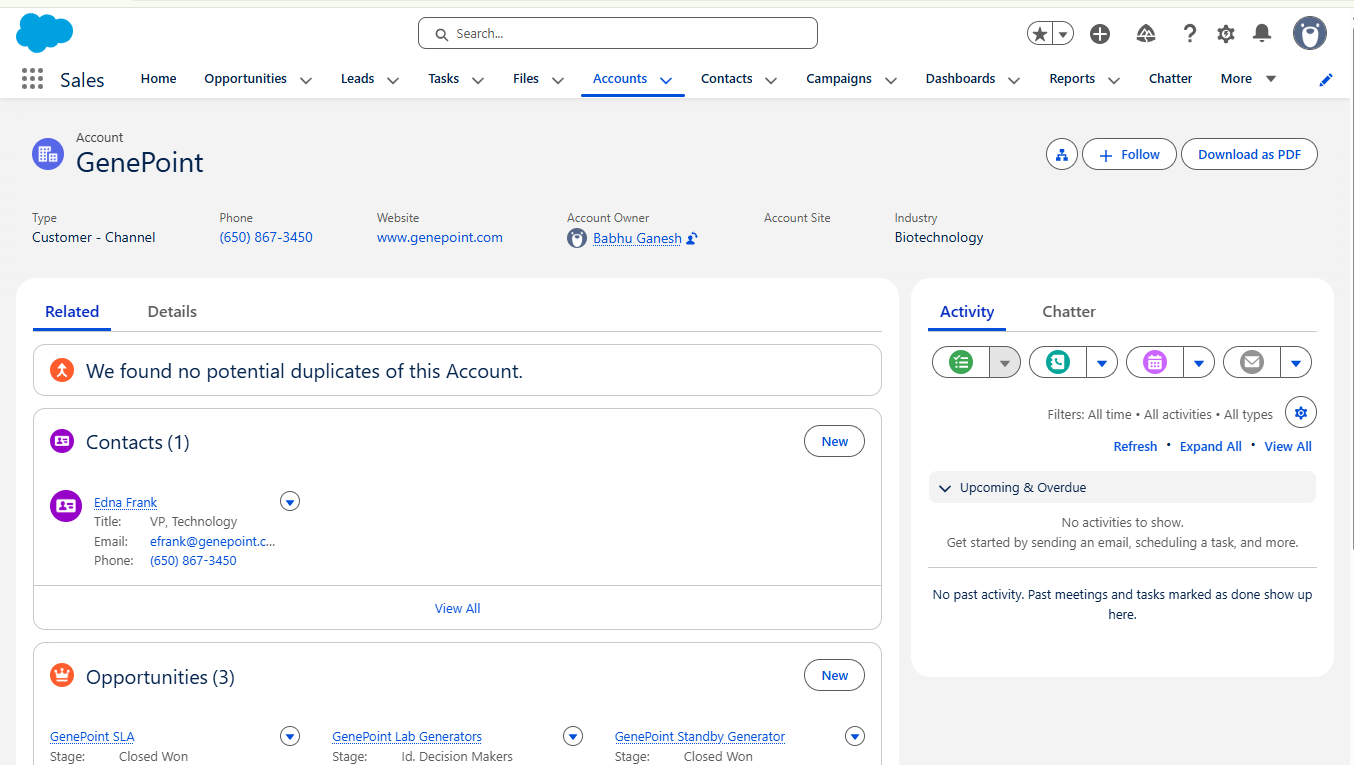
Step 4: Add a Custom button to the Lightning Record Page
Add it to your Account Record Page using the Lightning App Builder
Step 5: Generate PDF for Account
After completing all the setup and styling,
Click "Download as PDF" button in Account Record Page.
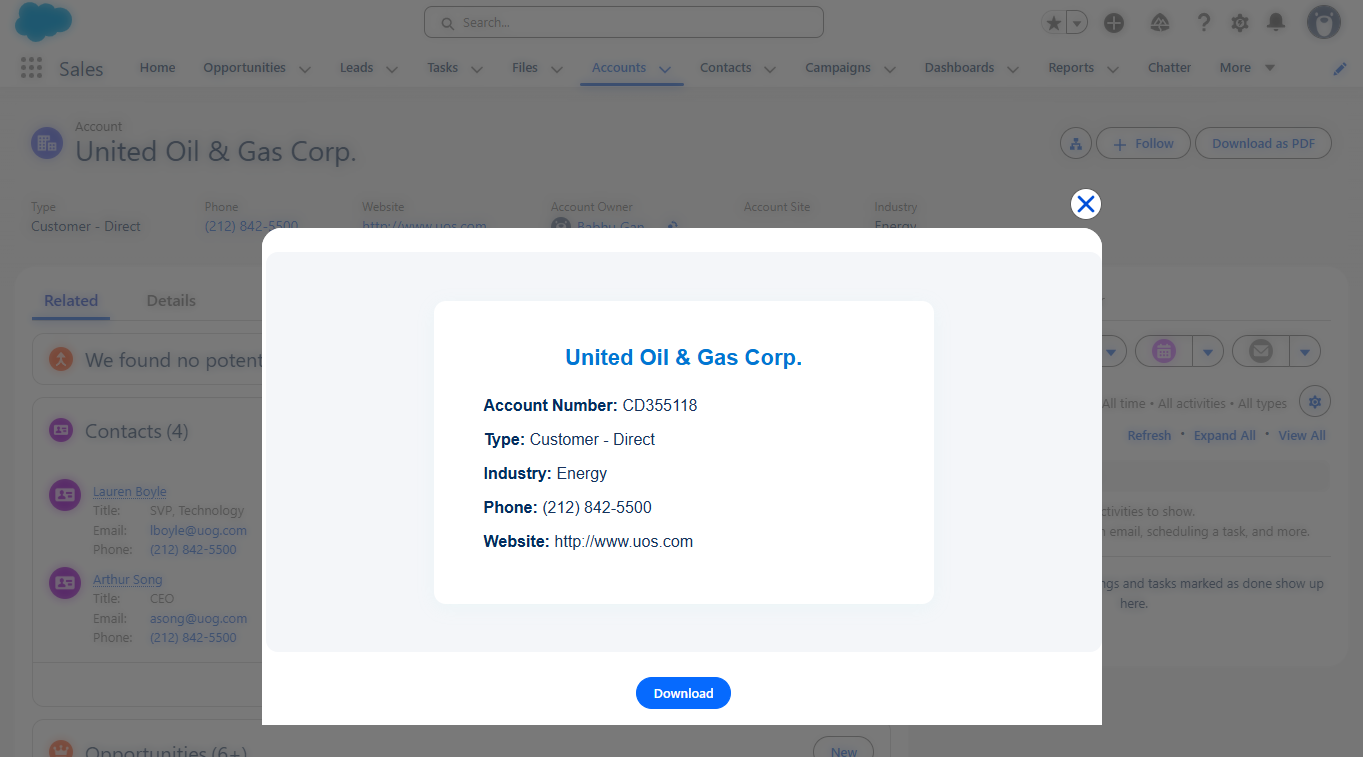
Now click the "Download" button, and the Account Details will download as a PDF.
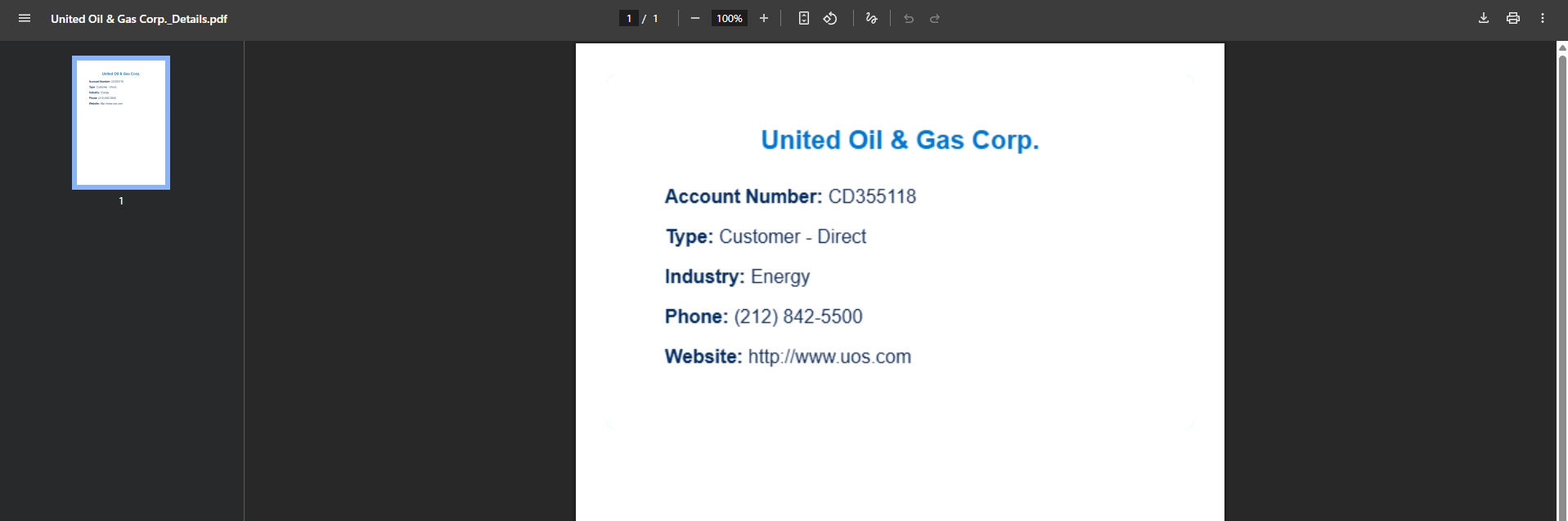
After completing all the previous steps, your Account PDF generation is ready to use. Just click the “Download as PDF” button, and you’ll get a well-formatted, centered and styled PDF of your account details.
Limitations of Using jsPDF and Dom-to-image libraries:
- Performance can be slow for large DOM elements and the output quality may be reduced when scaling or converting content to images.
- External resources may fail due to CORS and text clarity can sometimes be affected.
- It has issues with large content or multiple pages, and images or custom fonts may not render perfectly.
- Generating PDFs for large content can take more time.
- While the PDF is being created, users cannot interact with the current page or perform actions.
Conclusion
Generating PDFs in Salesforce using Lightning Web Components is more efficient than using Visualforce pages. By leveraging custom JavaScript libraries, you can create well-formatted, visually appealing PDFs, although there are some limitations with complex layouts, large content, and maintaining exact design fidelity. This approach overcomes common VF page constraints such as limited CSS support and fonts, allowing users to generate enhanced PDFs directly within Salesforce. Additionally, it can be easily extended to other Salesforce objects, enabling users to create PDF documents without relying on external tools.
