
 Book Free Consultation

Introduction to Knowledge Article in salesforce
It helps support agents resolve cases faster and enable customers to find answers through self-service portals-improving efficiency and satisfaction.
By Navaneeth Manigundan
Senior Salesforce Developer
Introduction to Salesforce Knowledge Articles
Today, many people find it hard to set up products or get help with service problems. They often have to wait for a technician, even for small issues. This can be slow and frustrating. To help, some companies write short guides called knowledge articles. These guides show how to fix common problems without needing help. That's where Salesforce Knowledge Articles come in. These articles are the backbone of self service support and help solve problems without waiting for an agent.
What are Knowledge Articles?
A Salesforce Knowledge Articles is a structured document stored in the CRM that provides answers to common questions, guides users through processes, and helps support agents resolve cases faster. Think of it as your company’s internal and external help desk, neatly organized and always available. Salesforce has evolved its Knowledge management system over time-from the traditional Classic Knowledge to the more powerful and streamlined Lightning Knowledge. Understanding the differences between these two versions is key to building an efficient support and content strategy.
Ways Knowledge Articles Improve Information Access
Salesforce Knowledge Articles enable both customers and support agents by providing:
- Quick, searchable solutions to common problems
- Consistent and accurate information across teams
- Reduced support case volume and faster resolution times
- Centralized repository of product and service documentation
Real-World Examples / Use Cases
- Customers frequently ask the same questions
- Agents need quick reference material during live support
- You want to offer 24/7 self-service help on your website or portal
- Internal teams need onboarding or training documentation
- You’re launching a new feature and want to guide users through setup
Licensing
Lightning Knowledge is included at no additional cost with the Essentials and Unlimited editions as part of the Service Cloud. However, for Professional, Enterprise, Performance, and Developer editions, Lightning Knowledge requires an additional license.
Creating Knowledge Article
To create a Knowledge Article in Salesforce Lightning, you first need to enable the Knowledge feature. Follow below steps to set it up.
Step 1: Accessing Knowledge Settings
- Go to the Setup page in Salesforce Lightning.
- In the Quick Find box, type "Knowledge Settings" and select it from the results.
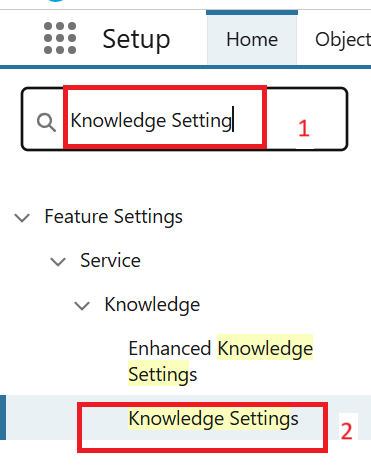
Step 2: Enabling Salesforce Knowledge
- In the Knowledge Settings window, click the Enable Salesforce Knowledge button.
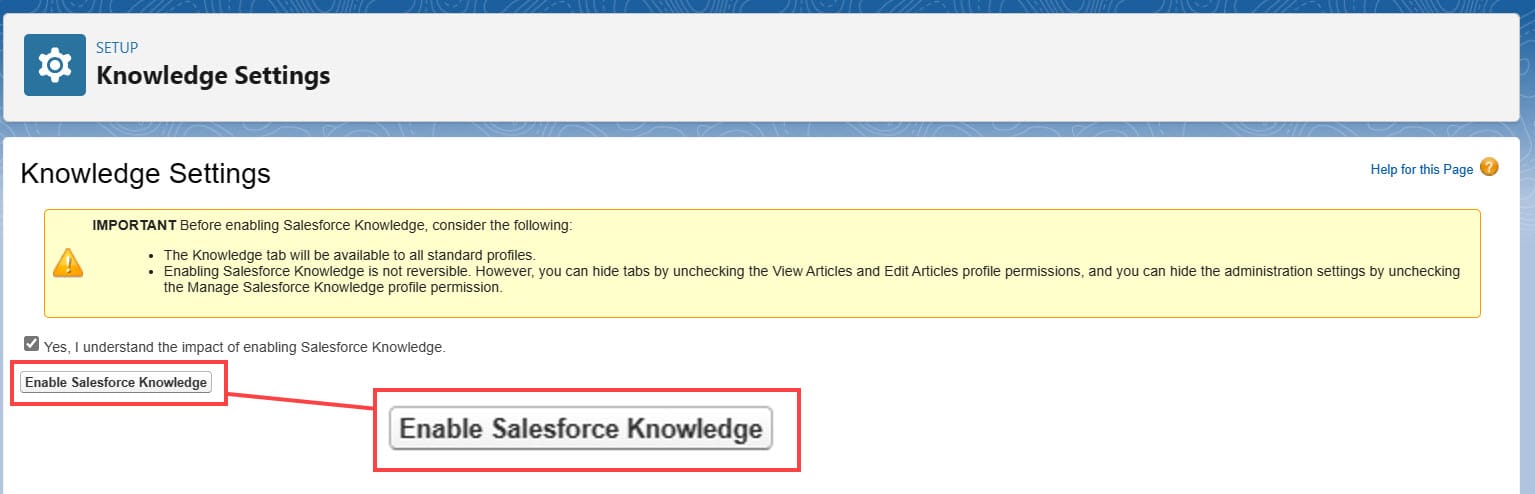
Step 3: Editing the Knowledge Settings
- After enabling, click the Edit button in the Knowledge Settings section.
Step 4: Enabling Lightning Knowledge
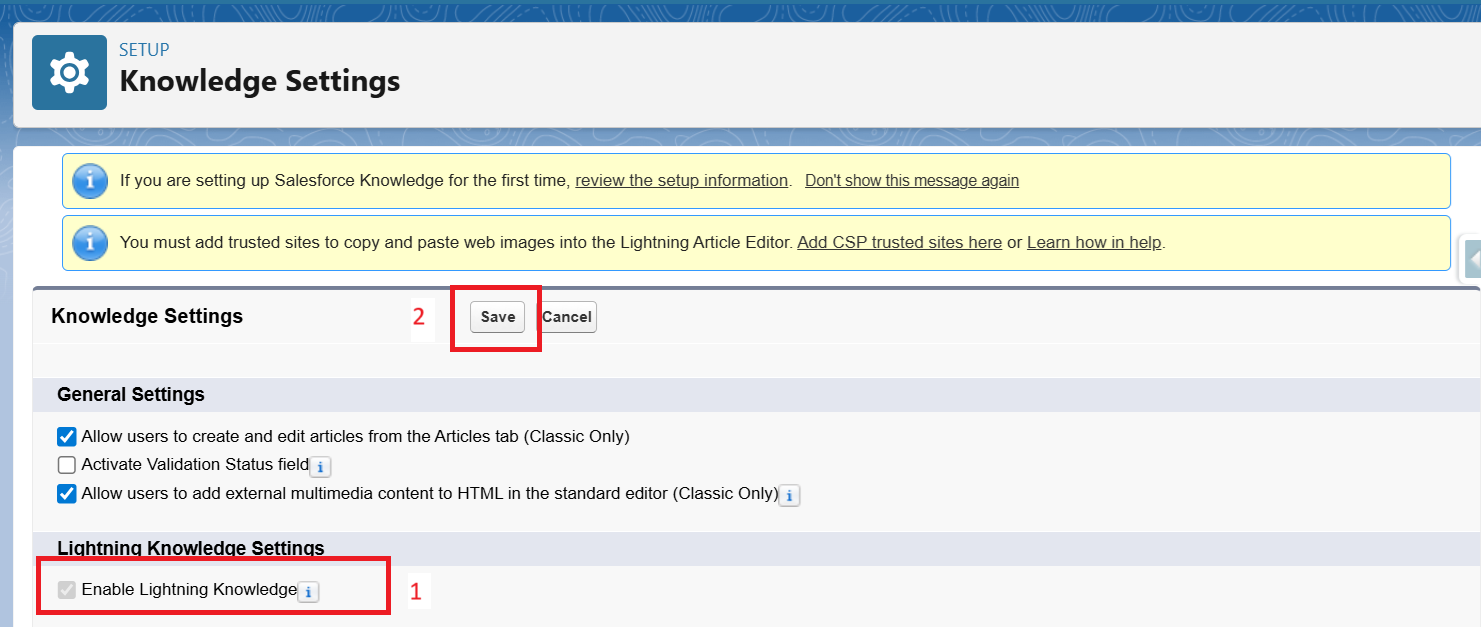
- In the Edit window, scroll to the Lightning Knowledge Settings section.
- Check the box labeled Enable Lightning Knowledge.
- Click Save.
Step 5: Accessing the User Settings
- In the Quick Find box, type "Users" and select it.
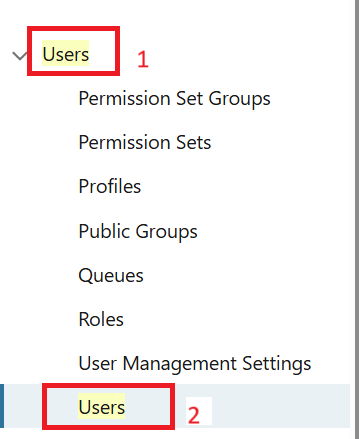
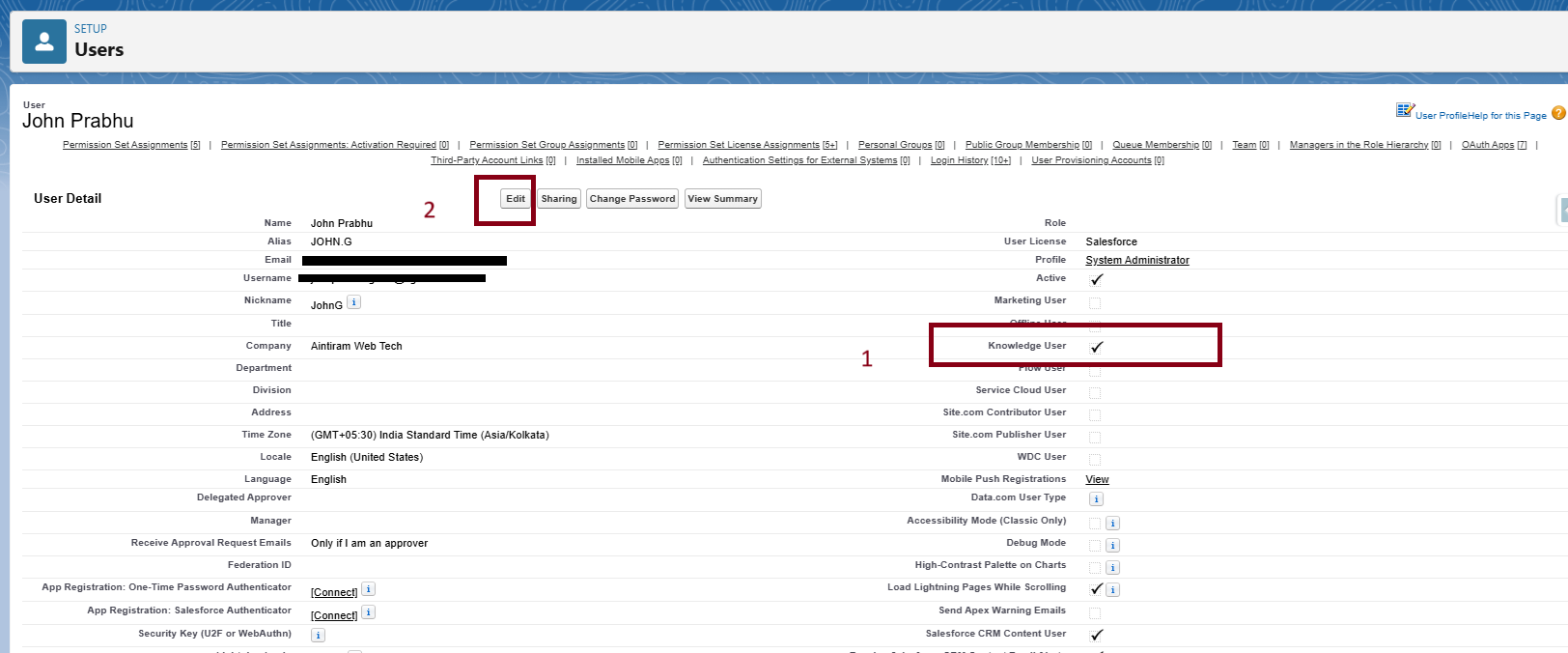
Step 6: Editing the User Account
- In the Users list, click Edit next to the user who will create Knowledge Articles.
Step 7: Enabling Knowledge for the User
- In the Edit User window, check the box labeled Knowledge User.
- Click Save.
Step 8: Creating the Knowledge Articles
- Go to the App Launcher.
- In the search bar, type “Knowledge” and click on it.
You’ll be taken to the Knowledge tab, where you can create articles.
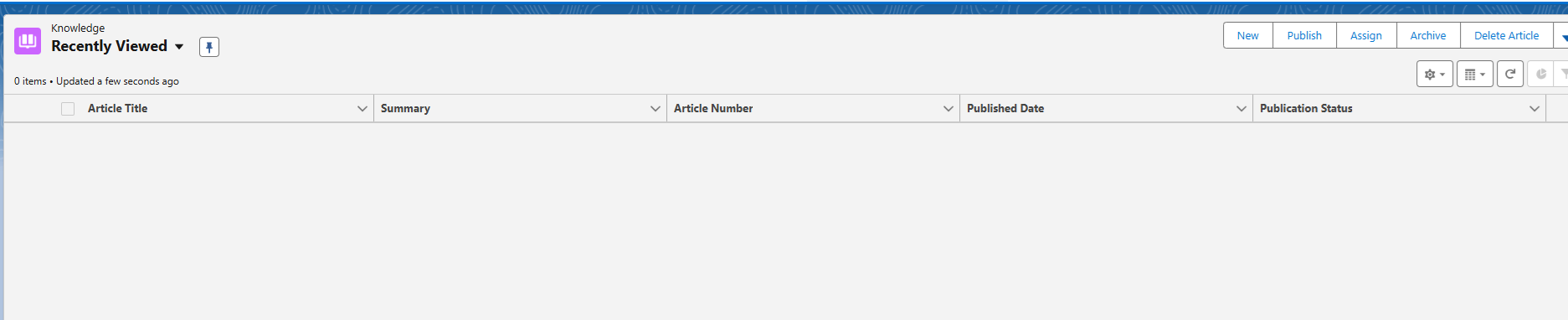
- Click the New button.
- Salesforce gives you a default article type called FAQ.
- Fill in the details:
a. Title – Enter the title of your article.
b. URL Name – This will be filled in automatically.
c. Question – Click Edit to write your question.
d. Answer – Write the answer that will help your users or customers.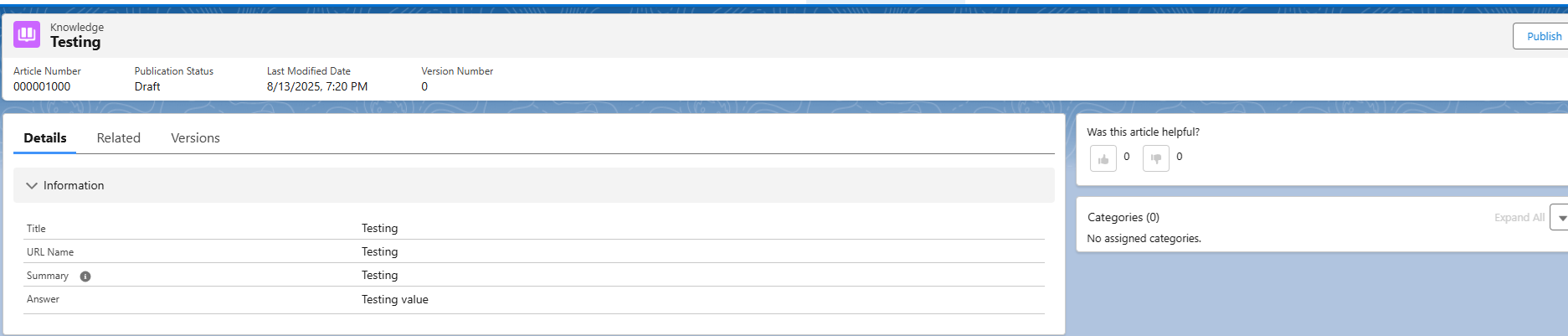
- Once done, click Save.
After saving, you’ll see the article record with the following info:
- Article Number – A unique number is assigned to each article.
- Publication Status – Starts as Draft. You can later change it to Published or Archived.
- Version Number – Starts at 0. It becomes 1 when published and increases with each update.
- Buttons –
- Create Article - Starts a new knowledge article draft.
- Edit - Opens the article for editing (if permissions allow).
- Publish - Click to publish the article.
- Archive - Moves outdated articles out of active circulation.
- Delete - Permanently removes the article (admin-only in most cases).
- Article Content – Shows the answer you added.
Once you have created Knowledge Articles in Salesforce, enabling a smooth search process within a Lightning Component is key to helping users find relevant content quickly.
Salesforce offers multiple ways to search for articles:
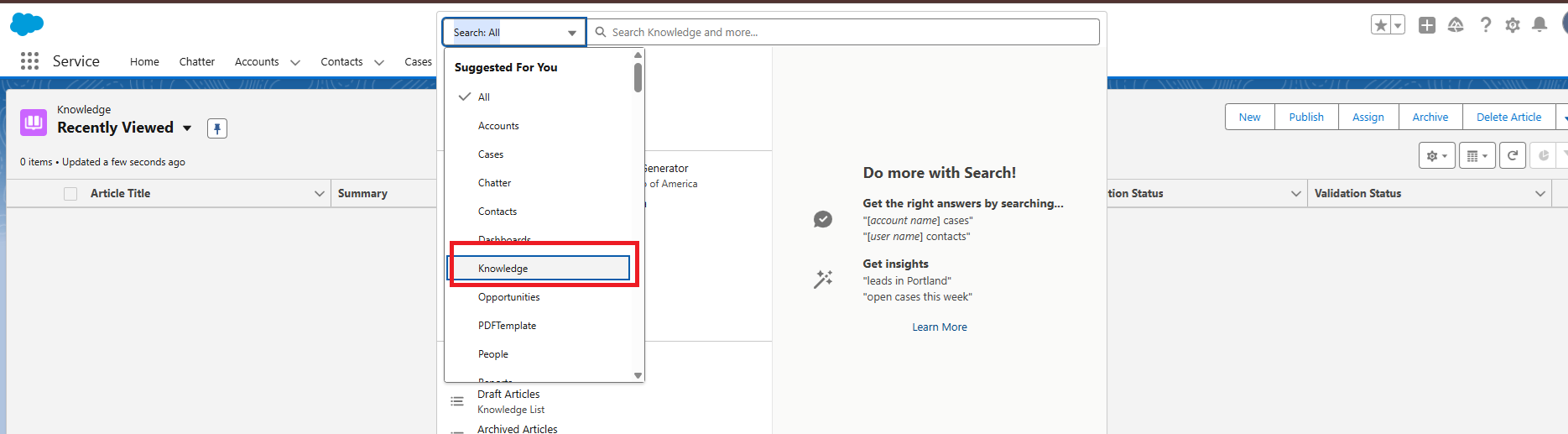
- Global Search
- Located at the top of every page.
- Type keywords and select Knowledge from the dropdown.
Supports filters like language, publishing status, and data category groups.
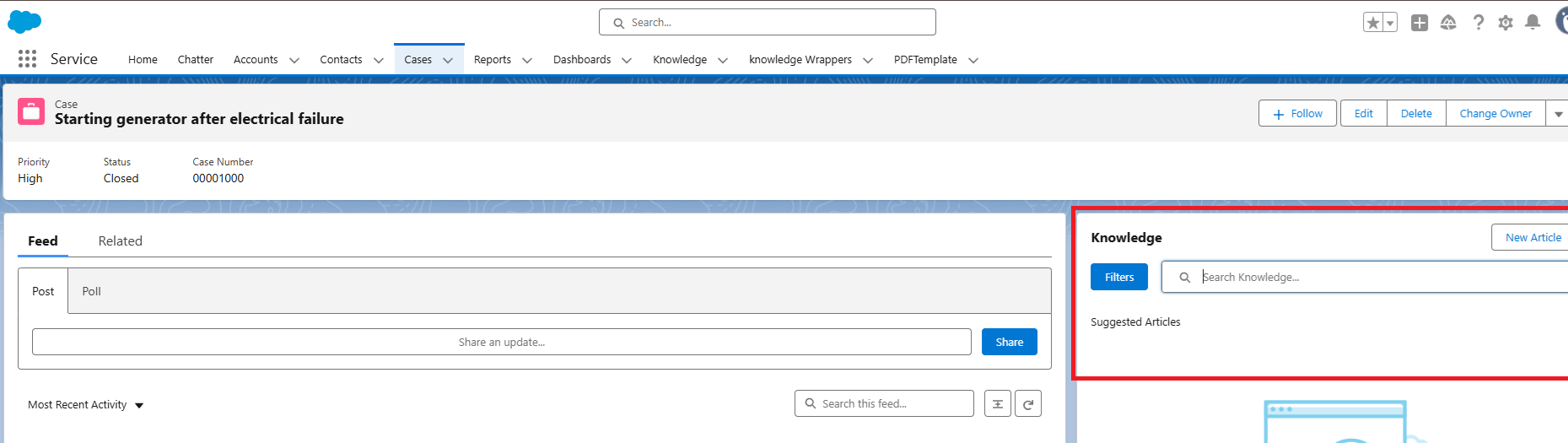
- Knowledge Component in Lightning App Builder
- Add the Knowledge component to your page layout.
- Users can search directly using the search bar in this component.
Articles appear based on keyword relevance and data category filters.
Conclusion
Ultimately, Salesforce Knowledge is more than just a tool it’s a powerful resource that empowers users to find the right answers with ease, guiding them toward smarter decisions and greater efficiency.
