
 Book Free Consultation

Automate Pardot Segmentation List Reports Using API – Part 1
Learn how to Automate Pardot Segmentation List Reporting using Salesforce OAuth and API integration. This guide covers authentication,data retrieval via Postman
By Nithish Kumar Selvaraj
Software Developer
Automating Pardot Segmentation List Reports Using API – Part 1
Generating monthly segmentation list reports in Pardot (Marketing Cloud Account Engagement) generally requires a number of manual processes, such as changing views, applying filters, and exporting data to spreadsheets.
I created a Proof of Concept (POC) that would automatically fetch segmentation list data from Pardot, write it into Salesforce, and create standard reports in Salesforce itself.
The goal was to automate three important steps,
- Retrieve segmentation list details (and associated prospect data) from Pardot through API.
- Store data in a Salesforce custom object for reporting purposes.
- Trigger the process to run automatically once every month.
By integrating Pardot API calls with Salesforce Apex automation, we can eliminate manual reporting work entirely and have Salesforce data constantly updated. This blog describes the end-to-end process, from API configuration to Salesforce setup. Let's dive in..!
Getting the Necessary Pardot API Credentials
To connect from Postman or Salesforce to the Pardot (Marketing Cloud Account Engagement) API, we require a few important credentials. These credentials allow you to authenticate to salesforce by access token. The needed credential details are,
Credential | Purpose |
|---|---|
| Client ID & Client Secret | Used for OAuth authentication. Retrieved from a Salesforce Connected App. |
| Business Unit ID | Identifies your Pardot Business Unit in all API requests. |
| Username, Password, and Security Token | Used for user-level authentication (usually in Postman or during testing). |
Let’s see how to get each of these step-by-step.
1. Getting the Client ID and Client Secret
These are obtained from a Salesforce Connected App, which specifies how external systems authenticate with OAuth.
Steps to Create a Connected App
Log in to Salesforce with System Administrator access.
Go to Setup → In the Quick Find box, type App Manager → Click App Manager.
Click New Connected App.
Enter the basic information:
Connected App Name: Pardot API Access
Contact Email: your email address
Under API (Enable OAuth Settings):
Check Enable OAuth Settings.
Callback URL: https://www.postman.com/oauth2/callback (Note: This is common for Postman testing. For production, use your integration’s callback URL.)
Selected OAuth Scopes: Add these scopes,
Access Pardot services (pardot_api)
Access and manage your data (api)
Make requests on your behalf at any time (refresh_token, offline_access)
(Optional) Full access (full)
Click Save → then click Continue when prompted.
Retrieve the Credentials
After saving the Connected App:
Go to App Manager → find your app → click the dropdown (▼) → View.
Under the API (Enable OAuth Settings) section, note down:
Click the Manage Consumer Details.
Consumer Key → this is your Client ID.
Consumer Secret → this is your Client Secret.
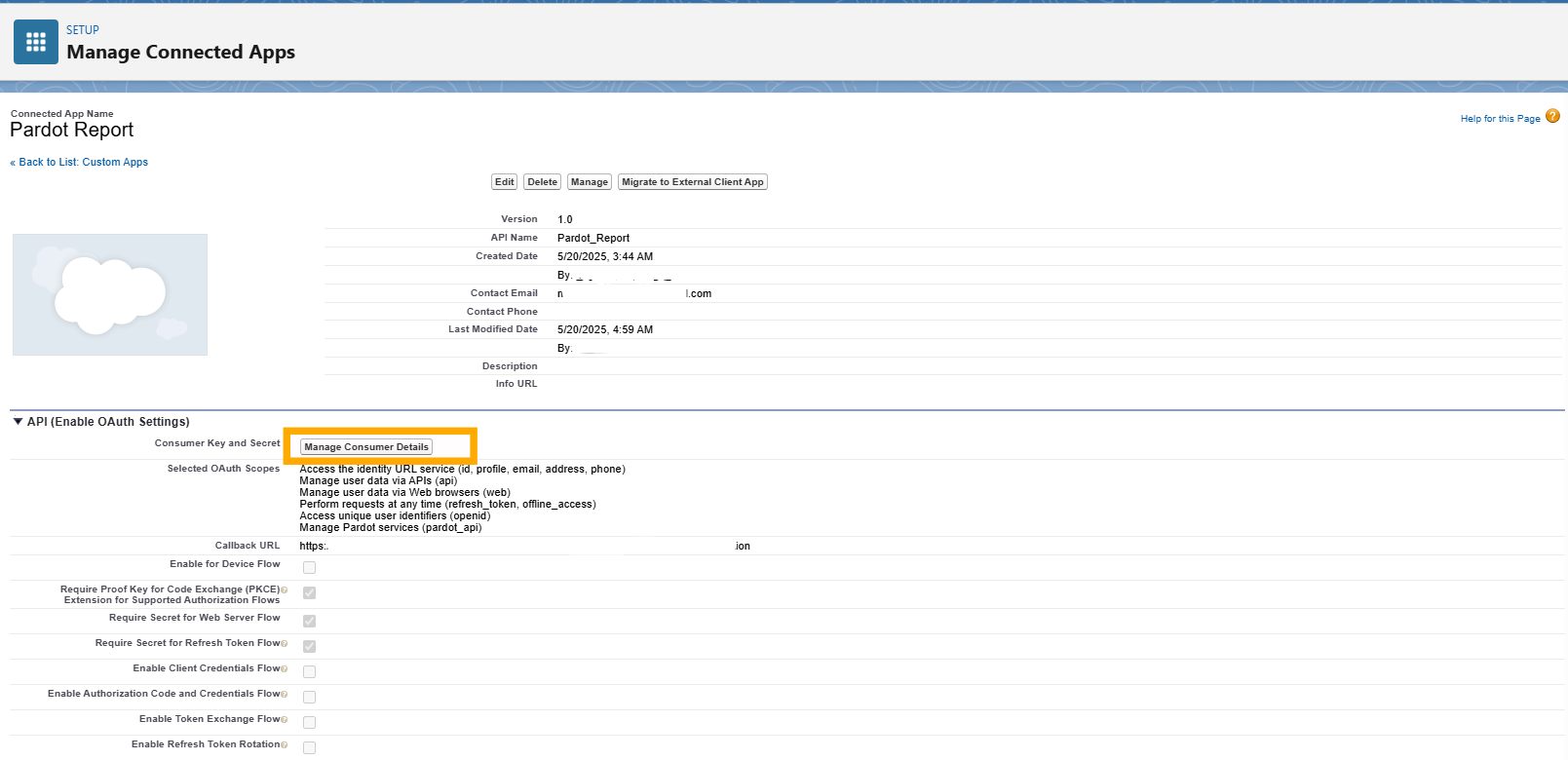
You’ll use these values in Postman when generating the access token.
2. Finding Your Pardot Business Unit ID
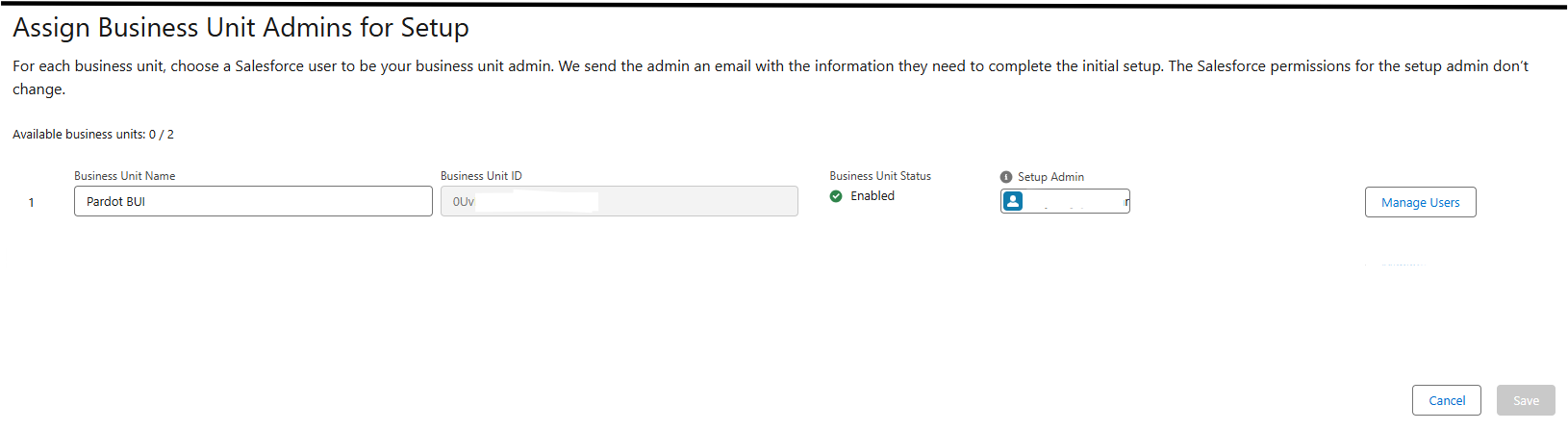
Every Pardot instance has a unique Business Unit ID (sometimes called the PI Business Unit ID).This ID must be included in every Pardot API call via the request header,
Pardot-Business-Unit-Id: 0UvXXXXXXXXXXXXXXXSteps to Locate It
Go to Salesforce Setup.
Search for Pardot Account Setup (or Marketing Setup, depending on your edition).
Open the page - you will see a section labeled Pardot Business Unit ID.
The ID looks like this: 0Uv5g0000XXXXXXXX
Copy and save this value securely - you will use it in every Pardot API request.
3.Preparing Your Salesforce User Credentials
You’ll also need valid Salesforce user credentials with Pardot access to perform the authentication. Ensure the user,
Has Marketing User or Pardot Administrator permissions.
Belongs to the correct Pardot Business Unit.
Can log in via Salesforce SSO (not directly through Pardot Classic).
For Postman testing, you’ll need:
Username: your Salesforce login email.
Password + Security Token: Append your security token to your password.
For example, if your password is MyPass and your token is XYZ123, use:MyPassXYZ123
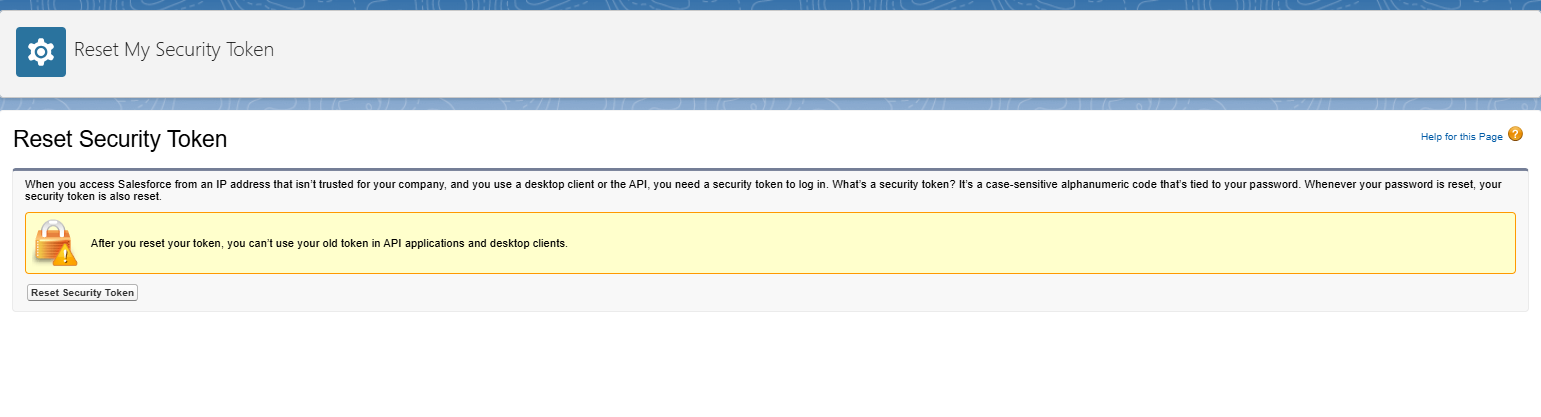
If you don’t have your security token:
Go to Salesforce → Settings → Reset My Security Token to generate a new one.
4. Summary of Required Credentials
Key | Example | Source |
|---|---|---|
| Client ID | 3MVG9xxxxxxxxxxxxxx | Salesforce Connected App (Consumer Key) |
| Client Secret | 195e8f0xxxxxxxxxxx | Salesforce Connected App (Consumer Secret) |
| Username | user@company.com | Salesforce user credentials |
| Password + Token | MyPassXYZ123 | Salesforce user credentials |
| Business Unit ID | 0Uv5g0000XXXXXXXX | Pardot Account Setup |
| Login URL | https://login.salesforce.com/services/oauth2/token | Salesforce OAuth endpoint |
With these details ready, you’re all set to authenticate with Pardot via Postman and start making API calls, such as retrieving segmentation list membership details.
Pardot API Setup
Step 1: Authenticate and Get Access Token
Pardot authentications were handled through Salesforce OAuth 2.0 in the usual way. To get the access token, you have to make a call to the endpoint URL which provided by Salesforce.
Request Details
Method: POST
URL
For Production: https://login.salesforce.com/services/oauth2/token
For Sandbox: https://test.salesforce.com/services/oauth2/token
Request Body (x-www-form-urlencoded)
Key | Value |
|---|---|
| grant_type | password |
| client_id | {{client_id}} |
| client_secret | {{client_secret}} |
| username | {{username}} |
| password | {{password}} |
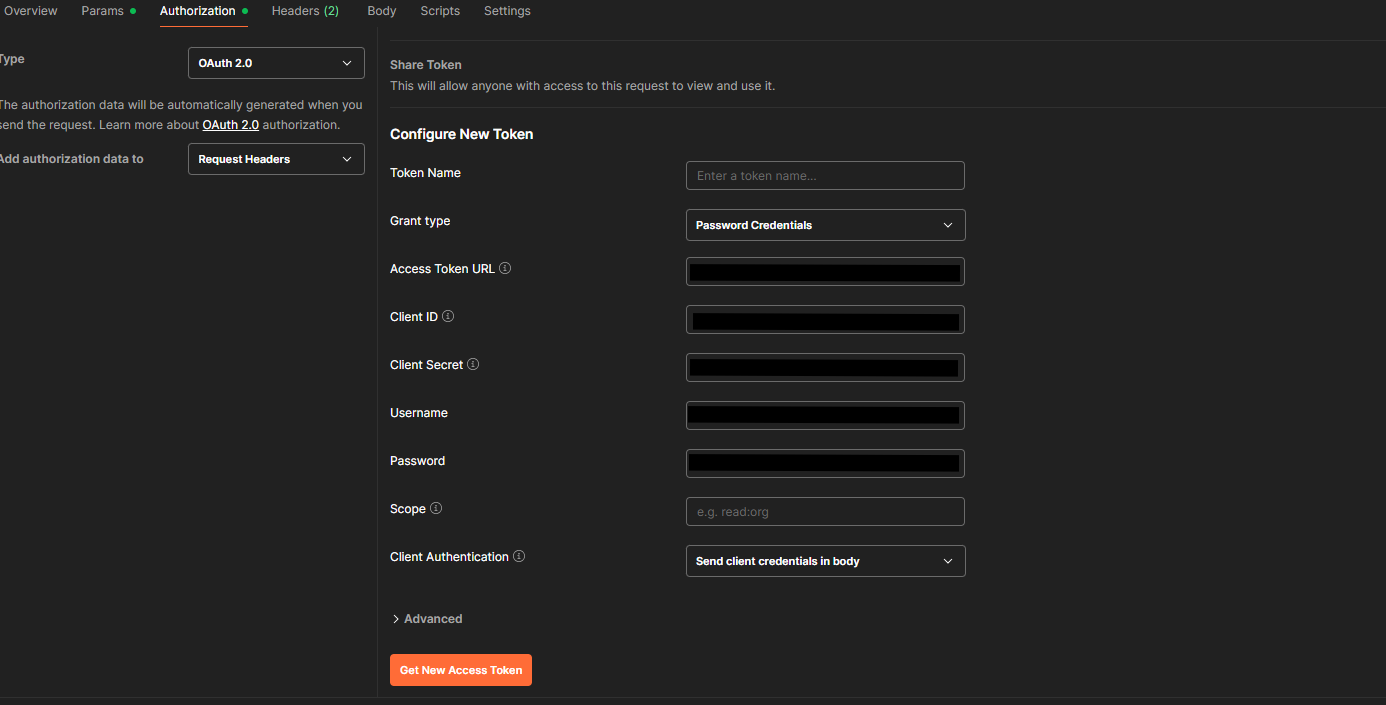
Note: you should need to append the security token directly to your password (e.g., MyPasswordXyz123). Otherwise, navigate to Authorization tab in postman and select OAuth 2.0 in Type and fill all details like below image and click the Get New Access Token button.
Expected Response (JSON)
{ "access_token": "00Dxxxxxxxxxxxx", "instance_url": "https://yourinstance.my.salesforce.com", "id": "https://login.salesforce.com/id/00Dxxxx/005xxxx", "token_type": "Bearer", "issued_at": "1733988777399" }You need to copy the access_token value. Then store it in your Postman environment variable {{access_token}}.
Congrats!!! you are now Authorized successfully!!!
Note: You need this access token for all Pardot API requests.
Step 2: Query List Membership Data
Once Authorized, use the Pardot v5 List Membership API to fetch segmentation list data.
Request Details
Method: GET
URL: {{pardot_domain}}/api/{{api_version}}/objects/list-memberships
Query Parameters (example)
Parameter | Example Value | Description |
|---|---|---|
| listId | 123456 | Retrieve records for a specific segmentation list |
| limit | 200 | Number of records to fetch per request |
| fields | id,listId,prospect,createdAt,updatedAt | Optional, limits returned fields for faster responses |
Headers
Header | Value |
|---|---|
| Authorization | Bearer {{access_token}} |
| Pardot-Business-Unit-Id | {{business_unit_id}} |
| Content-Type | application/json |
Example Request
GET https://pi.pardot.com/api/v5/objects/list-memberships?listId=123456&limit=200&fields=id,listId,prospectSample Response
{
 "listMemberships": [{
 	"id": 1001,
 	"listId": 123456,
 	"prospect": {
 		"id": 54213,
 		"email": "john.doe@example.com"
 	},
 	 "createdAt": "2025-09-01T14:32:17Z",
 	 "updatedAt": "2025-09-15T10:25:47Z"
 },    ...  ],
 "nextPageToken": "eyJsaXN0SWQiOiIxMjM0NTYiLCJsYXN0SWQiOiIxMDAxIn0="
}
Congratulations!!! You have successfully retrieved segmentation list memberships from Pardot!!!
Step 3: Handle Pagination
If your segmentation list might have a lot of records. In that case, you need to check the 'NextPageURL' params in the API response. That params shows more data waits to be pulled.
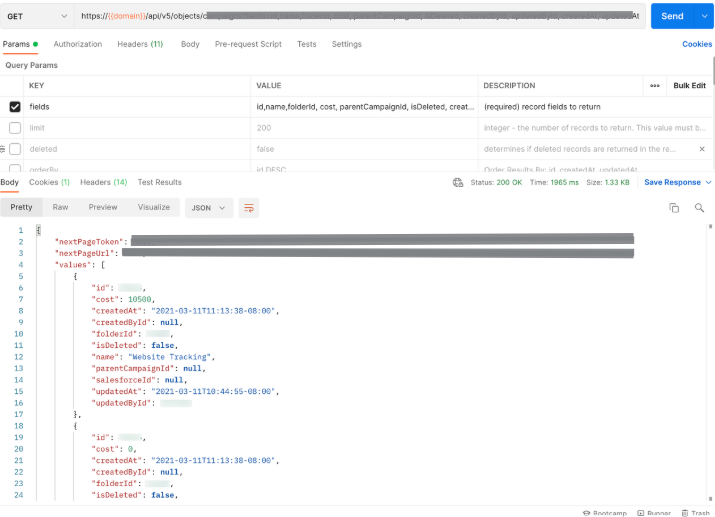
Next Page Request
GET https://pi.pardot.com/api/v5/objects/list-memberships?pageToken=eyJsaXN0SWQiOiIxMjM0NTYiLCJsYXN0SWQiOiIxMDAxIn0=Keep using the nextPageURL for API call. Do this until that params returned as null. Every page brings the set of batch records.
Step 4: Add Filtering Options
You can filter list memberships with additional query parameters to refine your results,
Filter | Description |
|---|---|
| createdAtAfter | Get records created after a specific date |
| updatedAtBefore | Get records updated before a specific date |
| prospectId | Filter by a specific prospect |
| listId | Filter by segmentation list ID |
Example
GET https://pi.pardot.com/api/v5/objects/list-memberships?listId=123456&createdAtAfter=2025-09-01T00:00:00Z&limit=100This will return all memberships added to the list since September 1, 2025.
Common mistakes & Tips
Missing Pardot-Business-Unit-Id in header: Every API call must include this header.
Invalid credentials or expired tokens: Access tokens typically expire after an hour. Re-authenticate as needed.
Rate limits: Pardot API enforces rate limits per minute/hour. Implement batching and retries.
Non-SSO Users Fail: Ensure the API user is an SSO-enabled Salesforce user with Pardot access.
Conclusion
I hope this blog was useful to you! We were able to successfully create a stable connection with the Pardot API via OAuth 2.0 and Postman, which facilitates automated data retrieval for segmentation list membership. This sets the foundation for smooth reporting and eliminates manual effort.
In the next blog we will get into how this all ties into Salesforce. We will cover creating a custom object there to hold the Pardot information. Then there is writing an Apex class that handles pulling in the data automatically. We will also set up jobs that run on a schedule each month. Finally, we will build some standard reports in Salesforce, so visualization becomes straightforward. Stay tuned for our upcoming blog!!!!
