
 Book Free Consultation

Explore Anypoint Studio Features
Anypoint Studio offers a visual canvas, Mule flow files, configuration panels, and project explorer to design and manage APIs and integrations easily.
By Pradeepa Singaravelan
Associate Salesforce Developer
Explore Anypoint Studio Features
In our previous blog, we have explained the introduction to Anypoint Studio and provided a step-by-step guide to creating an Anypoint Platform and Anypoint Studio Account. If you are new to this blog, we recommend reviewing that blog first to gain a clear understanding of the fundamentals. You can access the previous blog through the link A Simple Guide To Anypoint Platform or visit our Aintiram web tech website.
Anypoint Studio
Anypoint Studio is MuleSoft’s powerful Integrated Development Environment (IDE) that enables developers to design, build, test, and deploy APIs and integrations efficiently. With its visual canvas, well-structured project files, and easy-to-use panels, it provides a user-friendly way to create flows, connect systems, transform data, and apply business logic. In this blog, we will explore the key features of Anypoint Studio. Let's dive in...
Features of Anypoint Studio
Anypoint Studio offers several powerful features that make designing and developing integrations easier and more efficient. Here are the key features:
Anypoint Studio Toolbar
Package Explore
Mule Flow Design Canvas
Mule Platte
Anypoint Studio Toolbar
The Anypoint Studio Toolbar provides quick access to commonly used options to build, run, and managed mule application. It helps developers easily create projects, design Mule flows and APIs, manage dependencies and modules, and run or debug applications from one place.
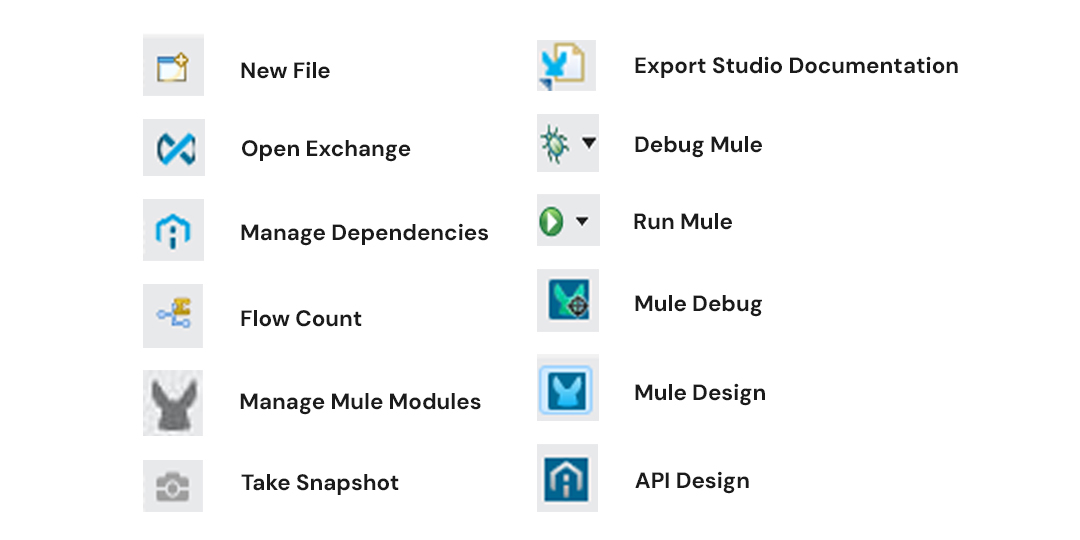
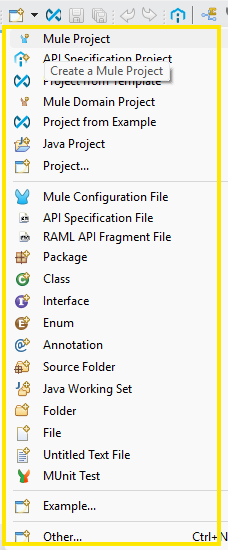
New File: Creates a new Mule Project, Mule configuration files, API specification files (RAML), and other Mule-related resources in Anypoint Studio.
Open Exchange: Connects to Anypoint Exchange to discover and import APIs, connectors, and templates directly into Anypoint Studio.
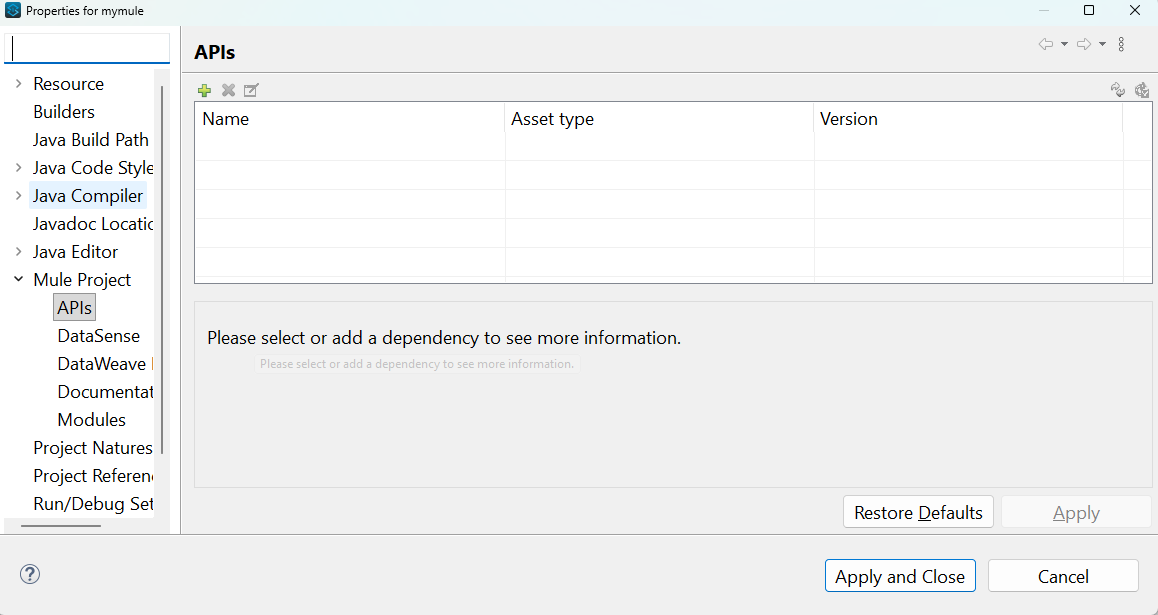
Manage Dependencies: Opens the project dependencies configuration, allowing you to view, add, update, and manage libraries and connectors used in the Mule application.
Flow Count: Displays the total number of flows and sub-flows present in a single Mule project.
Manage Mule Modules: Manage Modules helps ensure Mule projects use the latest and most stable versions of connectors, improving performance, security, and compatibility.
Take Snapshot: Captures a snapshot of the current state of the Mule project for analysis or debugging, similar to taking a screenshot of the application state.
Export Studio Documentation: Generates and exports detailed documentation of the Mule application, including flows, components, and configurations, which can be shared for reference or review.
Debug mule: Click the drop-down and select the project to run the Mule application in debug mode in Anypoint Studio. This allows developers to pause execution, inspect payloads and variables, and troubleshoot issues step by step.
Run mule: Runs the Mule application in normal execution mode, deploying the project locally in Anypoint Studio so the application becomes active and ready to process requests.
Mule Debug: Runs the current Mule application by executing flows step by step, allowing developers to inspect payloads, variables, and message processors during execution.
Mule Design: Opens the visual design canvas where developers build Mule flows by dragging and dropping components.
API Design: Used to design and manage API specifications (RAML), including resources, methods, request/response structures, and documentation.
Package Explore
The Package Explorer in Any point studio shows the complete structure of a Mule project in a tree format. It helps developers easily navigate through Mule configuration files, java code, resources, dependencies, and test files. In Package Explorer, you can quickly open, edit, and manage all project-related files in one place.
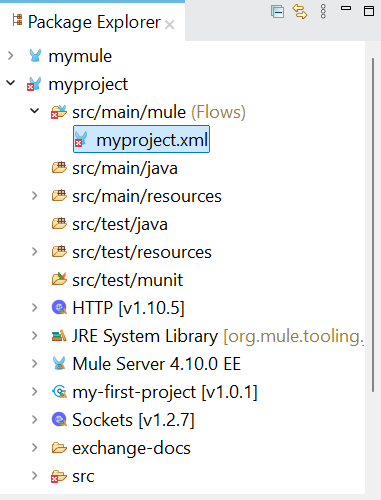
src/main/mule: Contains all mule configuration XML files where Mule flow and sub-flow are designed.
src/main/java: Contains custom java classes used in the Mule application (helpers, utilities)
src/main/resources: Stores configuration files, such as Property files, certificates, and Static resources.
src/test/java: Contains java-based unit test classes.
src/test/resources: Holds test-related resource files used during testing.
src/test/munit: Contains MUnit test cases for testing Mule flows.
HTTP: The HTTP connector module is used to create HTTP listeners and requests.
JRE System Library: Java Runtime Environment libraries required to run code.
Mule Server 4.10.0EE: The Mule runtime version used to run the project.
Sockets: Sockets are connectors used for TCP (Transmission Control Protocol) / UDP (User Datagram Protocol) communication.
exchange-docs: Contains documentation files imported from Anypoint Exchange.
src: Main source folder that contains all Mule flows, Java code, resources, and test files.
target: Auto-generated folder created during build and deployment that contains compiled and packaged files.
mule-artifact.json: Defines Mule application metadata such as application name, runtime version, and deployment configuration.
pom.xml: Maven configuration file that manages: Project dependencies , Mule runtime version, Build and packaging details.
Mule Flow Design Canvas
The Mule Flow Design Canvas is the main workspace where you visually design mule flows by dragging and dropping components.
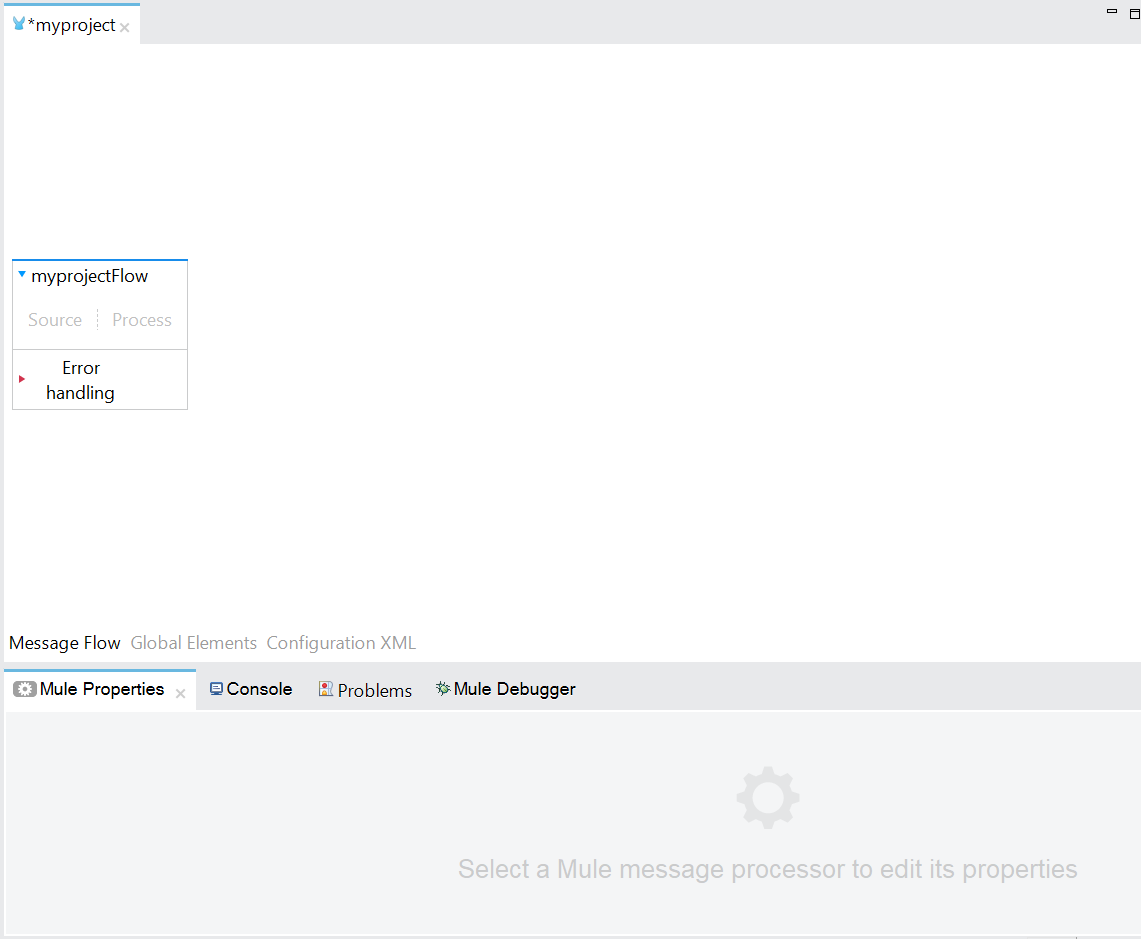
Message Flow: Shows the visual design view of the Mule flow. Build and connect Mule components here using drag and drop.
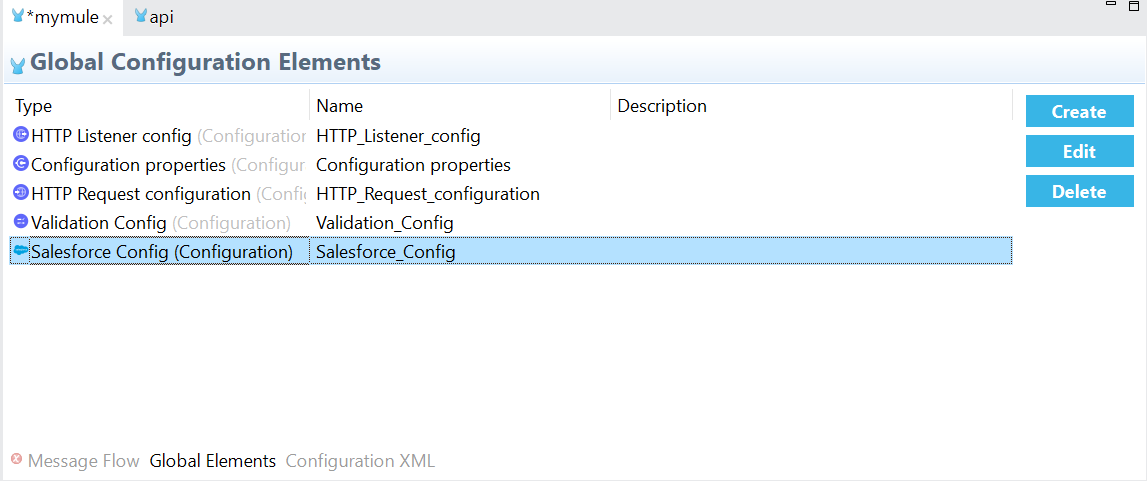
Global Elements: Used to define reusable configurations such as HTTP Listener configuration, Database configuration, and Connector configuration.
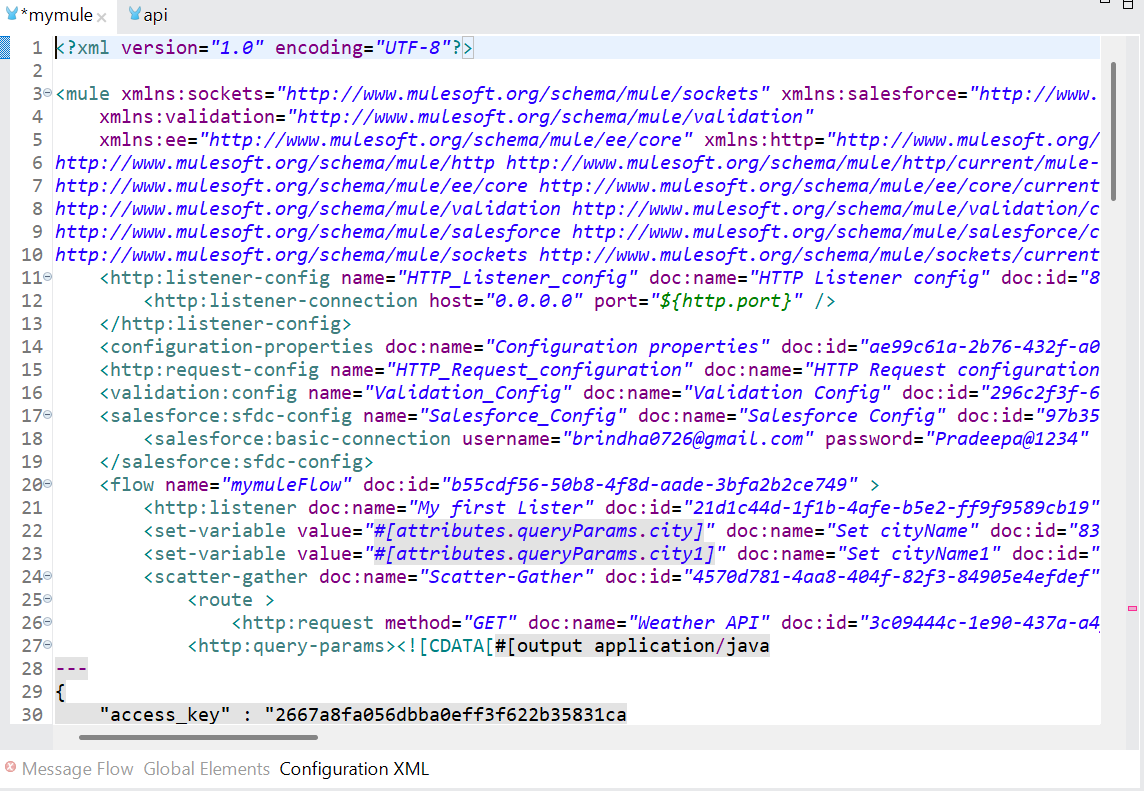
Configuration XML: Displays the XML code generated for the Mule flow.
Mule Properties: Shows the properties and settings of the selected Mule component. You can configure endpoints, variables, expressions, and other options here.
Console: Displays runtime logs and messages when the Mule application is running or debugging. It is used to track application status, logs, and errors.
Problems: Lists errors and warnings in the project, such as configuration issues, validation errors, and build problems. Helps identify and fix issues quickly.
Mule Debugger: Used in debug mode to inspect payloads, variables, and attributes, step through the flow execution, and analyze message data at each step.
Mule Palette: The mule palette in Anypoint studio is a panel that contains all the Mule components, Connectors and Processors used to build Mule flows. Developers drag and drop components from the mule paltte onto the canvas to design integration logic.
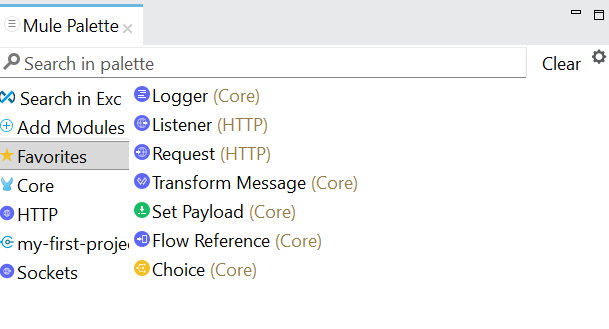
Search in Palette: Used to quickly search for Mule components, connectors, and Processors by name.
Search in Exchange: The Search in Exchange option in the Mule Palette allows you to search for and add dependencies (connectors, modules, APIs, and templates) from Anypoint Exchange to your Mule project.
Add Modules: Used to add mainly frequently used connectors to the project.
Favorites: Displays frequently used Mule components for quick access.
Core: Contains commonly used core Mule Processors such as Batch, Components, Endpoints, Error Handling, Flow control, scopes and Transformers.
HTTP: Contains HTTP-related components such as Listener, Load Static Resource, Request, Polling Source, and Basic Security Filter.
Sockets: A socket is a network interface that enables data communication between two systems using TCP or UDP protocols.
Conclusion
I hope this blog helps everyone clearly understand the key features and components of Anypoint Studio. We also explored the Anypoint Studio Toolbar, Package Explorer, Mule Palette, and Mule Flow Design Canvas, along with the components available inside each of them. In the next blog, we will look at creating an API. Stay tuned for our upcoming blogs.
