
 Book Free Consultation

Building Default Dynamic Content Block In SFMC Email Studio
The blog enables you to understand how one can create a dynamic content in email builder without using a piece of AMPScript code by the Default Content Builder.
By Sharan Kumar Mariappan
Assistant Software Developer
Building Default Dynamic Content Block In SFMC Email Studio
What is Dynamic Content basically? The content that will be changed based on some specific data conditions, audience preferences, or their behaviors right? Why are we using that in marketing emails? The answer is, to keep the audience engaged and to make them interested in the content. It will not stop here. For businesses, marketing plays a major role in increasing sales. Dynamic email content will take the marketing to the next level.
The key responsibility of the marketer to build more fascinating content and to make the sales journey of the audience smooth and happy. The right content at right time will help to engage the audience. Usually, most of the marketers use the Salesforce Marketing Cloud platform for sending customized marketing emails. In this blog we will understand how to use the default dynamic block that available in the Salesforce Marketing Cloud (SFMC).
Back then, in Aintiram Web Tech, one of the Marketing Department leads asked his fresher team member Aintiran to create a dynamic content. However, he unaware of AMPScript code which is predominantly used in Marketing Cloud and Account Engagement for building marketing content. Somehow, he found a resource online and started creating a content without AMPScript coding. Let's walk through Aintiran's process to create dynamic content without using AMPScript. Let's understand the series of steps that he followed to create a dynamic content in the Salesforce Marketing Cloud.
Demonstration of Dynamic Content Creation Using Dynamic Content Block
In the Marketing Cloud dashboard, navigate to the Email Studio. In the Email Studio, click on the Email (1) section to build an email content.
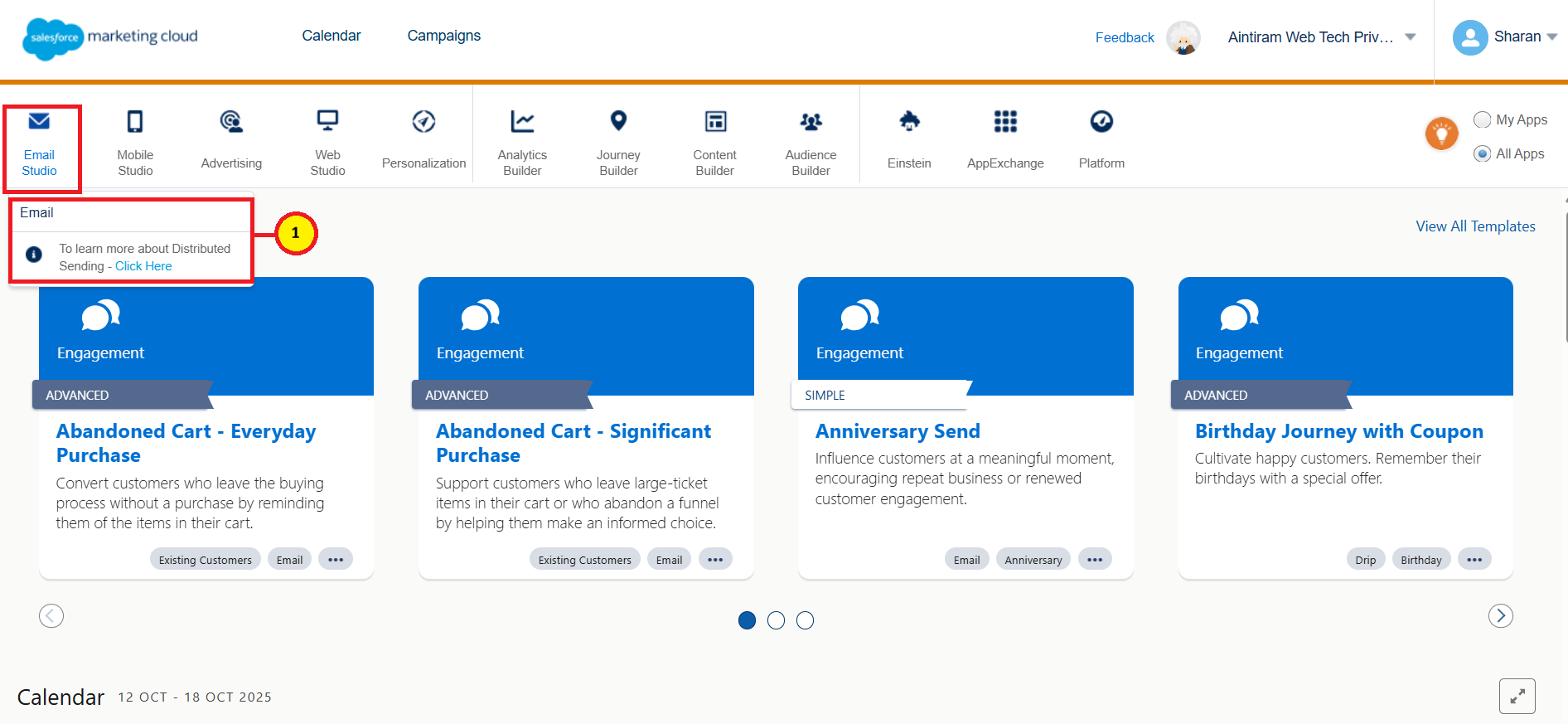
Click on Create (2) in the Content of the Email and choose Email Message (3) to create a new Email content.


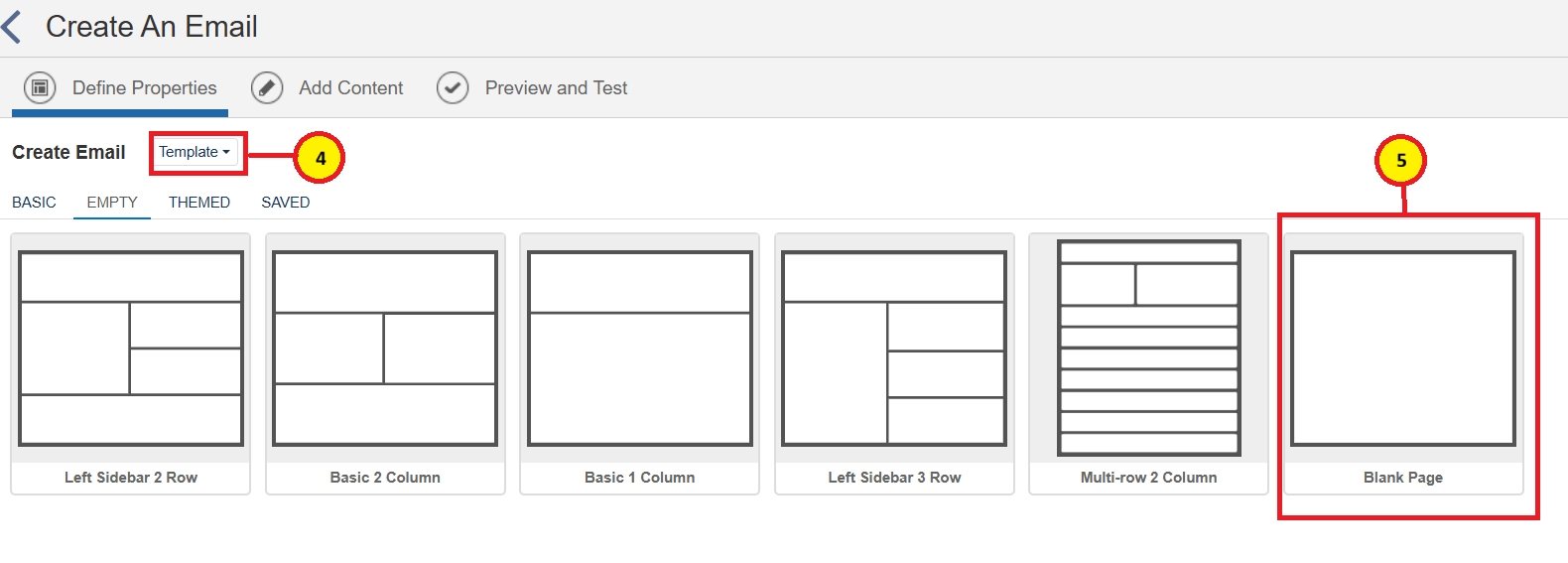
Then choose the Template option as shown in the image below (4). I have chosen the Blank Template for the demonstration (5).
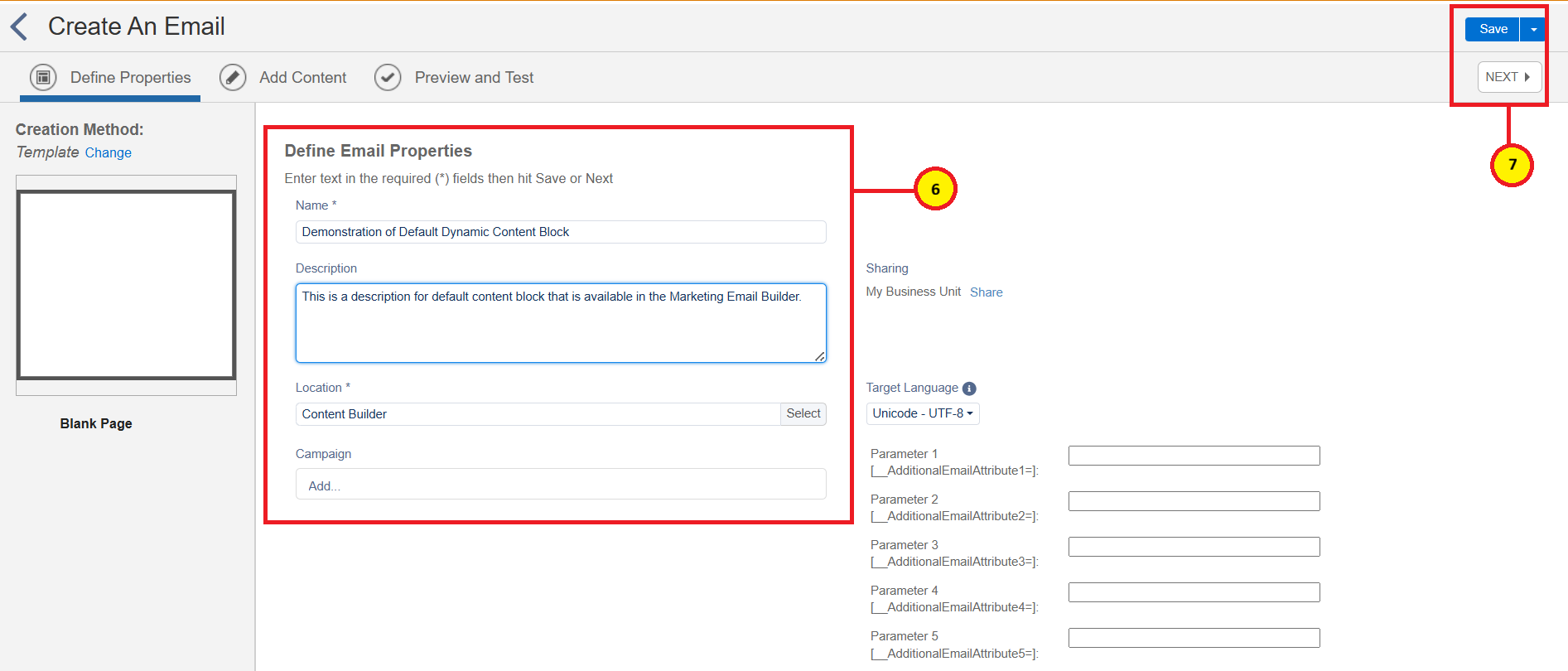
In the Define Email Properties section, we need to provide the name, description, location to store the content, and campaign (6). Then click on Save (7).
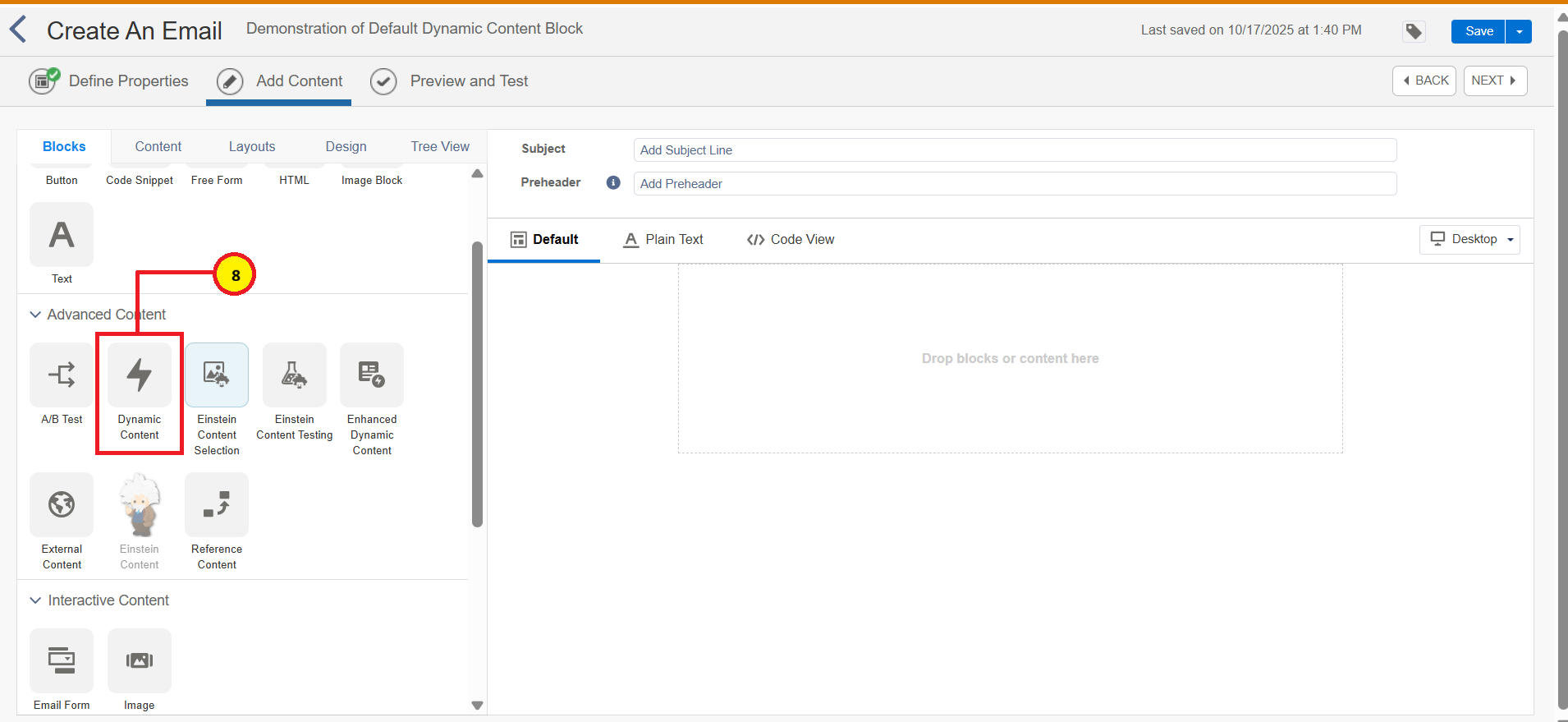
Then start creating a content. Since we need a content to display dynamically, we have to choose the Dynamic Content from the Advanced Content section (8).
Note: If you have already created the contents dynamically, we can browse it from the content as shown below (9).
We have to create a rules for creating a dynamic content (10).
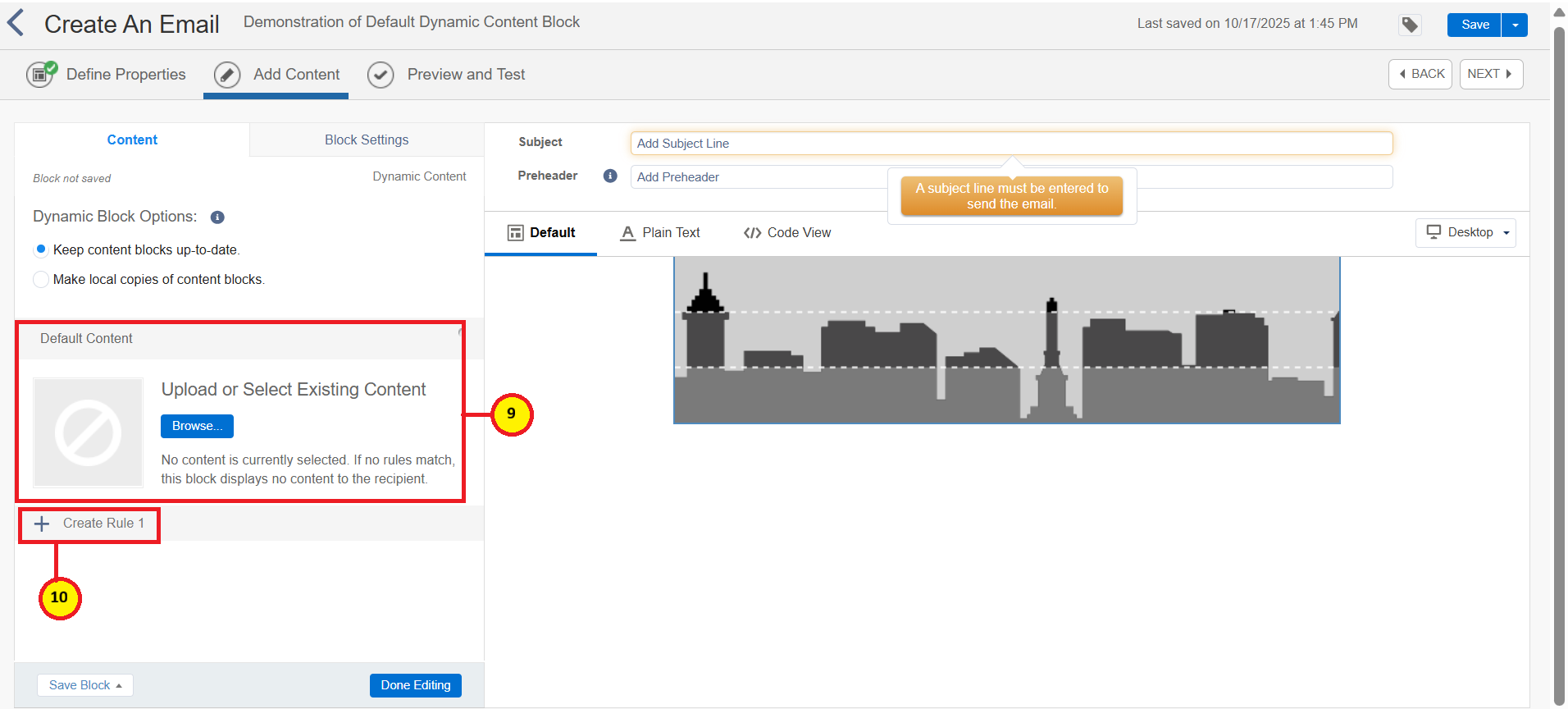
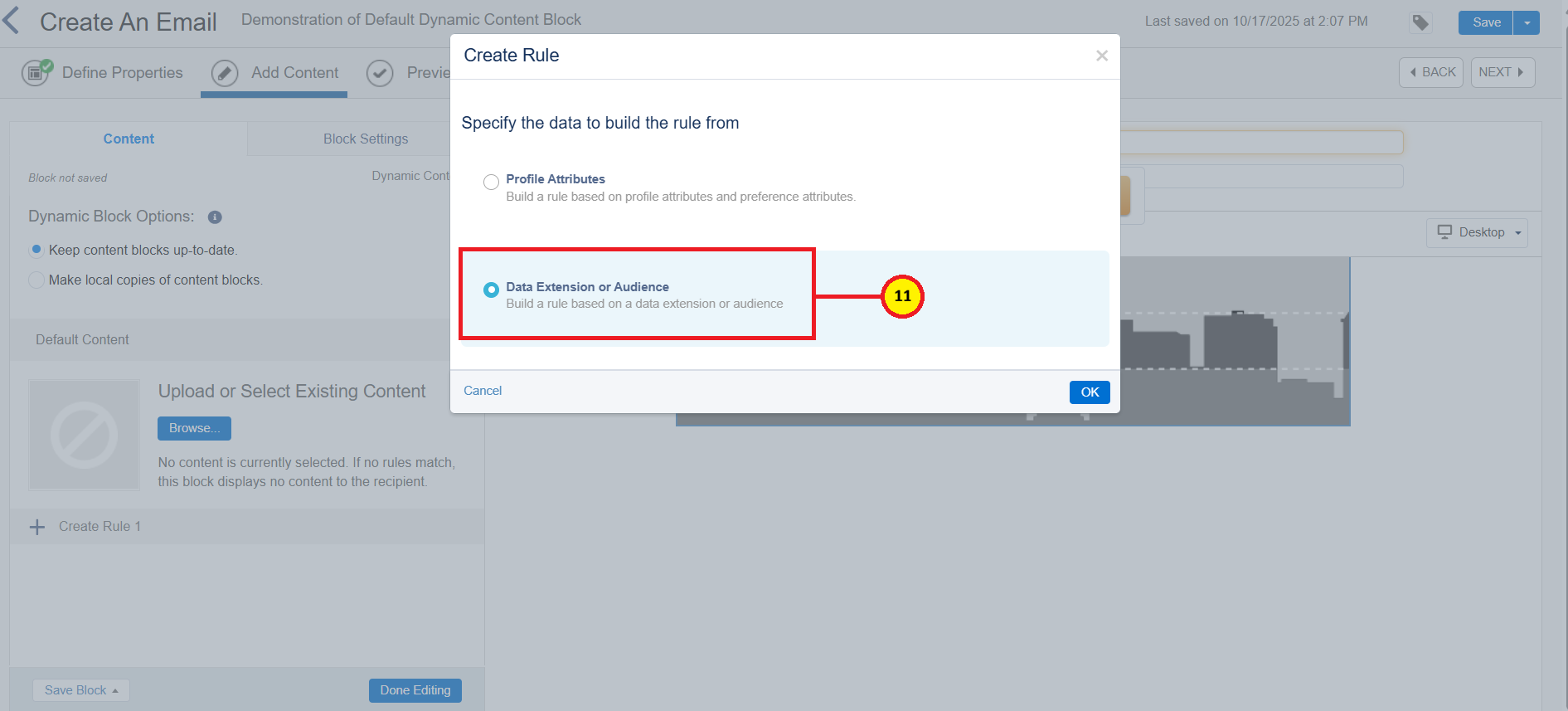
Click on Create Rule and select the Profile Attributes or Data Extension/Audience. For this demonstration, I have selected Data Extension for audience region lookup. Since, I have stored the Audience Data (Prospect Data) in the data extension (11).
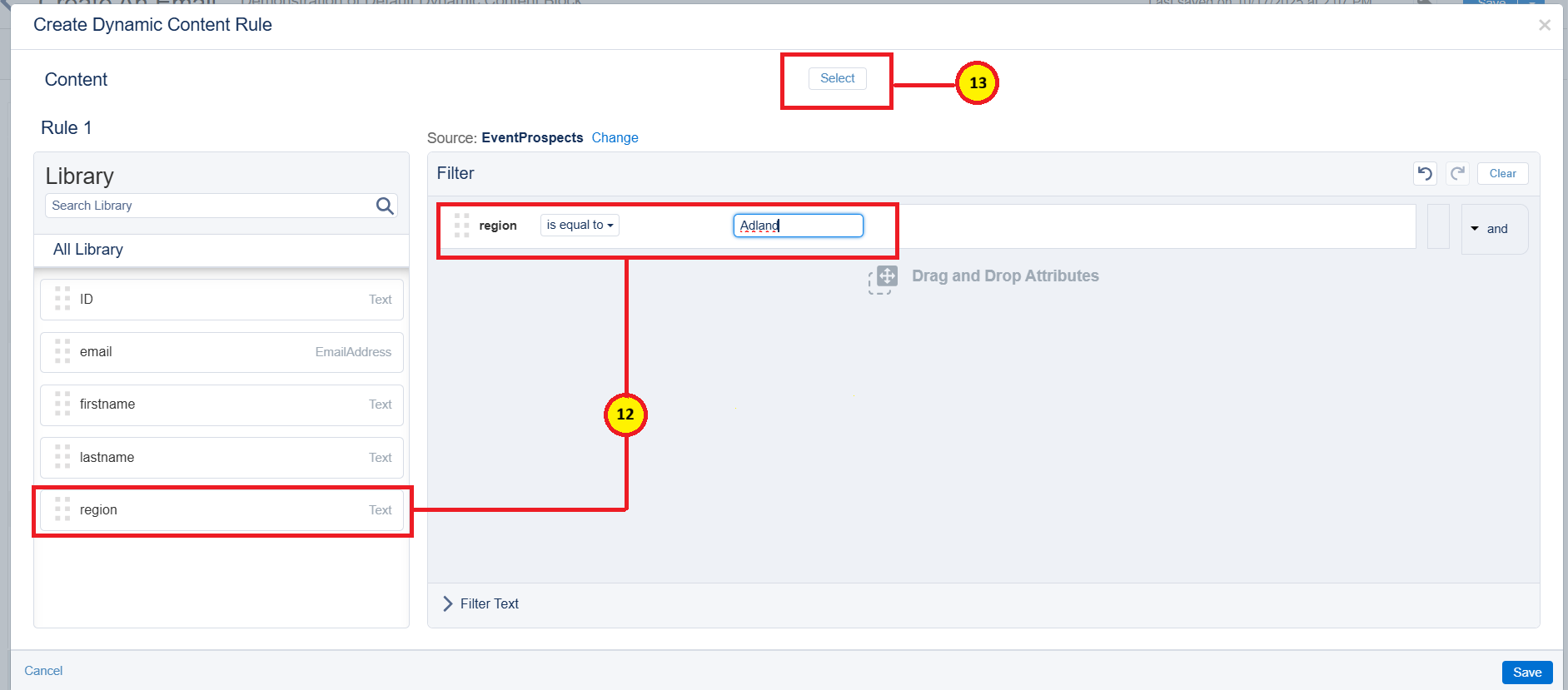
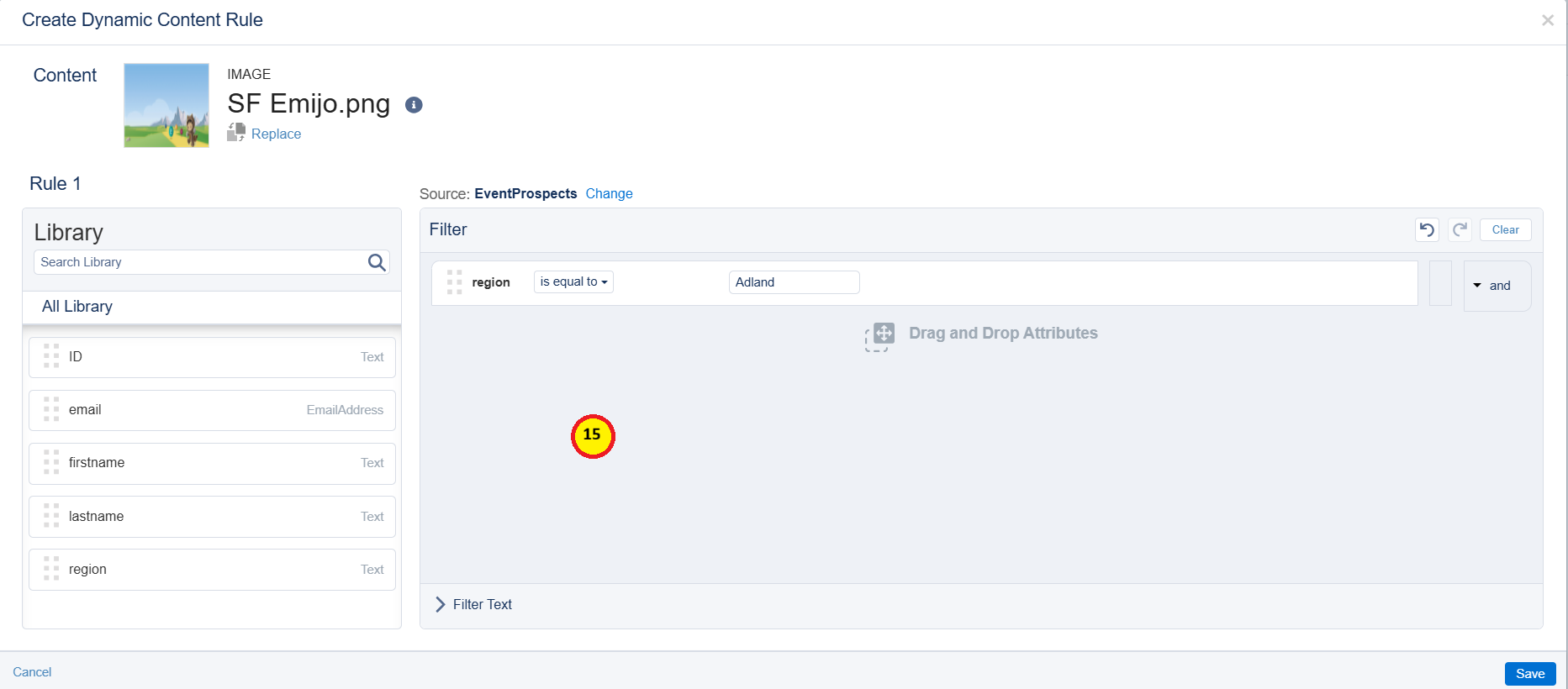
Then, I have set a Rule 1 based on the region (12). (Rule: If the region = Adland (12), then select (13) the image A ).
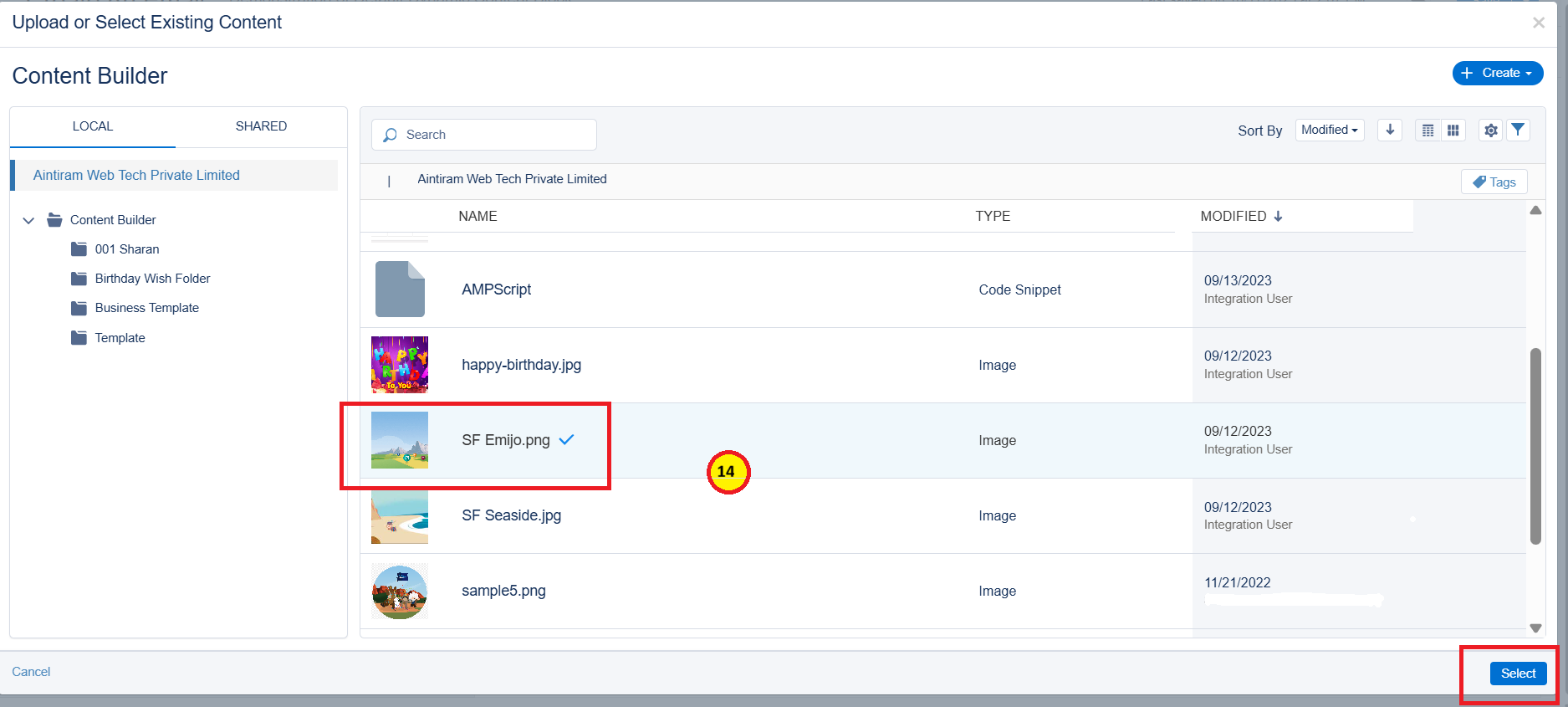
For the rule that I have set, I can also select Content that may be already built or we can choose the images that we have added to the Marketing Cloud content. Otherwise, we can also choose the AMPScript based on the requirement.
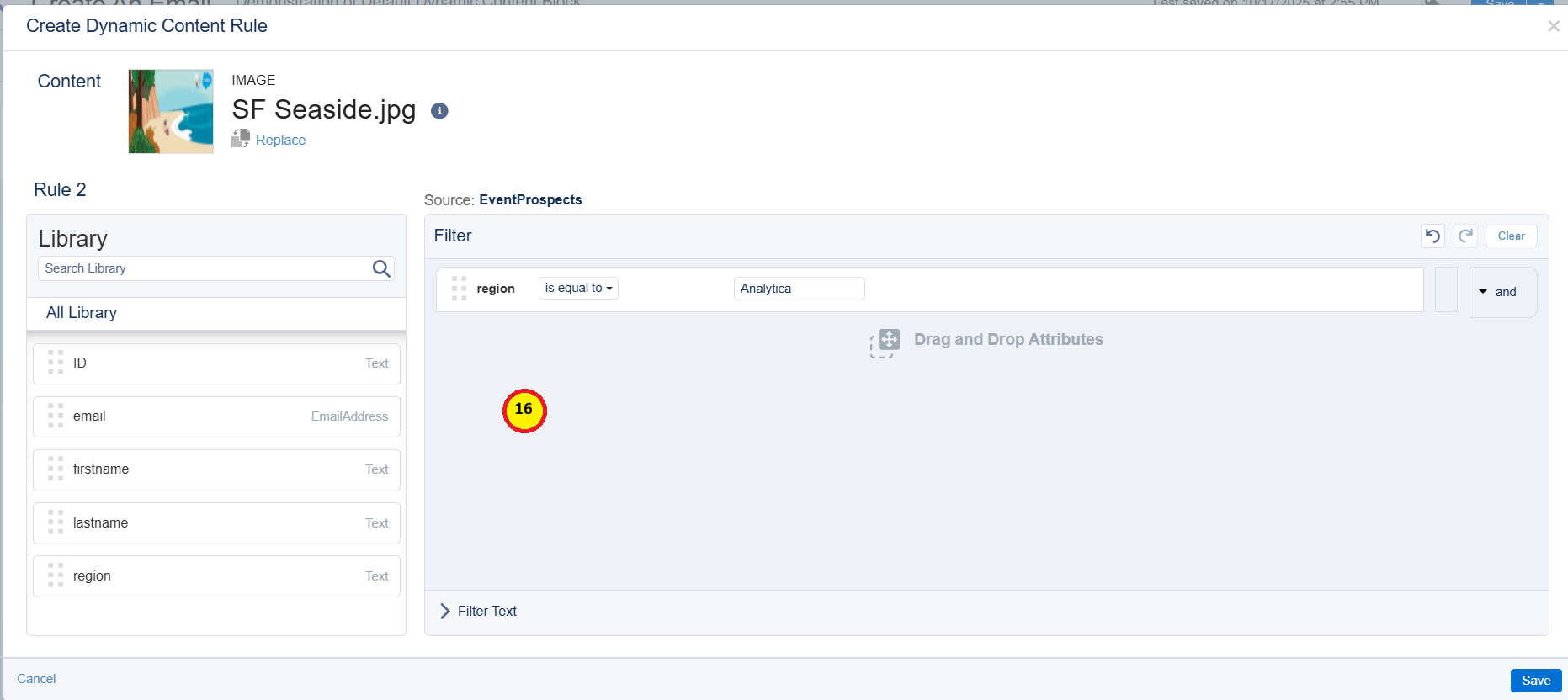
I have added another rule (Rule 2) by following the same steps [see (14), (15) and (16)]
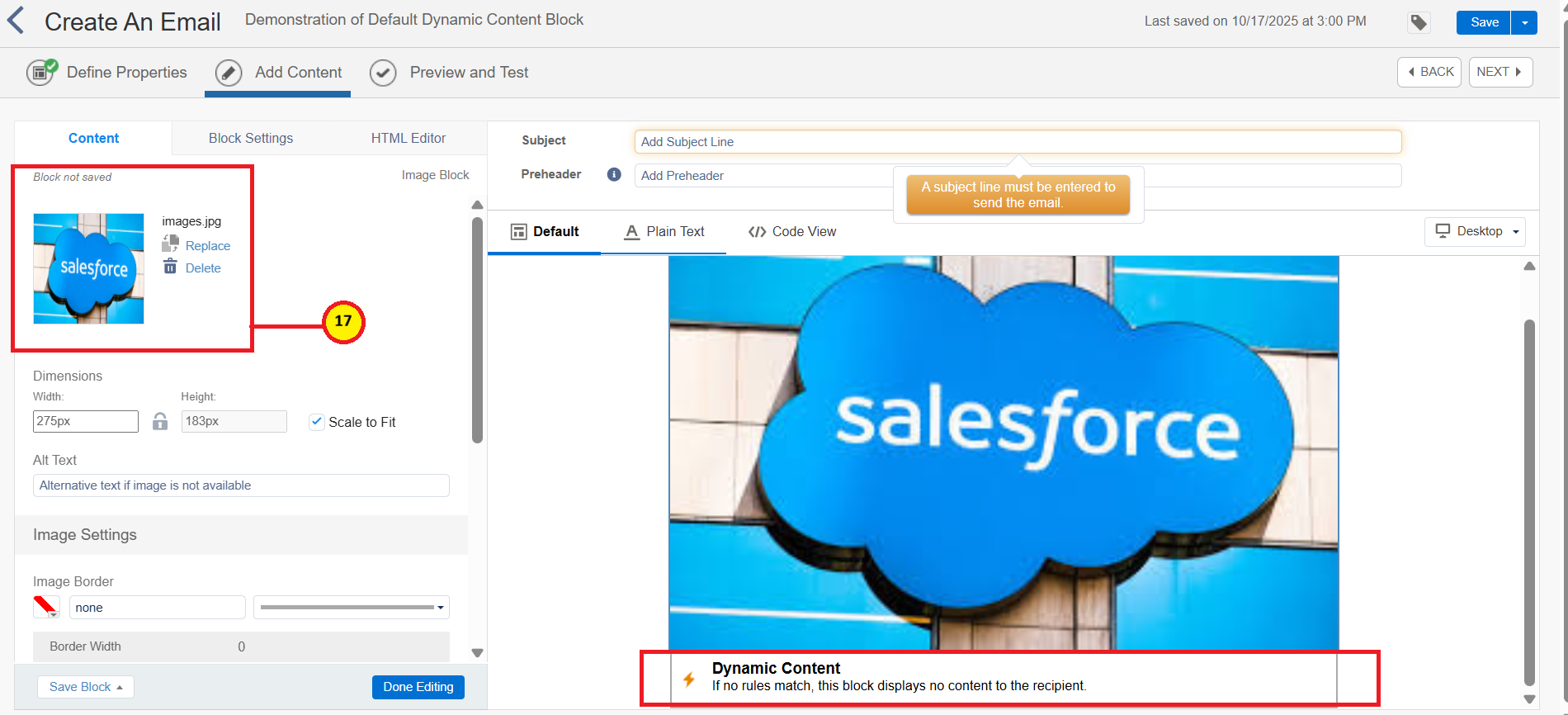
For better understanding I have added an image that needs to be displayed by default for the all email content, irrespective of the rules which I have set. (See the default image in the last demo GIF image).
We need to display an image that I dragged and dropped into the default content and added the image as shown below (17). Below that you can see the Dynamic Content for which we have created the rules to display the content.
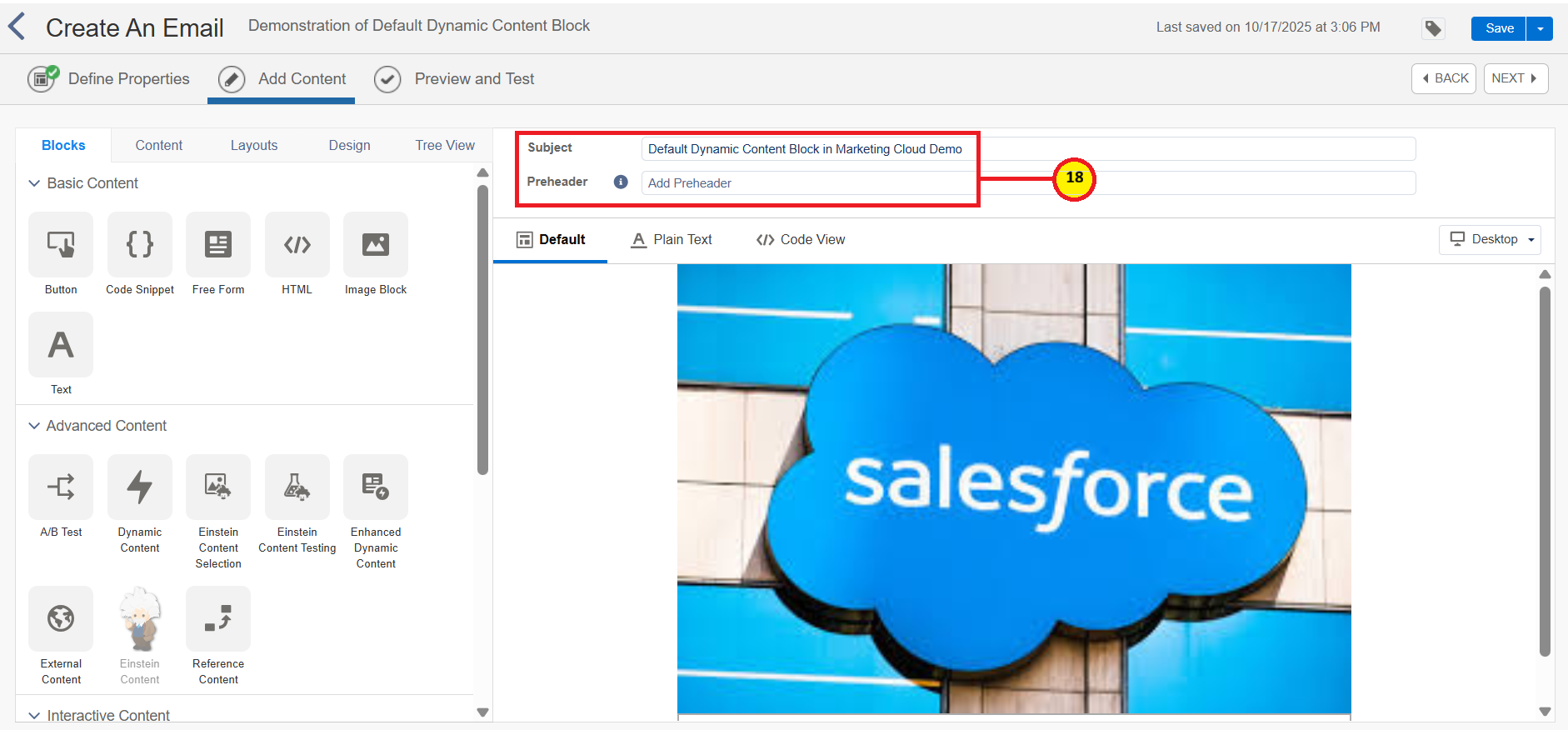
Click on "Done Editing" and add the Subject Line (18) that apt for the content which we have created.
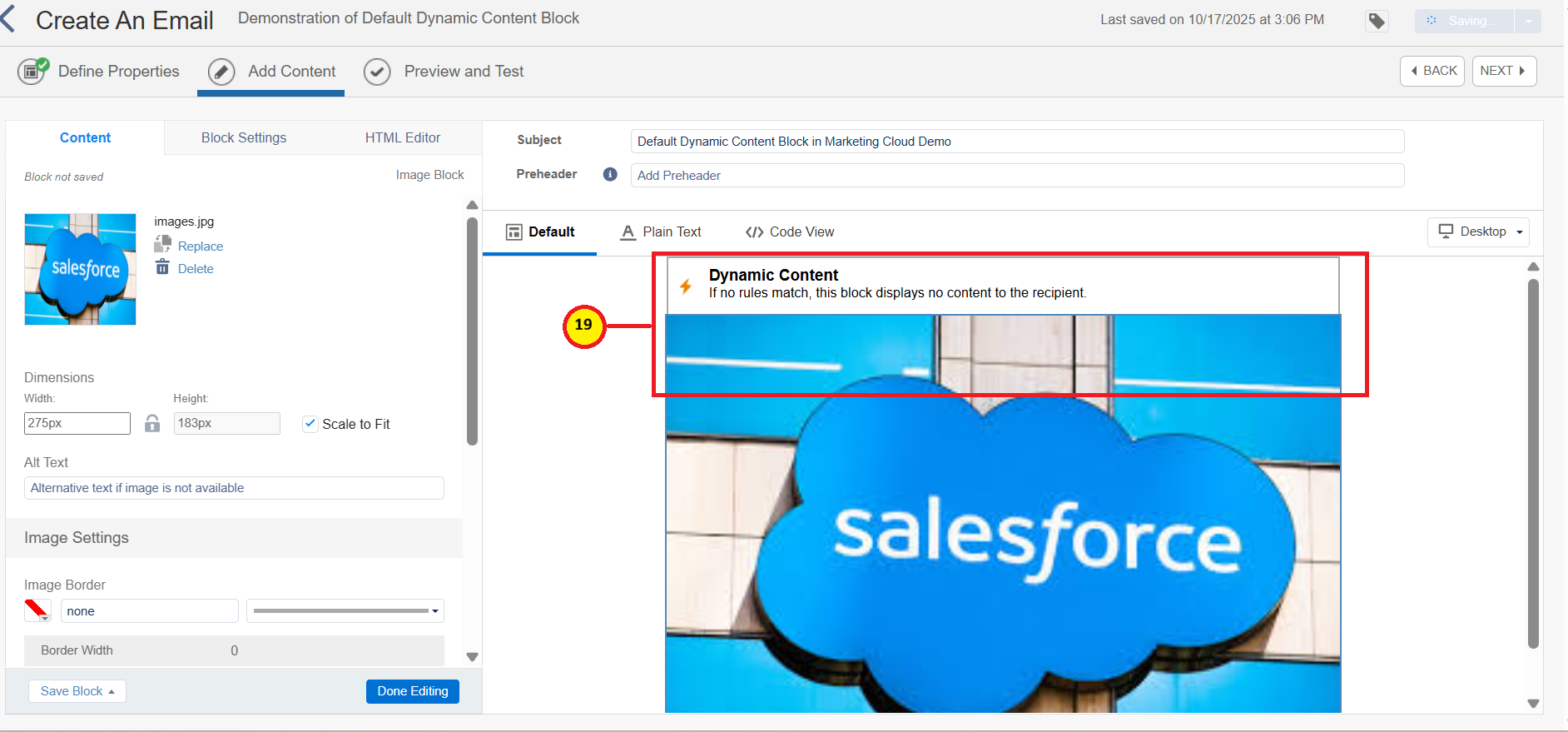
For demonstration purposes, I have moved the Dynamic Content to the top of the default content as shown in the image below (19).
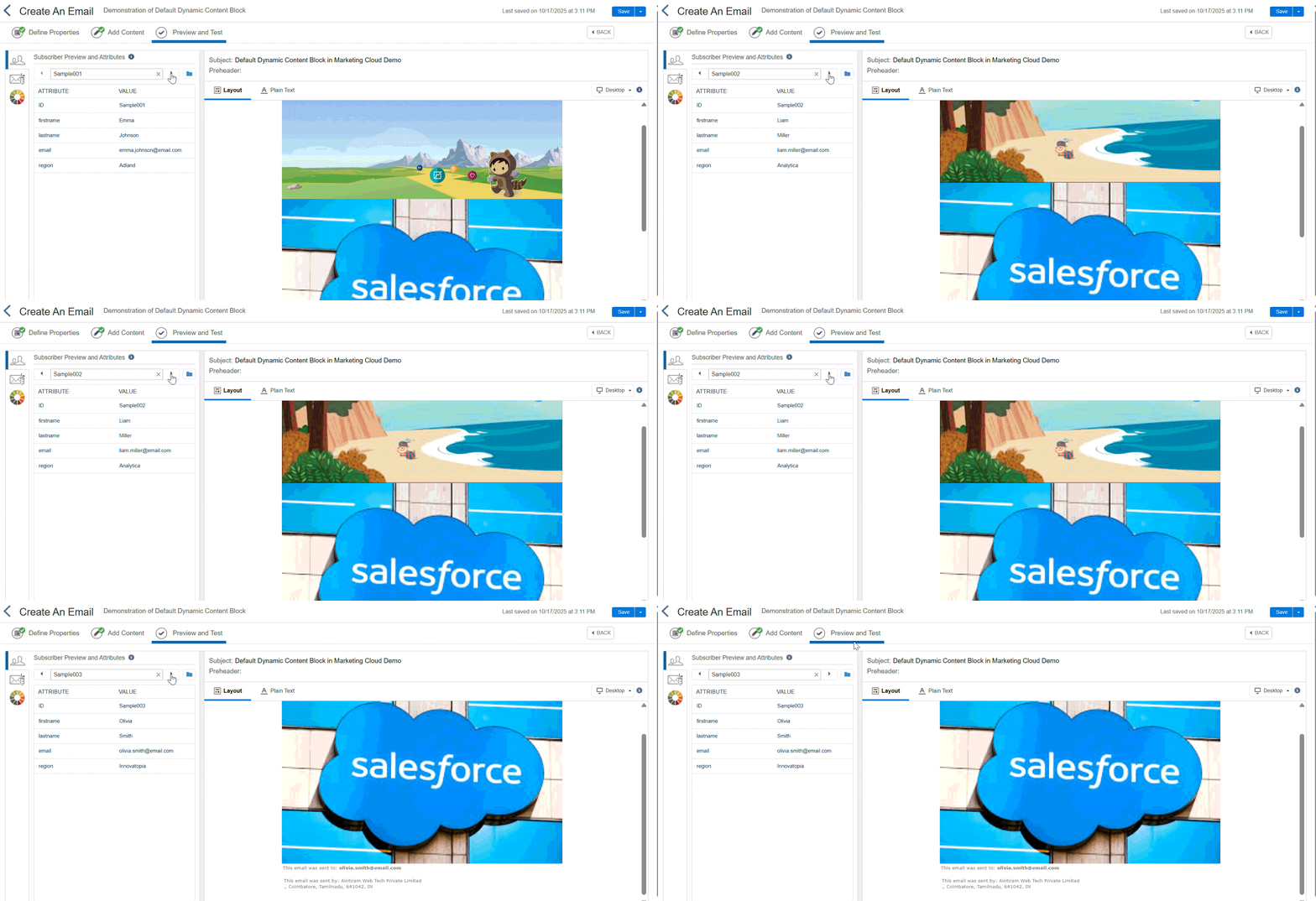
At last, Preview and Test the content. You can see the GIF image, that shows for different content for different users.
Advantages
- The simple, rule based system that requires no coding knowledge will help marketers to prepare content easily and dynamically.
- Creating dynamic emails requires more hours while using AMPScript, but in default dynamic content in advanced content doesn't require the complex logic. It is a time saver.
- Content rules are easy to see and understand, which simplifies the setup process for many use cases.
Limitations
- We cannot access the data from the custom data to create a rules.
- These functionalities are limited, and looping of the content is not possible.
- Decisions are only based on the data available at the same time and cannot perform any complex logic or calculations.
Conclusion
This blog helps has shown you, how a fresher employee with zero knowledge in AMPScript coding has built his own and first dynamic content. I hope this blog gave you an overview of the dynamic content and its usage as well. In the next blog will see more about dynamic content in detail, which uses AMPScript.
