
 Book Free Consultation

Top New Salesforce Flow Features In Spring ’26 Release
Explore the top new Salesforce Flow features in the Spring ’26 release, including enhanced screen styling, Kanban boards, record triggers on files, logging etc.
By Giritharakannan Devaraj
Senior Salesforce Developer
Top New Salesforce Flow Features In Spring ’26 Release
Everyone knows Salesforce releases new features in every release, and now it’s the turn of the Spring release. There are a lot of features introduced, but here I am going to explain only the features related to Flow. Since there are many new Flow features in this release, they are very useful too.
Take a deep breath… Relax… Let’s dive in…
Top Features Released in Spring'26
- Custom Screen Styling
- Record-Triggered Flows for File Related Objects
- Data Table Enhancements
- Improved Flow Debugging
- Flow Canvas Scrolling Support
- Kanban Board Screen Component
- Collapse and Expand Decisions & Loops
- Message Screen Component
- Standardized Flow URLs in Lightning
- File Preview Screen Component
Custom Screen Styling
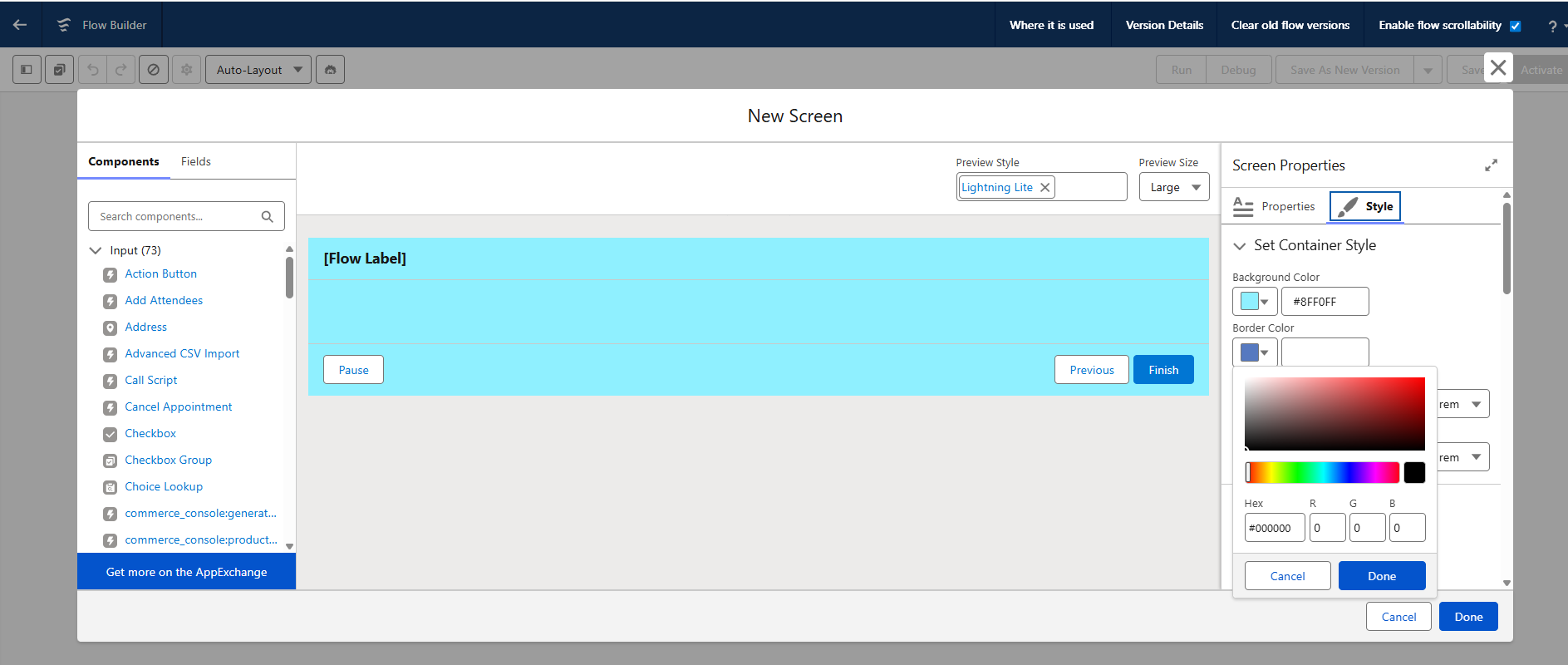
Previously, we did not have the option to style the screen flow components, like changing the button colors or changing the title color, etc. But now, we have the option to change the colors of buttons, titles, etc. By introducing this feature, it enables styling the Flow components. This is where you can build custom UI with styles that look like an LWC component. It increases screen flow usage going forward since we can do maximum custom UI development using this screen flow itself by having this feature without code.
Record-Triggered Flows for File Related Objects
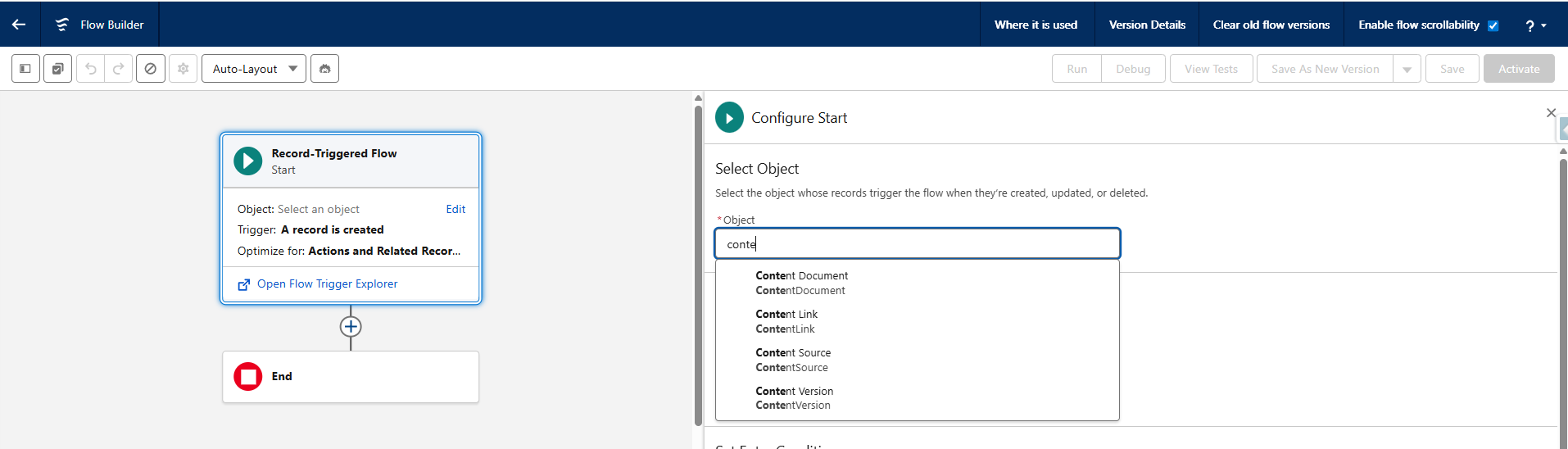
In my point of view, this is a really awesome feature in Flow since there are a lot of process runs using file uploads or modifications, and it plays a major role in the business. But related to this, we didn’t have the option to perform related activities in record-triggered flows earlier. Now, it’s not like that; we can perform related actions when a file is uploaded or modified. By using this option, we can create record-triggered flows and achieve business logic such as validations, updates, and sending notifications related to the ContentDocument and ContentVersion objects.
Data Table Enhancements
In the Data Table, Salesforce introduced a new feature to sort the headers and edit text fields on the screen itself. This was a limitation in the data table when used in screen flows, but now it is very useful. Sorting is a key functionality when you are viewing data inside the table; it is a great option to see the data in the order you want or to find the exact data you are expecting while using the screen flow.
Coming to the inline edit option for text fields, it is also a great idea to reduce the additional effort required to build a separate edit screen. Still, we don’t have the option to edit other types of fields, but this mostly covers the requirement to reduce effort, and we expect this to be resolved in upcoming releases.
Improved Flow Debugging
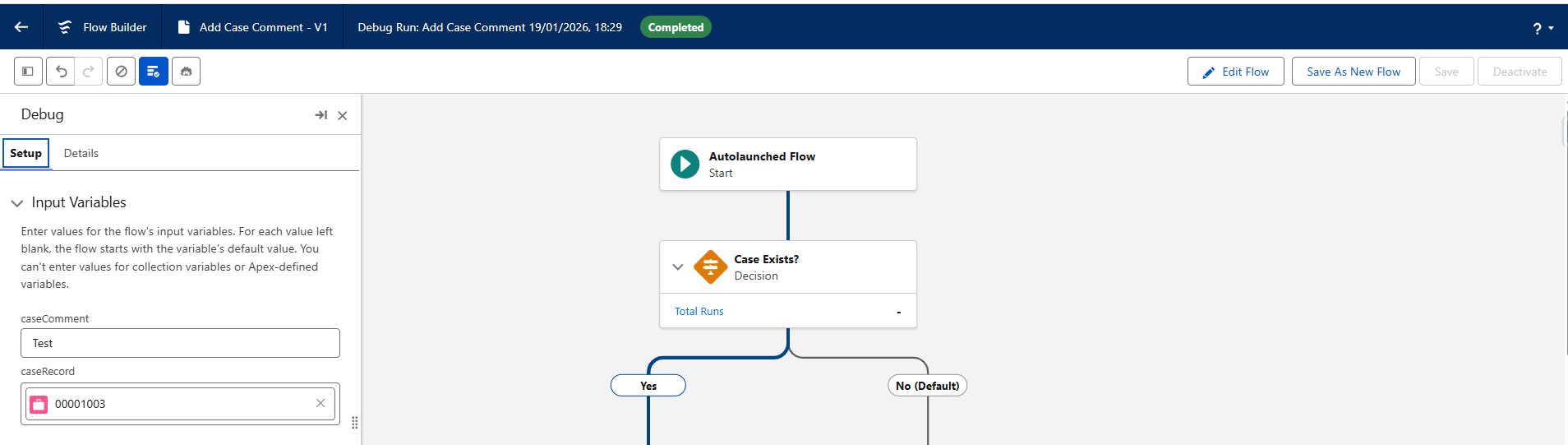
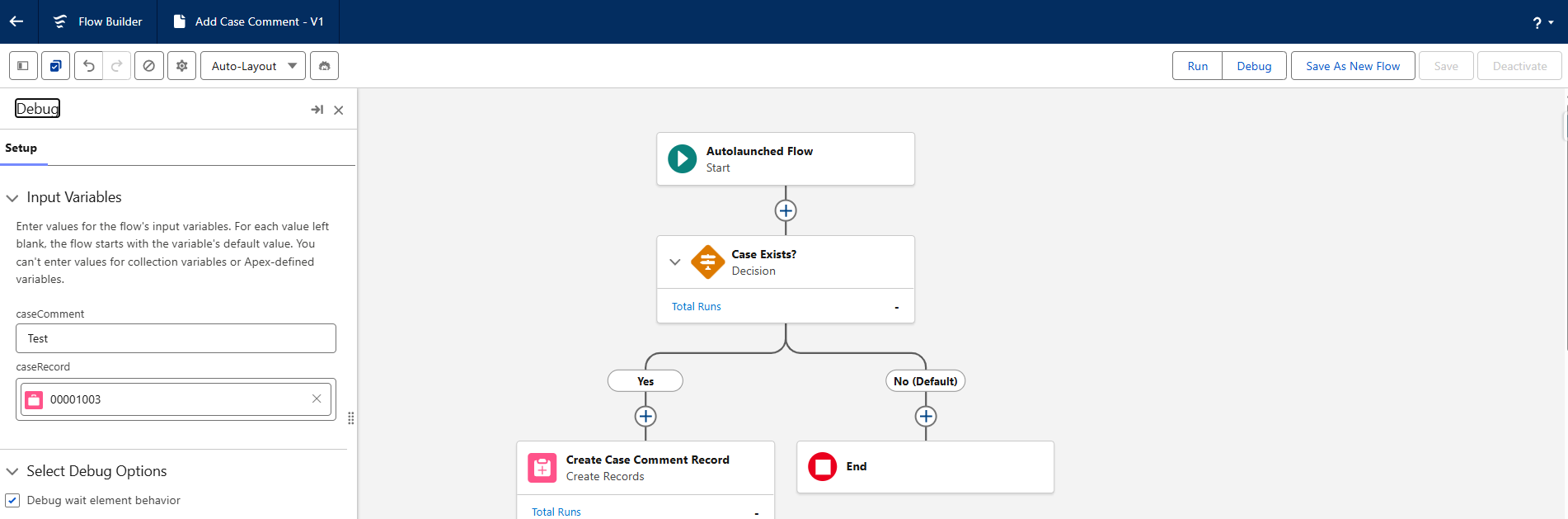
While debugging a flow, when you enter input values for screen flows or record-triggered flows, you may want to run the debug again to review the details. Earlier, you had to enter the inputs again every time. Now, you don’t need to re-enter the inputs repeatedly. For the first run, the inputs are stored in the cache, and they are retained for subsequent debug runs and are not wiped out.
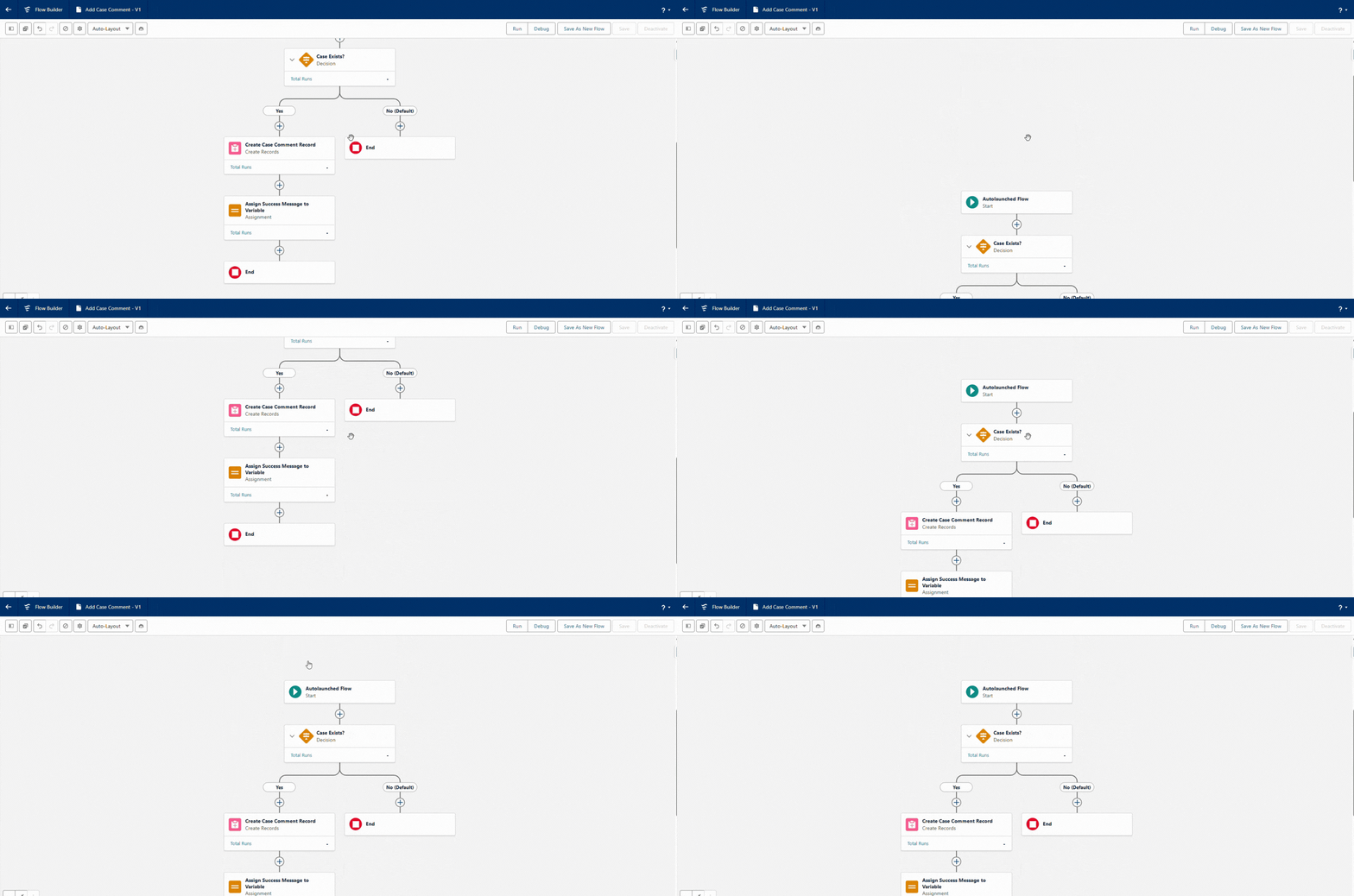
During Debug, it holds the value,
Switching back to debug agian and it holds the value still...
Flow Canvas Scrolling Support
This is an ultimate feature when you are working with large flows in vertical mode. Earlier, we had to pick and drag the canvas area to see the remaining flow elements, but now, with a single scroll, you can view the full flow element details that are built. Scrolling is better than pick and drag and improves productivity while working with large flows.
Kanban Board Screen Component
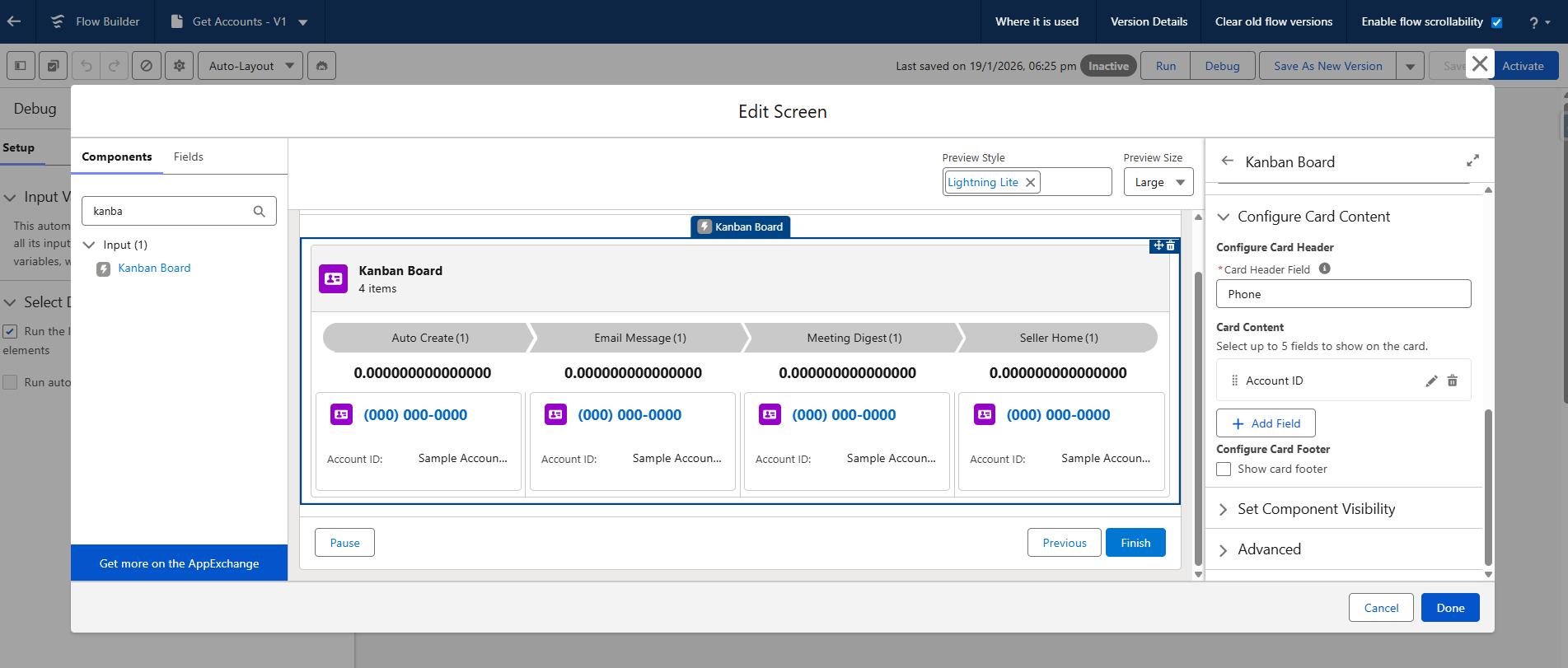
By using the Kanban view, you know how easily you can view cases and opportunities while working with clients during a call, and how easy it is to see a maximum number of records in a single view with their related stages. You also know how easy it is to change the stage or status, right? By providing the same feature and behavior to deliver a better UI experience, Salesforce introduced this in Flow using a screen component. Salesforce does not provide an out-of-the-box Kanban component in LWC. To create this in LWC, we would need to do more development, but now it can be achieved directly in Screen Flow.
Collapse and Expand Decisions & Loops
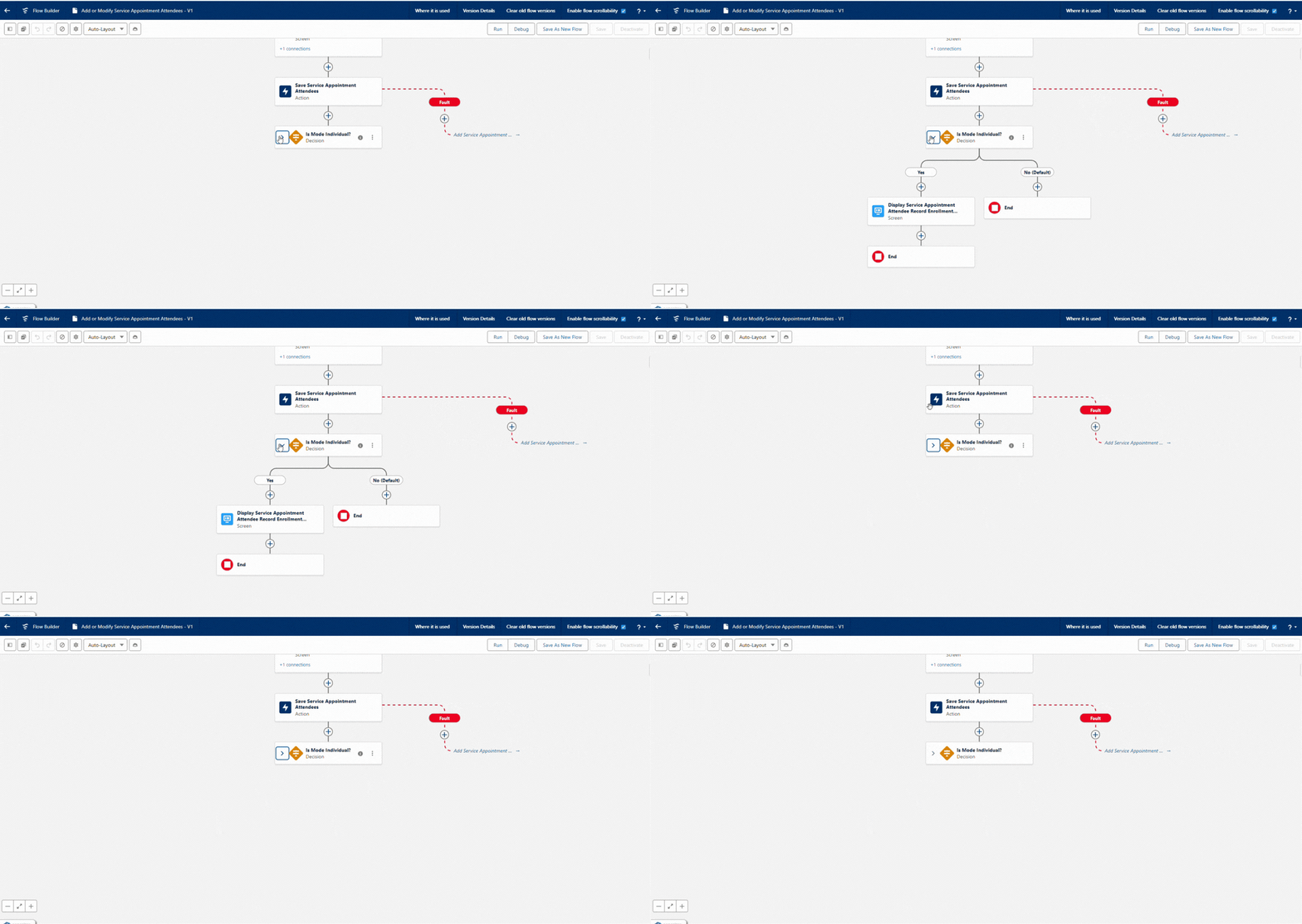
This is another ultimate feature, similar like Flow Canvas scrolling we discussed earlier, since it helps to view the flow in a better way when we have a large architecture. Without this, viewing large flows is very difficult, you can’t easily understand how elements are connected, where values are passed, or where the flow ends. Now, we have the option in Decision and Loop elements to expand or collapse them to view their related components. By collapsing elements, you can quickly see flow paths and outcomes, making large flows much easier to understand at a glance.
Message Screen Component
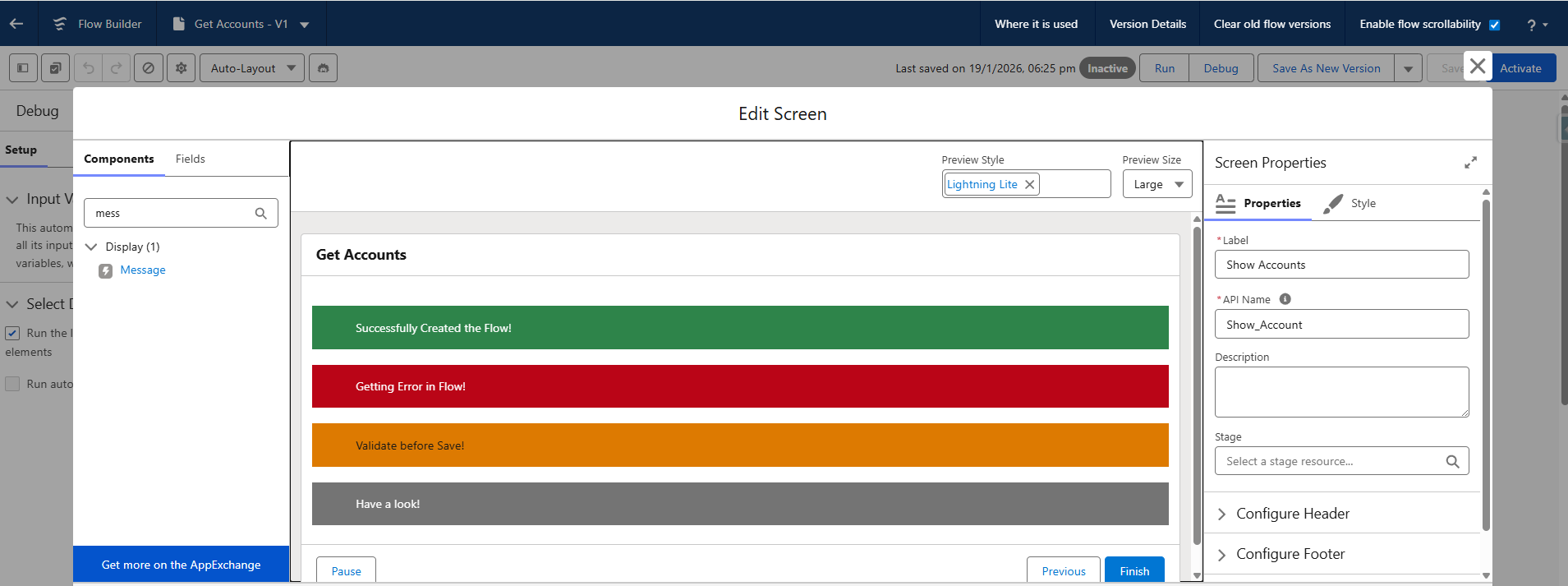
This is one of the most awaited features for me and I was expecting toast-style messages, but it shows messages as banners inside the flow screen and that’s actually great. You can display success, info, warning, or error messages right where users need them. It works similar to Lightning Messages in LWC, but now you don’t need extra components or custom code. These message banners make flows more interactive and improve the overall UI experience.
Standardized Flow URLs in Lightning
This is also nice feature in flow, Previously flow URL's were messy and inconsistent compared to standard record URLs (Account record url). Now, flows follow the same clean, predictable URL behavior. You can link directly to flows, pass variables via the URL, and integrate flows with other pages or external systems easily how you areno messy query strings required.
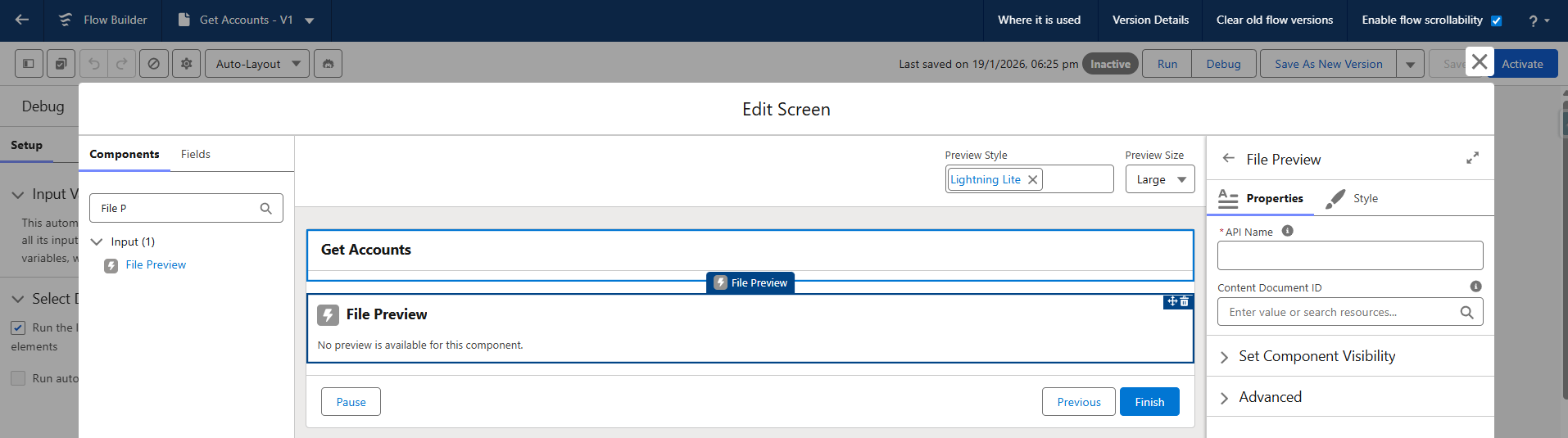
File Preview Screen Component
In screen flow itself, we can preview the files and view the details easily. It would replicate the same file preview behaviour that already we have in the files records. By using this option, we can view the file details which are uploaded by using the upload component in screen flow.
Conclusion
I have explored the above features in the pre-release org and worked with them. Really, all look great and are very useful. I hope this Spring ’26 release delivers such important features in Flow to us. I also hope you guys try them out and get a clear idea about these new features. Stay tuned for our upcoming blogs with more useful contents like this blog.
